Retyping code from a paused tutorial is slow, and one wrong character is enough to break the build. Text recognition (OCR) can copy it for you, but code is harder than prose. Symbols matter, look-alike characters are everywhere, and in some languages the indentation is part of the syntax.
First check the description, the pinned comment or the course page for a repository: the original file beats any copy. If there isn’t one, pause on a frame where the code has stopped moving, go full screen, and capture it with text recognition. Paste it into your editor, run the formatter and linter, and check look-alike characters such as O and 0.
Before you capture anything, look for the source
The best copy of the code is the one the presenter actually wrote. It has the right indentation, the comments the video cropped out, and the lines that scrolled off screen. Spend a minute looking for it:
- The description and the pinned comment. Creators often link a GitHub repository, a gist or a blog post there.
- The course page. Paid courses usually have a resources or downloads tab next to each lesson.
- A code search. Paste one distinctive line, such as a function name and its arguments, into GitHub’s code search (you need to be signed in). Tutorials are often built from public example repositories.
- The end of the video. Some presenters show the complete file at the end, which saves you stitching screens together.
If none of that turns anything up, capture it from the frame.
Get a crisp frame
A sharp frame is half the work. Code in tutorials is often small, light-on-dark and compressed, which is a hard combination for any recognizer.
- Pause after the motion stops. Wait until the editor has finished scrolling and any typing animation is complete. On YouTube, , and . step one frame at a time while the video is paused.
- Go full screen and pick the highest quality the player offers. Code shot at 1080p or higher reads far better than a 480p stream.
- Turn off captions, which tend to sit right on top of the bottom lines of the editor.
- Move the pointer away. A cursor or a player control over a bracket is enough to lose it.
Capture the snippet
The built-in way is a screenshot read with Live Text. Press ⌃⇧⌘4 to copy a screenshot to the clipboard, choose File → New from Clipboard in Preview, and drag across the code. It works, but for a long lesson you’ll repeat those steps dozens of times.
In Unpixel
Unpixel puts the capture on one shortcut. Press ⇧⌘2, drag over the code and let go; the text is on your clipboard, ready to paste into your editor.
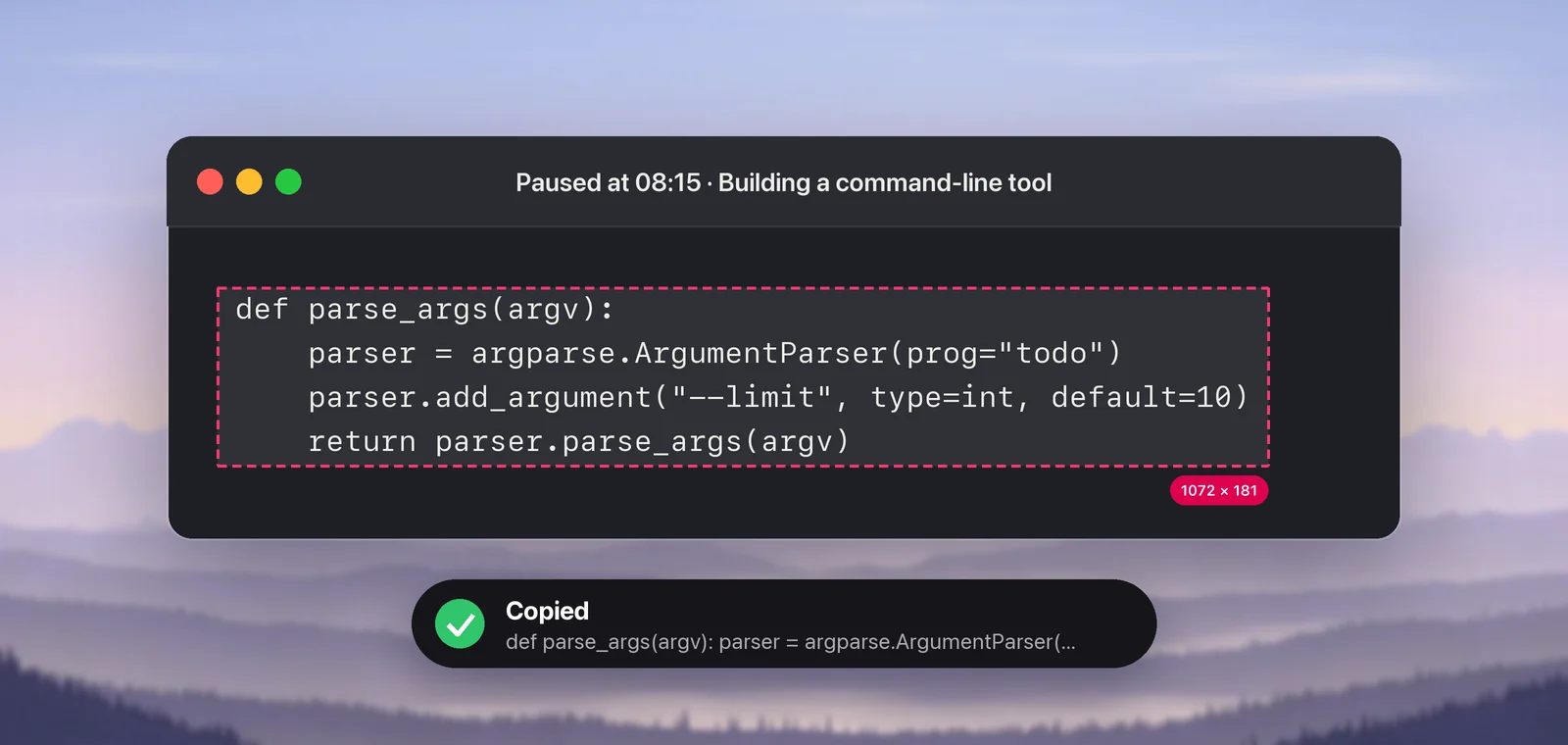
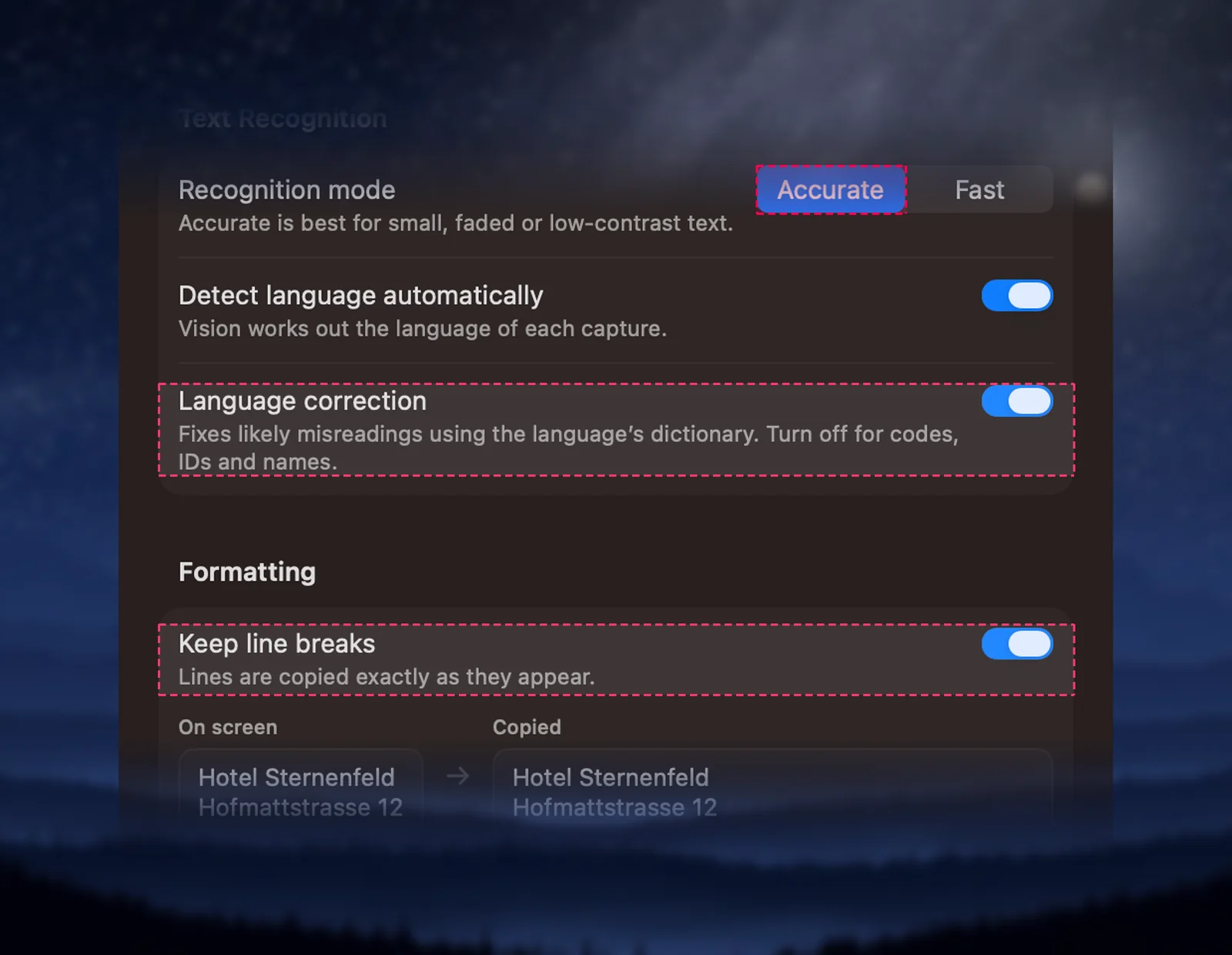
Drag over the code itself and leave out the editor’s line-number gutter, or the numbers end up in your paste. Three settings in Settings → Recognition matter for code:
- Recognition mode: Accurate. It’s the default, and it handles small, low-contrast text better than Fast.
- Language correction: off. It’s on by default and fixes likely misreadings using a dictionary. That helps with sentences but can “fix” identifiers like
cfgorargvinto real words. - Keep line breaks: on. Also the default. Each line of code stays its own line instead of being joined into a paragraph.
Fix the usual recognition slips
Even a sharp capture can trip on characters that look alike in a coding font. These are the usual suspects:
| On screen | Can come back as | How to catch it |
|---|---|---|
0 (zero) |
O (letter) |
Syntax highlighting: a number and a name are colored differently |
l, 1, I, | |
Each other | The linter reports an undefined name |
" and ' |
Curly quotes | Search for “ ” ‘ ’ and replace them |
-- |
A long dash | Command-line flags stop working |
` (backtick) |
' |
Template strings and shell commands break |
rn |
m |
Misspelled names, such as retum for return |
A coding font in your own editor helps here, because it gives these characters distinct shapes. If you see a name you don’t recognize, compare it against the frame before you assume the presenter made a typo.
Re-indent, format and lint
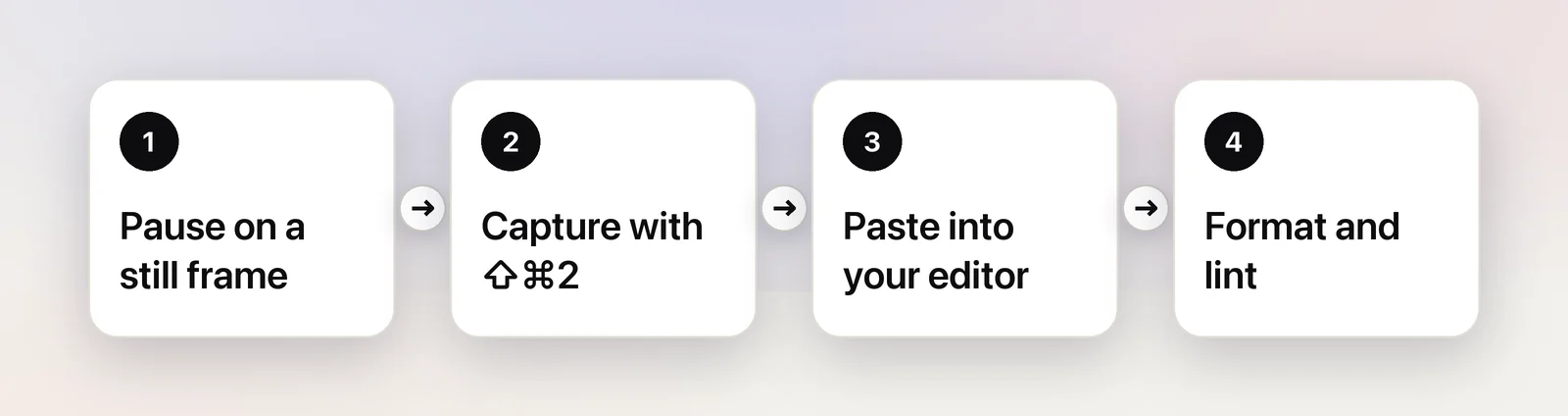
Text recognition reads characters, not whitespace, so expect every line to arrive flush left. Runs of spaces inside a line, such as aligned comments, usually shrink to one.
- Languages with braces (JavaScript, Go, Rust, Swift, C#): paste the code and let the formatter rebuild the indentation. In VS Code, that’s Format Document, ⇧⌥F on a Mac.
- Python and YAML: indentation is part of the meaning, and no formatter can guess it. Re-indent by hand while looking at the frame, then run your formatter to tidy the rest.
- Lint and run. A linter flags undefined names, which is where most misread letters show up. A quick test run catches what remains.
Long files across several frames
When the presenter scrolls through a file, capture each screenful in order and paste them one after another. Screens usually overlap by a few lines, so look for duplicated lines at each seam and delete them. Unpixel keeps every capture in its searchable history, so if you paste one out of order, click it there to copy it again.
If the same tutorial is on YouTube, our guide to copying text from a YouTube video covers the transcript and the player shortcuts in more detail.
Frequently asked questions
Does text recognition keep indentation?
Usually not. Recognition reads the characters, not the spaces in front of them, so lines tend to come back flush left. Re-indent them in your editor, by hand for Python or YAML.
Why does my pasted code fail on the quotes?
Recognition can return curly quotes where the video shows straight ones, because both look alike at small sizes. Search for curly quotes and replace them with straight ones before you run anything.
Can I reuse code from someone’s tutorial?
Check the creator’s license or terms first. Code shared for learning is often fine to use in your own practice project, but publishing it may need permission or attribution.
Sources
- Basic editing: formatting — Visual Studio Code documentation code.visualstudio.com
- Keyboard shortcuts for YouTube — YouTube Help support.google.com