A stack trace pasted into a ticket as a screenshot. A log scrolling past in someone’s screen share. A console on a remote machine with no clipboard at all. Developers spend a surprising amount of time copying text that arrives as pixels, and one misread character in a hash or a hostname can send you down the wrong path. This is a field guide to doing it quickly and checking the result.
Ask for text first: logs pasted in a code block beat any screenshot. When all you have is pixels, open the screenshot in Preview and select the text with Live Text, or capture it straight from the screen with an OCR tool. Turn off language correction for code, check look-alike characters such as 0 and O, and verify IDs and line numbers before you act on them.
Ask for text before you OCR anything
Text recognition is the fallback, not the plan. A few habits remove most of the need for it:
- Ask for logs as text. An issue template that asks reporters to paste output in a fenced code block saves everyone time. Screenshots can stay for the UI.
- Pipe output to the clipboard. On a Mac,
your-command 2>&1 | pbcopycopies everything, including errors. Copying text from Terminal has more tricks for selections, tmux and ssh. - Use the crash report. For a Mac app, the full report in Console is complete and selectable. See copying an error message on Mac for alerts and reports.
When none of that is possible, here’s what works.
Screenshots in bug reports
The built-in way handles a screenshot file well:
- Open the screenshot in Preview, or press Space on it in Finder for Quick Look.
- Drag across the text with Live Text, from the exception name to the last frame you need.
- Press ⌘C, and paste into a scratch file in your editor.
If the screenshot is an image in a web page or chat, copy the image first, then choose File → New from Clipboard in Preview.
You rarely need the whole trace. The exception type and message are what you search for. The frames that point into your own code tell you where to look; paste a file path into your editor’s quick-open to jump there. Before trusting a line number, compare it with the screenshot: 418 and 413 are easy to swap when the image is small.
Logs in screen shares and remote consoles
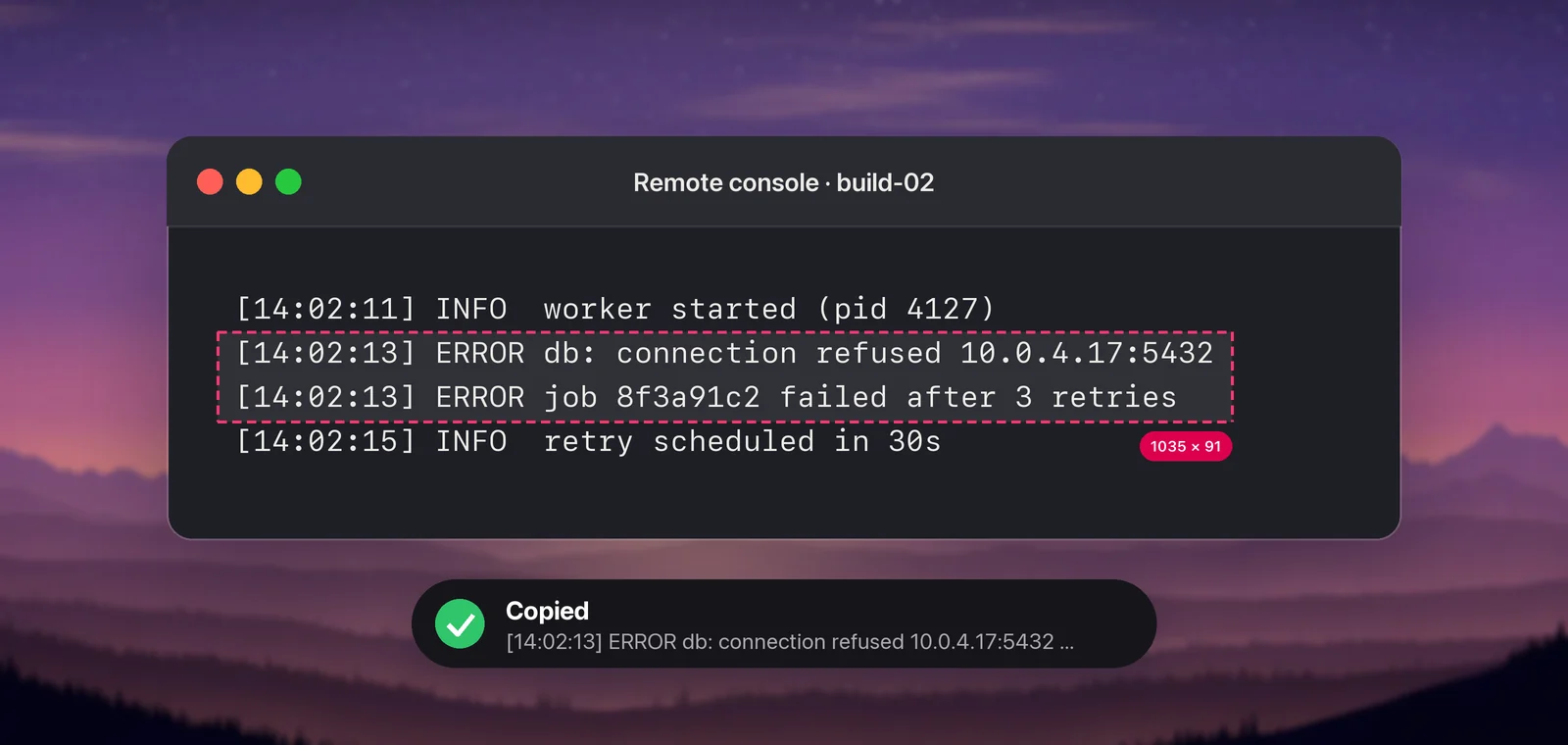
A screen share in a video call is a video stream. A remote console in a browser, such as a VM console, a KVM over IP or a VNC session, is often the same: pixels, with no clipboard between you and the machine. Live Text can’t reach either, because there’s no image file to open. You can take a screenshot to the clipboard with ⌃⇧⌘4 and read it in Preview, or capture the region directly with an OCR tool.
Some things to keep in mind:
- Capture lines, not screens. A tight selection around the error lines gives cleaner text than the whole window.
- Check every character of identifiers. IP addresses, UUIDs, commit hashes and hostnames have no dictionary to fall back on. Compare the length and the first and last few characters.
- Long logs need a different route. Capturing ten screens and stitching them is slow and error-prone. Get the file itself, or ask the person sharing to paste it.
For clipboard problems in remote desktop apps, see copying text from a remote desktop.
Code from videos and talks
Code in a conference talk or tutorial has its own problems: indentation is lost, quotes may come back curly, and compression blurs symbols. Look for the speaker’s repository first. If you must capture, pause on a still frame at full screen, then format and lint what you paste. Copying code from a video has the full method and a table of the usual misreadings.
In Unpixel
Unpixel puts all of the above on one shortcut. Press ⇧⌘2, drag over the trace in a ticket, the log in a screen share or the console in a browser, and let go. The text is on the clipboard, and the capture stays in a local, searchable history, so the request ID you grabbed this morning is still findable after lunch. From Clipboard reads an image you’ve already copied, such as a screenshot from a chat.
Settings for code
In Settings → Recognition:
- Recognition mode: Accurate. Better for small, low-contrast text, which describes most terminals.
- Language correction: off. It fixes likely misreadings using a dictionary, which helps prose and hurts identifiers. The setting’s own description says to turn it off for codes, IDs and names.
- Keep line breaks: on. Each log line or line of code stays on its own line.
Tables to Markdown for READMEs
Benchmark results in a PDF, a compatibility matrix in a slide, a pricing grid in a screenshot: you want them as a Markdown table in a README or a pull request. GitHub builds tables from pipes and hyphens, with colons for alignment and \| for a literal pipe.
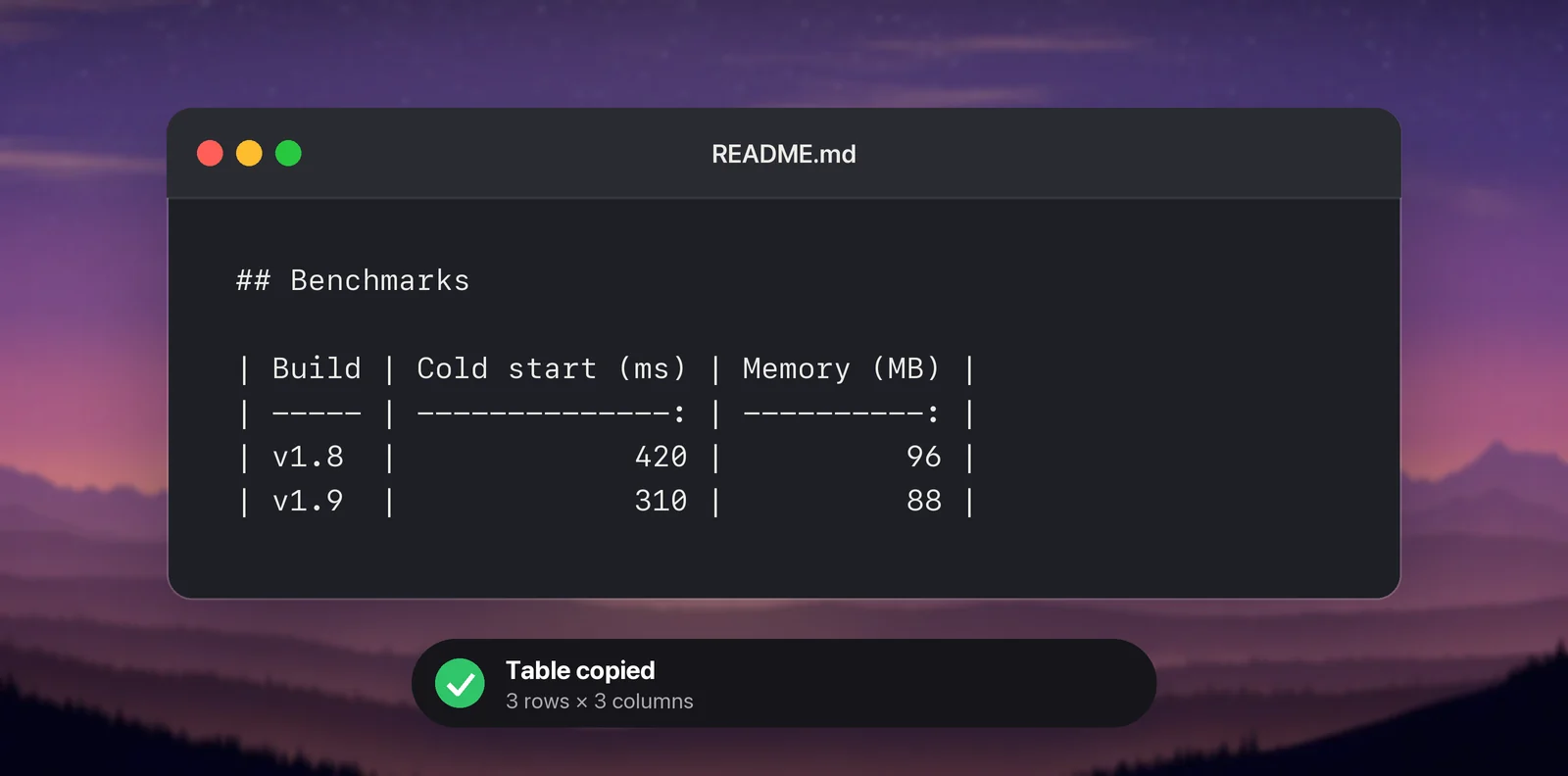
Unpixel spots tables in a capture. Spreadsheets get real cells, while code editors and other plain-text apps get the format chosen in Settings → Recognition → Tables as plain text: Tab-separated (the default), Markdown or Aligned columns. With Markdown, the paste is a GitHub-flavoured table with pipes escaped and numeric columns right-aligned. You can also leave the setting alone and right-click a table in the history to choose Copy as Markdown or Copy as CSV.
Code and terminal listings such as ls -l stay plain text even though their columns line up, so a directory listing doesn’t turn into a table.
Automate with the URL scheme
Unpixel answers to unpixel:// links, so any launcher or script can start a capture:
open "unpixel://capture"              # crosshair, same as ⇧⌘2
open "unpixel://capture?translate=1"  # copy a translation instead
open "unpixel://clipboard"            # read the image on the clipboard
Save unpixel://capture as a Raycast Quicklink, use it in an Alfred workflow, or add an alias to your shell profile. The capture is still interactive: you drag the area yourself.
Checklist before you act on copied text
- Search the exception message in quotes, without paths, IDs or timestamps.
- Compare IDs, hashes and IPs with the original, character by character.
- Re-check line numbers and file names against the screenshot.
- Straighten curly quotes and dashes before running any command.
- Strip tokens and personal data before posting the text elsewhere.
Frequently asked questions
Can I OCR a whole log file that’s only visible on a remote screen?
Only what fits on screen, one screenful at a time. For anything longer, get the file itself: copy it off with scp, ask for access to your log platform, or have someone attach it to the ticket.
Why do hex IDs and hashes come back wrong?
Characters like 0 and O, 1, l and I, or 5 and S look alike in many fonts, and spelling correction may “fix” a random string into a word. Turn correction off, and compare the length and the first and last characters with the original.
Does the URL scheme let a script read my screen without me?
No. unpixel://capture starts the same crosshair you get from the shortcut, and you still choose the area by dragging. Nothing reads the screen without your own selection.
Sources
- Interact with text in a photo using Live Text in Preview on Mac — Apple Support support.apple.com
- Organizing information with tables — GitHub Docs docs.github.com
- Quicklinks — Raycast Manual manual.raycast.com
- pbcopy: copy data from STDIN to the macOS clipboard — SS64 ss64.com