“Copying text from a YouTube video” can mean two different jobs. Sometimes you want the words someone says; sometimes you want the words shown on screen, like a slide, a code sample or a link in the corner. YouTube gives you the first for free, and the second takes text recognition on a paused frame.
For the spoken words, open the video’s description, click Show transcript and copy the lines you need. For text shown on screen, such as a slide, code or a URL, pause on a sharp frame, raise the quality and go full screen. Then screenshot it and use Live Text in Preview, or press ⇧⌘2 with Unpixel and drag over it.
Spoken words and on-screen text are separate problems
The transcript is built from captions, so it only contains speech. Anything drawn into the picture itself stays out of it, however important it looks. Work out which kind of text you’re after before you start:
| What you want | Where it lives | Fastest route |
|---|---|---|
| A quote from the narration, an interview or a lecture | The captions | YouTube’s transcript |
| A slide, a code sample, a chart label, an on-screen address | The pixels of the frame | Pause and capture the frame |
| A link the creator mentions out loud | Usually the description | Copy it from the description |
Copy the spoken words with YouTube’s transcript
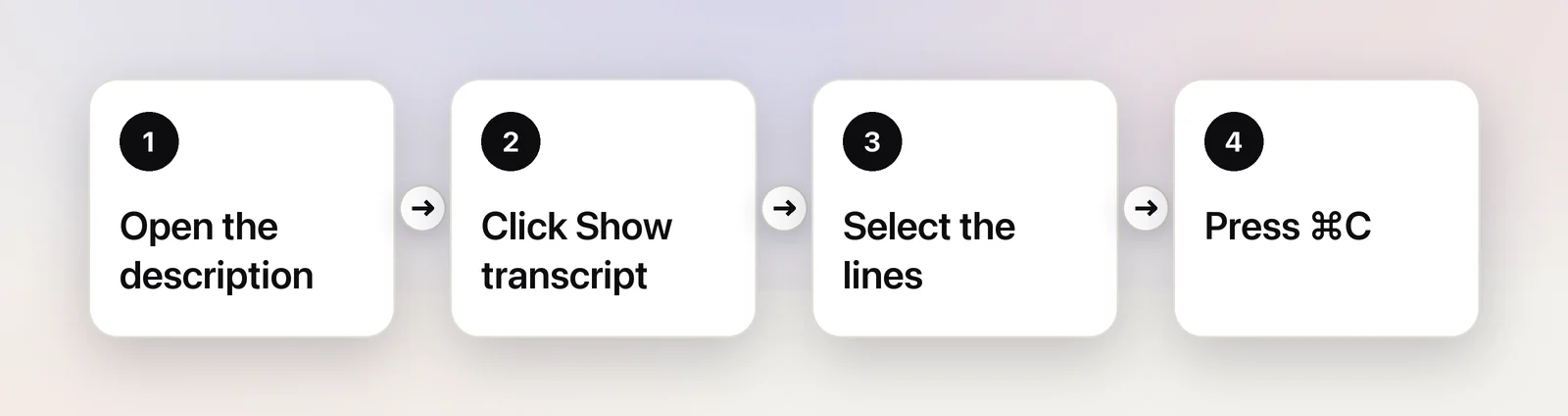
- Under the video, click the description to expand it (on most videos there’s a …more link).
- Click Show transcript. A panel opens beside the video and follows along as it plays.
- Drag across the lines you want. Clicking a single line jumps the video to that moment, which is handy for checking a quote.
- Press ⌘C and paste wherever you need it.
Timestamps usually come along with the text. Delete them by hand for a short quote, or use your editor’s find and replace for a long one.
Two limits are worth knowing. A video without captions has no transcript, and automatic captions mishear names, numbers and technical terms. For anything you’ll publish or act on, play that part back and check it.
Copy text shown on screen
Get a clean frame first
YouTube’s own keyboard shortcuts make this quicker. Click the player once so it has focus, then:
- Press K to pause.
- Press , or . while paused to step one frame back or forward, until the text is crisp.
- Press C to hide captions if they cover the slide.
- Press F for full screen.
Then open the settings menu (the gear icon) and choose the highest Quality your connection allows. Automatic quality can drop to a blurry stream without telling you, and small text suffers first.
The built-in way: screenshot plus Live Text
In Safari on a Mac with Apple silicon, try dragging across the words in the paused frame first: Safari supports Live Text in web video. YouTube’s own controls and overlays sit on top of the picture, though, so it doesn’t always take.
The method that works in every browser is a screenshot. Press ⌃⇧⌘4 and drag over the text to copy a screenshot to the clipboard. In Preview, choose File → New from Clipboard, drag across the words and press ⌘C. Our general guide to copying text from a video walks through it step by step.
In Unpixel
Unpixel skips the trip through Preview. With the video paused in Safari, Chrome or any other browser, press ⇧⌘2, drag over the slide and let go. The text is on your clipboard, read on your Mac by Apple’s Vision framework.
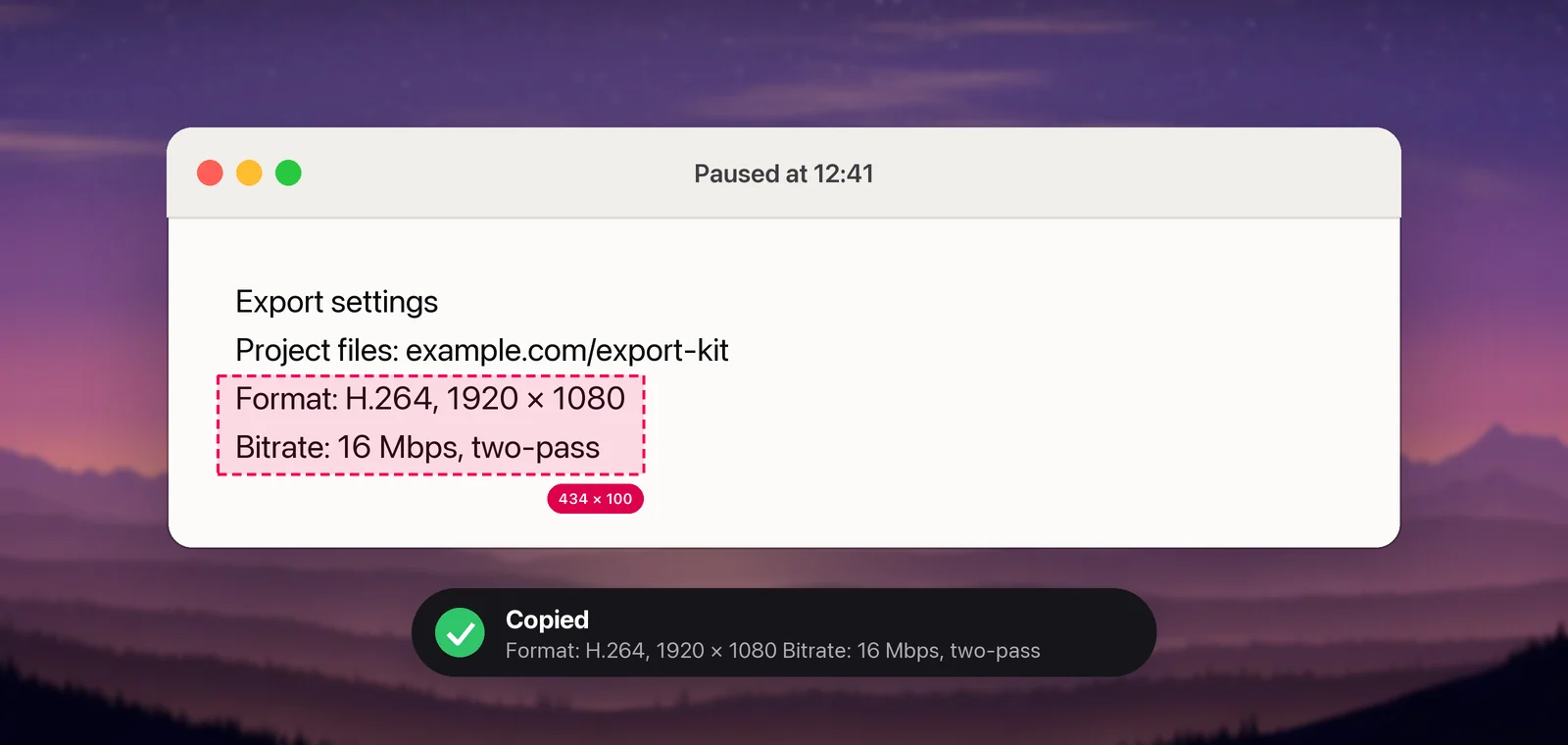
A few things make it handy for YouTube in particular:
- Slides in another language. Hold ⌥ as you let go, and the clipboard gets a translation into your language instead. Translation runs on your Mac with Apple’s Translation framework, and macOS asks before it downloads a language.
- QR codes on screen. If the frame shows a QR code or barcode, you get its contents, such as the link it points to.
- Links. A web address captured on its own is recognized as a link and filed under Links in the history.
You don’t need to install anything in the browser for this. It’s a menu bar app, so it reads YouTube the same way it reads any other window.
Mistakes that cost you a second try
- Capturing mid-motion. Animated slides and scrolling code look sharp to your eye but soft in a single frame. Step a frame or two forward and try again.
- Leaving the player controls in shot. Moving the pointer over the video brings up the progress bar and buttons. Start your drag away from the bottom edge, or wait for the controls to fade.
- Reading through captions. Captions drawn over a slide hide letters underneath. Press C to turn them off before you capture.
- Trusting the paste blindly. Check look-alike characters in URLs and code, such as O and 0, before you open or run anything. For code samples, see copying code from a video tutorial.
Most YouTube videos can be captured this way. Some paid movies and rentals are protected, though, and appear black to screenshots and screen-capture apps. For those, the captions or the transcript are your only source.
Frequently asked questions
Why is there no Show transcript button?
YouTube builds the transcript from the video’s captions, so a video without captions has no transcript. Automatic captions can also contain mistakes, so check names and numbers before you rely on them.
Do I need a browser extension to copy text from YouTube?
No. The transcript is built into YouTube, and on-screen text can be read with macOS’s own tools or a menu bar app. Extensions that read YouTube pages usually ask for access to the sites you visit, which is worth weighing before you install one.
Does this work for YouTube Shorts?
Yes for on-screen text: pause the Short and capture the frame the same way. Shorts are vertical, so the text is often small; make the browser window as tall as you can first.
Sources
- View video transcripts — YouTube Help support.google.com
- Keyboard shortcuts for YouTube — YouTube Help support.google.com
- Interact with text in a photo using Live Text in Preview on Mac — Apple Support support.apple.com
- Release Notes for Safari Technology Preview 147 with Safari 16 features (Live Text in video) — WebKit webkit.org