
Support wants “the exact error message”, and you’re looking at an alert you can’t select. Retyping it invites mistakes, and one wrong digit in an error code sends your search somewhere else entirely. Here’s how to get the precise wording out of a Mac, from the quick checks to a method that works on any dialog.
Try dragging across the message first: some apps make alert text selectable. After a crash, click Report… to see the full report as copyable text, and Console (in Applications → Utilities) keeps crash and log reports you can copy later. For a dialog that won’t select, copy it as an image and read it with Live Text or an OCR tool. Remove your name and file paths before sharing.
Try selecting it first
Whether you can select an alert’s text depends on the app that shows it, so it’s worth five seconds to check:
- Drag across the message. If a highlight appears, press ⌘C.
- Look for a Show Details, More Info or disclosure triangle. The detailed text behind it is often selectable even when the headline isn’t.
- Check for a Copy button. Developer tools, browsers and many sync apps add one next to long errors.
Plenty of error text is ordinary text to begin with. Terminal output, browser error pages and log windows all select normally. For a long Terminal error, pipe it straight to the clipboard instead of dragging across screens of output:
brew upgrade 2>&1 | pbcopy2>&1 sends the error output along with the normal output, and pbcopy puts it all on the clipboard. Swap in whatever command produced the error.
Apple’s Installer has its own record: when an installation fails, choose Window → Installer Log to see every step as text you can select and copy.
Crash and problem reports: copy the full report
When an app quits unexpectedly, macOS shows a dialog with a Report… button. Click it, even if you don’t plan to send anything: the window that opens contains the full problem report as text. Click into the report, press ⌘A, then ⌘C.
For a developer, the first part of the report is usually what matters: the app version, the exception type, the crashed thread and its first few lines. If a support form limits how much you can paste, send that part and attach the full file.
Find the same message in Console
Console, in Applications → Utilities, keeps reports long after the dialog is gone.
- Open Console and look under Reports in the sidebar.
- Choose Crash Reports (files ending in .ips), Spin Reports for hangs, or Log Reports.
- Select a report. Its text appears in the lower part of the window, where you can select and copy it.
- To attach the file instead, choose File → Reveal in Finder.
If you aren’t logged in as an administrator, Console lists only user reports; administrators see system reports too. Some errors never make a report. For those, select your Mac under Devices, click Start in the toolbar (Console asks for an administrator name and password if you aren’t one) and make the error happen again. Then type the app’s name in the search field to narrow the live log down to the moment it failed.
Capture a dialog that won’t select
Some alerts are drawn as pure interface. The free way to read them is a screenshot plus Live Text:
- Press ⌃⇧⌘4 and drag over the alert. Holding Control copies it to the clipboard instead of saving a file.
- Open Preview and choose File → New from Clipboard.
- Drag across the message with the text cursor and press ⌘C.
Keep the image too if you’re writing to support. A screenshot shows context, like which window the alert belonged to, while the text lets them search their own records. Send both.
In Unpixel
Unpixel turns those three steps into one. Press ⇧⌘2, drag over the alert, and let go: the wording, including the code in brackets, is on your clipboard. The shortcut works whatever app put the alert up, and recognition happens on your Mac.
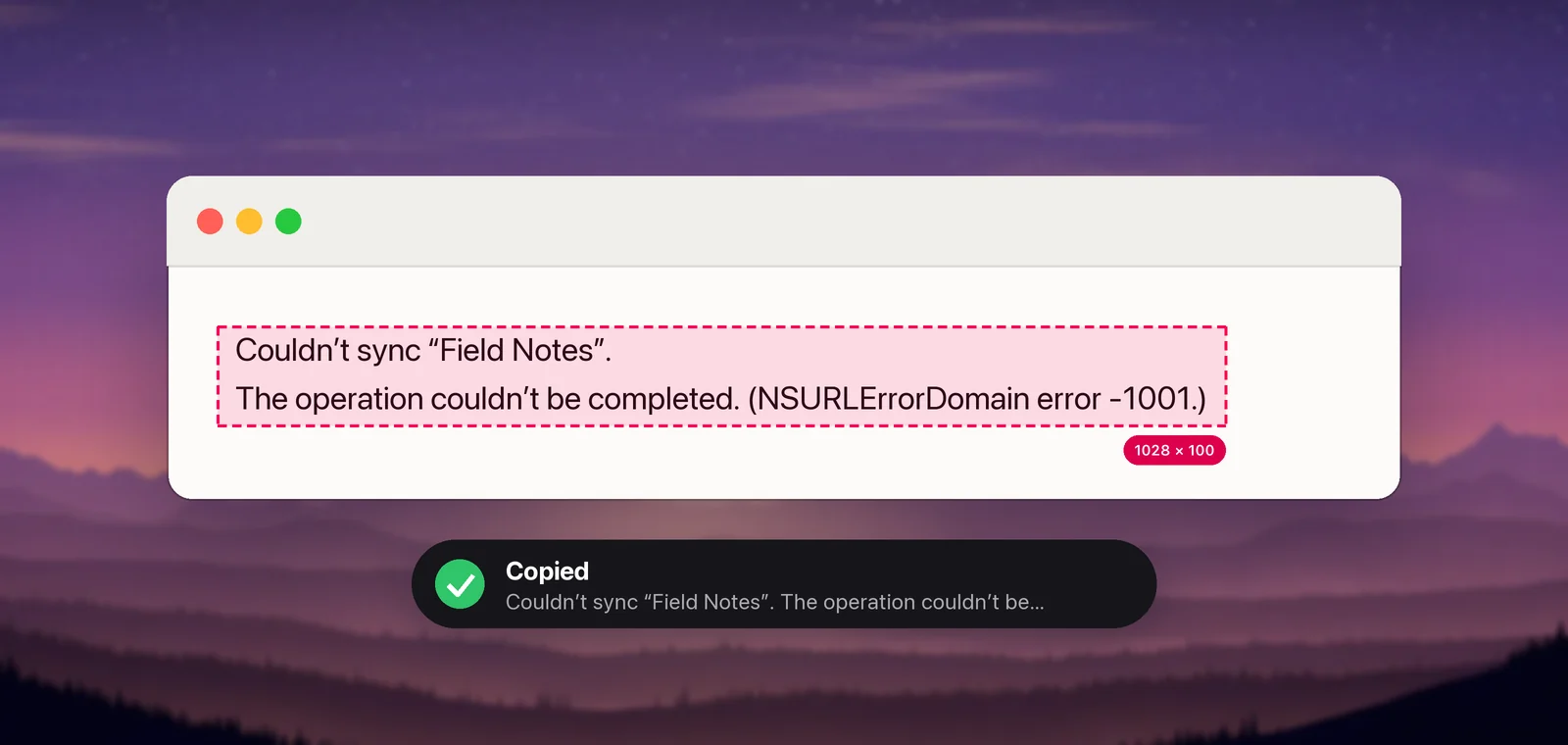
For error codes, turn off Language correction in Settings → Recognition. It fixes likely misreadings using a dictionary, which helps with sentences but can “correct” a hex code or an identifier into a real word. The setting’s own description says to turn it off for codes, IDs and names.
Search the error the smart way
A good search uses the parts of the message that are the same for everyone and drops the parts that are unique to you.
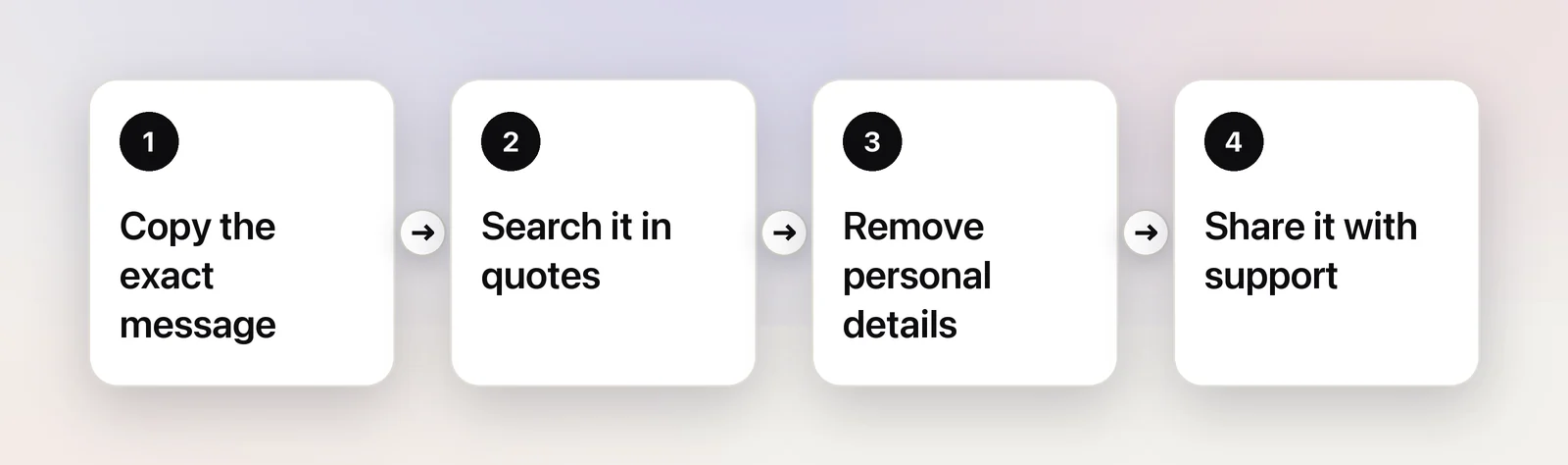
- Keep the stable part in quotes.
"The operation couldn’t be completed"alone matches thousands of problems. Add the error domain and number:"NSURLErrorDomain error -1001". - Drop what’s unique to you: file names, your username, memory addresses like
0x600003a4c000, timestamps and long random IDs. - Add context: the app name and version, and “macOS 26” or whichever version you run.
- Look the code up at the source. Many codes are documented. Apple’s developer documentation lists -1001 in NSURLErrorDomain as a request that timed out, which already points at the network rather than the app.
Remove personal info before you share
Error messages and reports carry more about you than you’d expect. Before you paste one into a forum or a public bug tracker, check for:
- Your username in paths like
/Users/yourname/…. In TextEdit, Edit → Find → Find and Replace… swaps every copy at once. - Email addresses, hostnames and IP addresses, including those of work servers.
- Serial numbers, license keys and tokens. A link with
?token=in it can be as good as a password. - Customer or patient data in file names, document titles and window titles.
Support teams you trust with your account usually want the unedited version, so keep a copy. For screenshots, black out details properly instead of blurring them; our guide to redacting a screenshot on Mac shows how.
Frequently asked questions
What does “The operation couldn’t be completed” mean?
On its own, very little: it’s a generic wrapper many apps use. The useful part is in the brackets after it, usually an error domain and a number such as “NSURLErrorDomain error -1001”. Search for that part.
Where does my Mac keep crash reports?
Open Console and look under Reports in the sidebar: Crash Reports holds files ending in .ips. If you aren’t logged in as an administrator, Console shows only user reports. File → Reveal in Finder shows where a report is stored.
Can I copy an alert’s text with ⌘C?
Only if the text is selectable, which depends on the app showing the alert. Try dragging across the message: if a highlight appears, ⌘C works. If not, copy it as a picture and recognize the text.
Sources
- View reports in Console on Mac — Apple Support (Console User Guide) support.apple.com
- View log messages in Console on Mac — Apple Support (Console User Guide) support.apple.com
- Take screenshots or screen recordings on Mac — Apple Support (Mac User Guide) support.apple.com
- Interact with text in a photo in Preview on Mac — Apple Support support.apple.com
- URLError.Code.timedOut — Apple Developer Documentation developer.apple.com