OCR rarely gets a whole line wrong. It gets one character wrong, and that character is usually in a licence key, a total or someone’s name. The mistakes follow patterns, though, and once you know them you can find them in seconds. Here are the common ones, why they happen, and a short routine for catching them.
Most OCR mistakes fall into a few groups: look-alike characters (O and 0, l, 1 and I, S and 5), letters merged or split (rn read as m), swapped quotes, dashes and minus signs, lost accents, and broken line breaks. Zoom in before capturing, turn off language correction for codes, then check every number, name and code against the source.
Look-alike characters
The classic OCR error is a character that looks almost exactly like another. In ordinary words, context saves the day: “b0ok” isn’t a word, so the engine picks “book”. In codes there’s no context, so it has to guess from the shape alone.
| On the page | Often read as | Where it bites |
|---|---|---|
| O (letter) | 0 (zero) | Licence keys, postcodes, flight and order numbers |
| l (lowercase L) | I (capital i), 1, or the pipe character | Passwords, URLs, serial numbers |
| I (capital i) | l, 1 | Codes, Roman numerals |
| S, Z, B, G | 5, 2, 8, 6 | Product and registration numbers |
| 5, 2, 8, 6 | S, Z, B, G | Prices and quantities in tables |
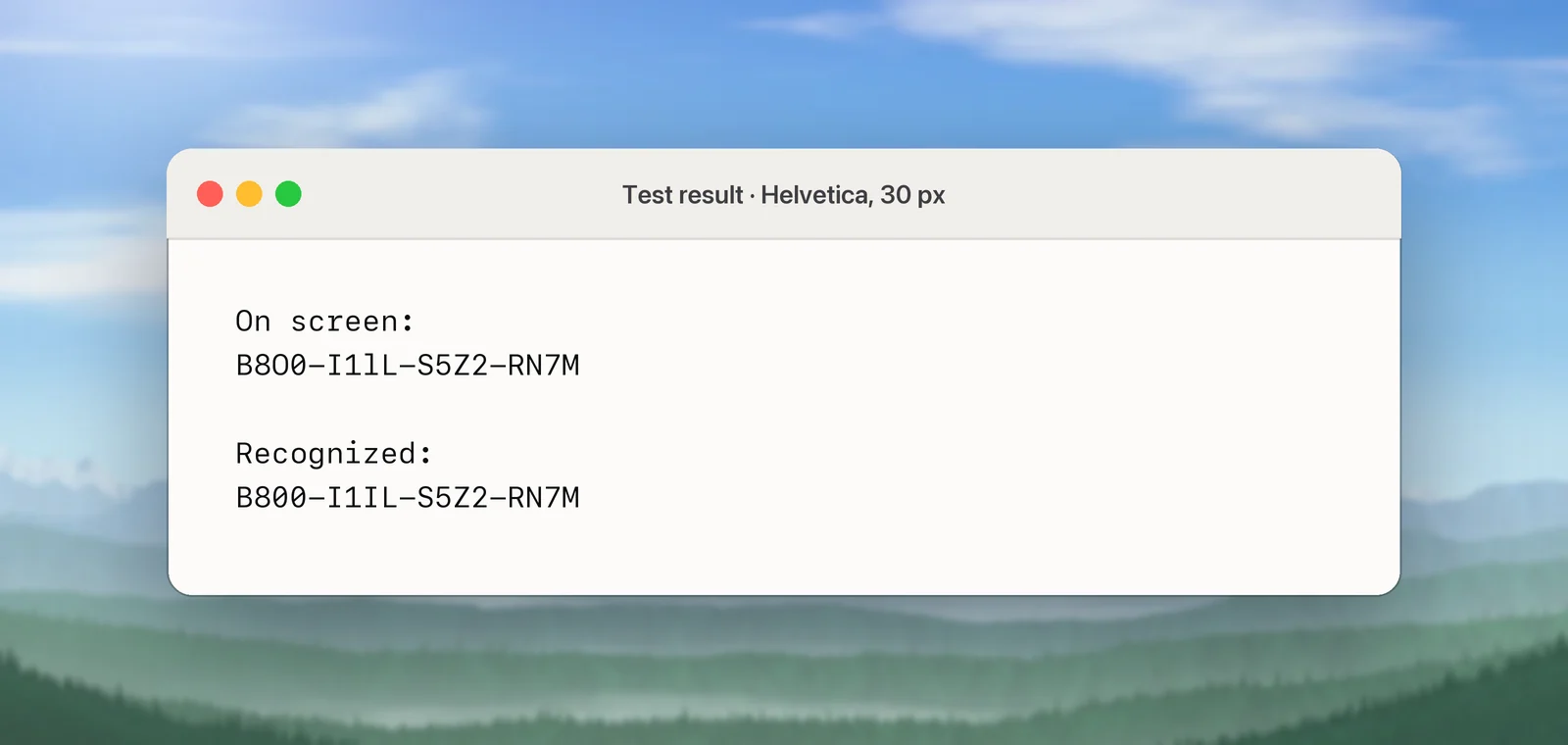
To see how real this is, we rendered the made-up key B8O0-I1lL-S5Z2-RN7M in Helvetica at 30 pixels, black on white. Then we read it with Apple’s Vision text recognizer on macOS 26, in its Accurate mode. It came back as B800-I1IL-S5Z2-RN7M: the letter O became a zero and the lowercase l became a capital I. Turning language correction off gave exactly the same result. In Helvetica those pairs are nearly identical shapes, and neither setting separated them. When the source is a code, assume these characters are suspect until you’ve checked them.
Merged and split letters
Letters that sit close together can be read as one, and one letter can be read as two:
- rn ↔ m: “modern” becomes “modem”, “burn” becomes “bum”.
- cl ↔ d: “clear” becomes “dear”.
- vv ↔ w, and li ↔ h in tight fonts.
- Ligatures: typeset books and PDFs often join fi, fl and ff into one glyph, which can come back as an odd symbol or with a letter missing.
These are sneaky because the wrong version is often a real word, so a spell checker won’t catch it. Small text makes them, and every other error on this page, far more likely. In our test, a Helvetica sentence set at 9 pixels came back with “modern” as “moder”, and a second 9-pixel sentence returned no text at all. At 12 and 18 pixels, both were perfect. Zooming before you capture prevents most of these errors.
Punctuation and quotes
OCR has to choose between characters that look the same at screen size but are different to a computer:
- Quotes: curly quotes (“ ” ‘ ’) and straight ones (" '). Prose doesn’t care. Code, CSV files and spreadsheet formulas do, and a curly quote can break them.
- Dashes: the hyphen (-), en dash (–), em dash (—) and the true minus sign (−, Unicode U+2212). A spreadsheet may treat “−12” with a Unicode minus as text, not as a negative number.
- Decimal points and commas: a missed or swapped dot turns 1.250 into 1,250 or 1250.
- Full-width punctuation: with Japanese chosen as the language, our test line “Menu: 抹茶ラテ (matcha latte)”, typed with an ordinary colon and brackets, came back with a full-width colon and brackets. They look nearly the same but won’t match a search for the normal characters.
- Bullets and symbols: a bullet (•) can come back as a dot, an “e” or nothing; currency signs such as ¥ and € can be dropped or misread.
Spaces and line breaks
Spacing errors don’t change the characters, but they break pastes:
- A line break at every visual line. Text copied from a paragraph keeps the line endings of the screen, so it doesn’t reflow. Removing line breaks from PDF text covers the fixes.
- Hyphenated words split across lines, like “exam-” and “ple”.
- Missing spaces between words set tightly, or between columns that are close together.
- Extra spaces inside words in letter-spaced headings.
Search and spreadsheet formulas are unforgiving here: a search for “Invoice 114” won’t match the same words with two spaces between them.
Accents and diacritics
Accents are small marks, so they’re the first detail lost when text is small, blurry or compressed in a video frame. Watch for:
- é, è and ê read as plain e, and ü, ö and ä as u, o and a
- ç read as c, ñ as n
- ł (Polish) read as l, and ı (Turkish dotless i) read as i
- Vietnamese, where one letter can carry two marks, losing one of them
A wrong accent can change a word’s meaning, or a name. Zoom in before capturing and, if your tool lets you, choose the language. If you need to fix them by hand, typing accents on a Mac shows the quickest ways.
When language correction helps, and when it hurts
Many OCR engines finish with a correction pass. Apple’s Vision documentation describes an optional language-correction phase, based on natural language processing, that reduces misreadings. In sentences, that fixes real mistakes, because the word around an uncertain letter suggests the likelier reading. It isn’t a spell checker, though: in our test, a sharply printed typo, “tlie” for “the”, came back as “tlie” with correction on.
It works against you with anything that isn’t ordinary language: codes, IDs, product numbers, variable names, unusual surnames and brand names. The correction nudges them towards dictionary words. Switch it off for those when your tool allows, and leave it on for prose. As the test above shows, it won’t rescue characters the font itself makes ambiguous. More on that trade-off in OCR language correction.
How we tested
The examples on this page come from images we generated with a script: black text on white, in Helvetica (Hiragino Sans for the Japanese line), at the pixel sizes given above. We read them with Apple’s Vision text recognizer in Accurate mode, with English or Japanese selected, on macOS 26.6 on an Apple silicon Mac, in October 2026. Clean, synthetic images like these are a best case; real screenshots, photos and video frames produce more errors, not fewer.
In Unpixel
Unpixel, which we make, reads with Apple’s Vision, so it’s subject to the same look-alikes. Two settings in Settings → Recognition help. Language correction has the hint “Turn off for codes, IDs and names”, and Keep line breaks decides whether lines are copied as they appear or joined into paragraphs, with words split across lines joined back together. When a QR code or barcode is in the selection, Unpixel copies the code’s contents instead of the printed text. If a barcode beside a printed serial number encodes the same number, selecting the barcode sidesteps the look-alike problem entirely. For licence keys and serial numbers specifically, see copying a serial number from an image.
A quick proofreading routine
- Paste into a plain-text editor first, such as TextEdit in plain-text mode or Notes, and put it next to the source.
- Let spell check flag nonsense words. It won’t catch “modem” for “modern”, so read the underlined words and the short ones.
- Check numbers digit by digit: totals, dates, prices, decimal points and minus signs. Count the digits against the original.
- Check codes in a font made for it, such as Monaco, which puts a slash through zero and gives l, 1 and I distinct shapes.
- Search for suspects with ⌘F: in a code, look for O, l and I; in prose, look for “rn” and stray symbols.
- Recalculate any total that came from a table, and compare it with the printed one.
That takes under a minute, and it catches almost everything that matters.
Frequently asked questions
Why does OCR confuse O and 0?
In many fonts the letter O and the digit zero are almost the same shape. The engine then relies on context, and codes, postcodes and licence keys don’t have any.
Can language correction fix OCR errors?
It fixes some in ordinary sentences by preferring real words, but it can turn codes, names and product numbers into similar dictionary words. Turn it off for anything that isn’t prose.
How do I find OCR errors quickly?
Paste the text into an editor with spell check so nonsense words get underlined, then check numbers and codes character by character in a monospaced font. Real-word swaps such as “modem” for “modern” need a read-through.
Why do accents disappear in OCR?
Accents are tiny marks, so they’re the first detail lost in small, blurry or compressed text. Zooming in before you capture usually brings them back.
Sources
- usesLanguageCorrection — Vision framework, Apple Developer Documentation developer.apple.com
- Recognizing Text in Images — Apple Developer Documentation developer.apple.com
- U+2212 MINUS SIGN — Unicode Character Database (Mathematical Operators chart) unicode.org