Some text on a Mac looks like text but behaves like wallpaper: button labels, setting names, the version line in an About box, a long notice in an installer, the status message in a web app. You drag across it and nothing highlights. That’s by design, but it doesn’t mean you have to retype it. Here are the routes, from built-in commands to reading the screen.
Look for a hidden copy command first: Control-click the item, check the Edit menu, or find the same text in a file. Otherwise VoiceOver can copy whatever it just read aloud (VO-Shift-C), and Accessibility Inspector, which comes with Xcode, shows a control’s label as copyable text. For anything else, take a screenshot and select the words with Live Text.
Why interface text isn’t selectable
Apps draw most of their interface from controls: labels, buttons, menu items and checkboxes. A control’s job is to respond to clicks, so if its label were selectable, every click would risk starting a selection instead. Developers make text selectable only where they expect you to copy it, such as documents, fields and some detail panes.
Two other cases look the same but have different causes. Web apps often turn selection off with a line of CSS; see copying text from a website that won’t let you. And splash screens, games and some installers show text as images, so there are no letters to select at all.
Look for a Copy button or menu first
Before reaching for tools, check whether the app already offers a way to copy. A few places worth trying:
- Control-click the item. Many apps put Copy in the contextual menu even when the text won’t select.
- The Edit menu, with ⌥ held down. In Finder, for example, holding ⌥ turns the Edit menu’s copy item into Copy as Pathname (⌥⌘C), which copies a file’s full path; see copying a file path on Mac.
- Info and detail panes. Finder’s Get Info window (⌘I) lets you select the Where path. System Information shows hardware details as text you can select.
- Save or Print buttons. Apple’s Installer shows Print… and Save… under a software license, so you can save the license to a file and copy from that.
- The same words in a file. Logs, release notes and license files often sit next to the app. Control-click an app and choose Show Package Contents to look inside it; text resources are usually in Contents → Resources.
Built in: VoiceOver can copy what it reads
VoiceOver, the screen reader built into macOS, reads labels aloud, and it has a command to put the last thing it said on the clipboard. It feels unfamiliar the first time, but it works on almost any control.
- Turn on VoiceOver with ⌘F5.
- Move the VoiceOver cursor to the label. The VO keys are ⌃⌥ by default, so press ⌃⌥ with the arrow keys to move from item to item.
- When VoiceOver reads the text you want, press ⌃⌥⇧C (VO-Shift-C) to copy the last spoken phrase.
- Press ⌘F5 again to turn VoiceOver off, and paste.
VoiceOver often adds the control type to what it says, such as “button” or “checkbox”, so trim those words after pasting.
Power-user route: Accessibility Inspector
Accessibility Inspector is Apple’s tool for checking how apps describe themselves to assistive technology. It comes with Xcode, the free developer app, so it’s a large download if you don’t already have Xcode.
- In Xcode, choose Xcode → Open Developer Tool → Accessibility Inspector.
- Turn on its inspection pointer from the inspector’s toolbar.
- Hover over the label you want. The inspector lists that element’s properties, including its label, title and value.
- Select the text in the inspector and copy it.
This is the most exact route: you get the string the app itself uses, character for character, including text that’s cut off on screen with “…”. Technical writers and localisation testers use it for that reason.
Capture any label or pane
When none of the above works, read the screen. The built-in way:
- Press ⌃⇧⌘4 and drag over the text to copy that area as an image.
- Open Preview and choose File → New from Clipboard.
- Hover over the words until the text cursor appears, drag to select, and press ⌘C.
In Unpixel
Unpixel collapses that into a single shortcut. Press ⇧⌘2, drag over the label, pane or notice, and let go: the words are on your clipboard, recognized on your Mac. It reads whatever is on screen, so it works the same on a setting name, a greyed-out button, an installer page or a game menu.
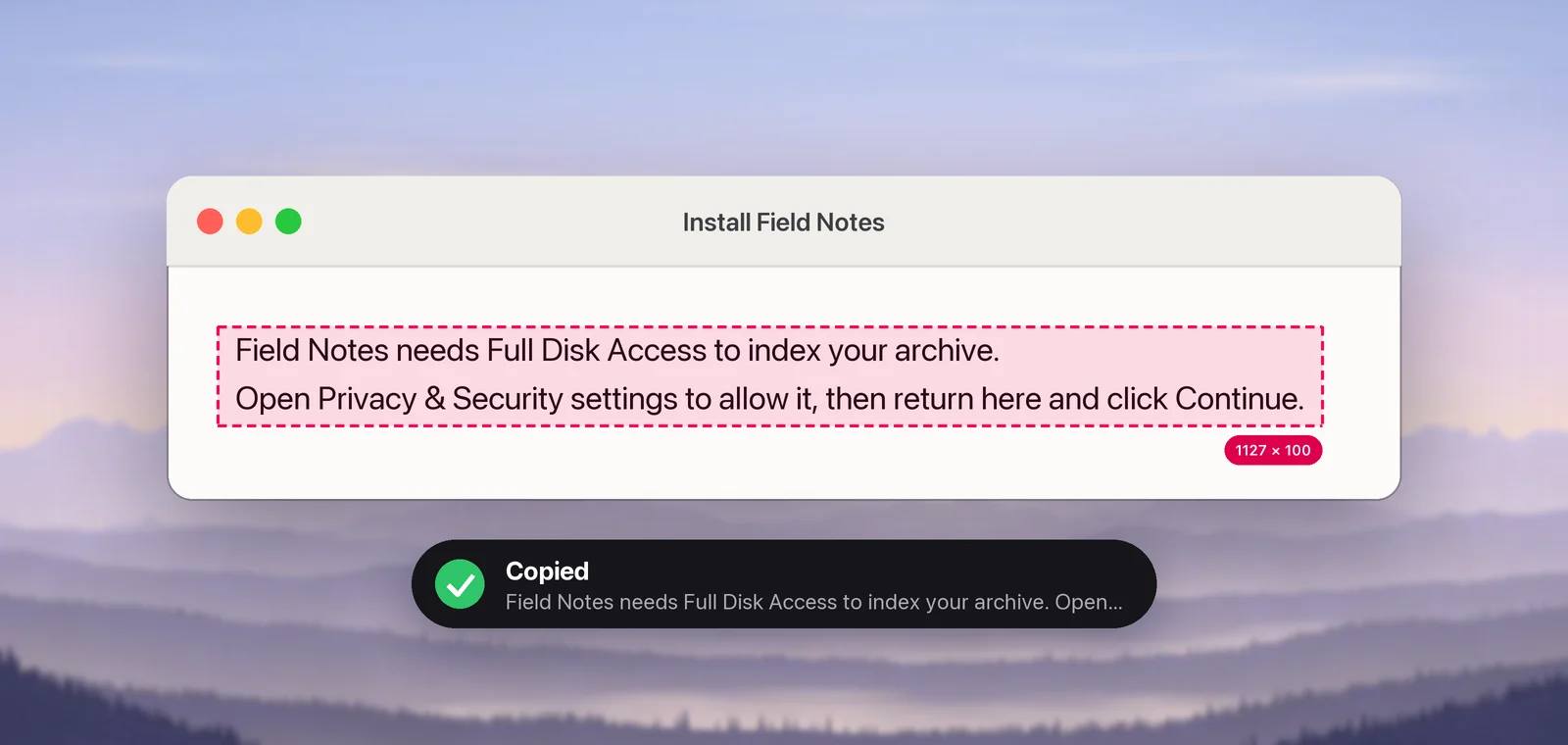
For whole panes, leave Keep line breaks on in Settings → Recognition so each setting stays on its own line. If the interface is in a language you don’t read, hold ⌥ as you let go to copy a translation instead; it’s useful for translating an app’s interface.
Small interface fonts: enlarge first
Interface text is small, often light grey on a light background, and that’s where text recognition makes the most mistakes. Make the text itself bigger before you capture, so every letter gets more pixels:
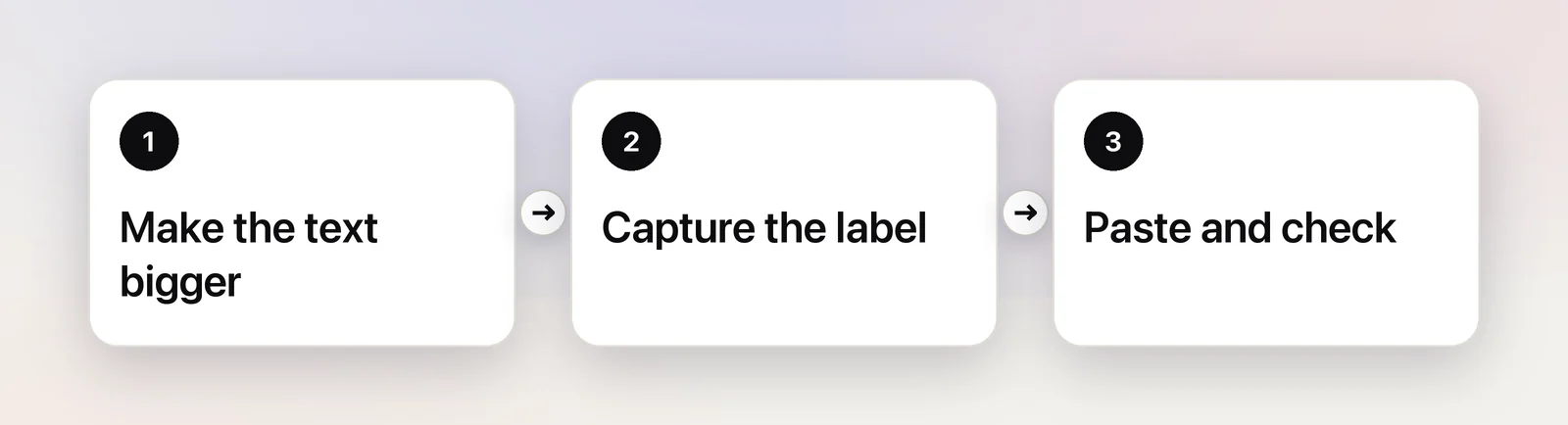
- In a web app, a browser or a document, press ⌘+ a few times. Most apps that show web pages or documents redraw their content larger, and ⌘0 usually sets it back.
- For settings panes and other interface, open System Settings → Displays and choose a resolution that makes text larger. Everything on screen is redrawn bigger, not just magnified. Switch back when you’re done.
- Capture the text, paste it, and compare it with the screen, paying attention to numbers and punctuation.
If you only need to read a label rather than copy it, macOS Hover Text shows a large version of whatever is under the pointer; see Hover Text on Mac.
Typical uses
- Support tickets: quote the exact setting name or the message on a button, so the person helping you finds the same place.
- Documentation and tutorials: copy interface labels exactly as the app shows them, including capitalisation and punctuation.
- Translation and localisation reviews: collect the strings a screen actually shows and check them against the source text.
- Version and build numbers from About boxes, which are easy to misread and annoying to retype.
Frequently asked questions
Why can’t I select text in System Settings or a dialog?
Most of that text is part of a control, such as a label, a button or a menu item, not a document. Controls react to clicks, so apps rarely make their labels selectable.
Can I copy the label of a greyed-out button or setting?
Yes. A dimmed control still has a label, so VoiceOver reads it (adding “dimmed”) and VO-Shift-C copies it. Pale grey text is also where text recognition slips most, so enlarge it before you capture it.
Does Live Text work in every app?
No. Live Text works in images inside apps such as Preview, Photos, Quick Look and Safari. For text shown by any other app, take a screenshot first and open it in one of those.
Can I copy the text of a software license from an installer?
Usually, yes. Apple’s Installer shows Print… and Save… buttons under the license; saving gives you a file you can open and copy from. Some apps also ship the license as a file inside the app or installer package.
Sources
- VoiceOver commands: copy the last spoken phrase — Apple Support (VoiceOver User Guide) support.apple.com
- Accessibility Inspector — Apple Developer Documentation developer.apple.com
- Change your Mac display’s resolution — Apple Support support.apple.com
- Interact with text in a photo in Preview on Mac — Apple Support support.apple.com