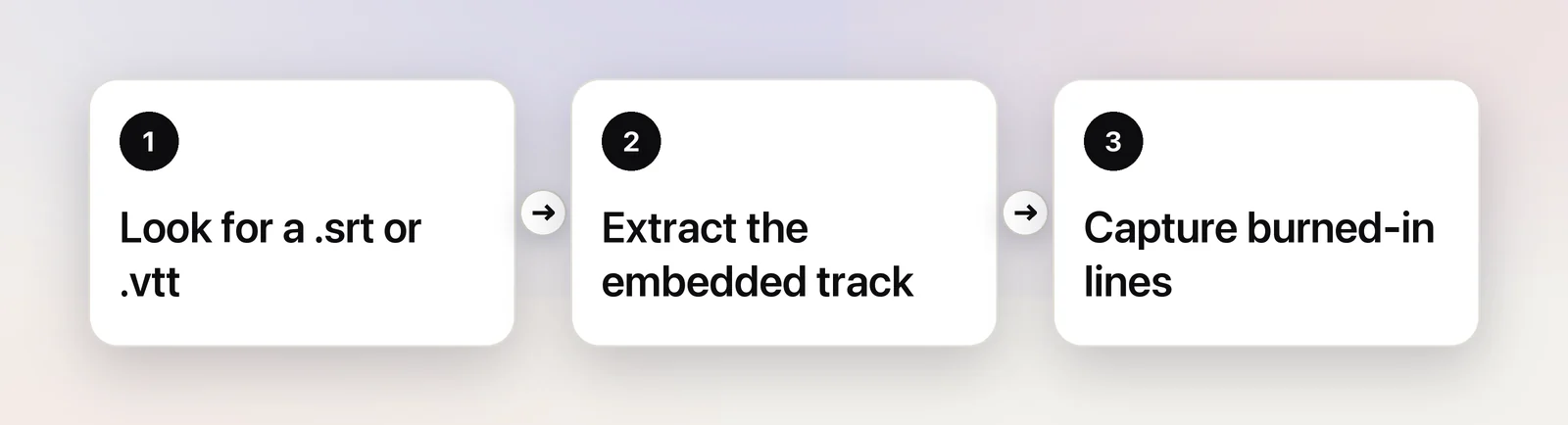
“Subtitles” covers three different things, and the way to copy them depends entirely on which one you have. Some are a text file that travels next to the video, some are a track tucked inside the video file, and some are painted into the picture itself. Work out which kind you’re dealing with first; it saves a lot of pausing and squinting.
It depends on where the subtitles live. A separate .srt or .vtt file is plain text you can open in TextEdit. A subtitle track inside an .mkv or .mp4 can be pulled out with the free ffmpeg tool. Subtitles burned into the picture are pixels: pause on each line and copy it with Live Text or OCR. Protected streaming video usually can’t be captured at all.
Three kinds of subtitles
- Separate files, often called sidecar files:
.srt,.vttor.assfiles with the same name as the video, or a download link next to it. These are already text. - Embedded tracks: subtitles stored inside the video container, typical of
.mkvfiles and common in.mp4and.mov. You can switch them on and off in the player’s subtitle menu. - Burned-in subtitles, also called hardcoded or open captions: drawn into every frame. They can’t be switched off, because they’re part of the image.
The quick test is the subtitle menu. If you can hide the subtitles, you have a file or a track and can get every line at once. If you can’t, they’re burned in and you’ll be copying them line by line.
Separate subtitle files: open them in TextEdit
Control-click the .srt or .vtt file and choose Open With → TextEdit. An SRT file is a list of numbered cues, each with a timecode line and one or two lines of text:
12
00:01:04,200 --> 00:01:06,900
We should leave before the tide comes in.
That’s fine for finding one line. For a clean transcript, strip the numbers, timecodes and blank lines with one Terminal command:
tr -d '\r' < subtitles.srt | grep -v -E '^[0-9]+$|-->|^$|^WEBVTT' > transcript.txtThe tr part removes Windows line endings, which otherwise stop the filter from matching. The same command handles .vtt files, which start with a WEBVTT line. Skim the result anyway: VTT files can hold notes or styling blocks that slip through, and a subtitle that is only a number, like “42”, is removed along with the cue numbers.
If accented letters show up as odd symbols, the file uses an older text encoding. Close it, choose File → Open… in TextEdit, click Options, and pick the right encoding before opening it again. Western (Windows Latin 1) is a common one for older files.
Embedded subtitle tracks: extract them
To pull a track out of the video file, use ffmpeg, a free command-line tool. Install it with Homebrew (brew install ffmpeg), then list the subtitle tracks:
ffprobe -v error -select_streams s -show_entries stream=index,codec_name:stream_tags=language -of csv=p=0 movie.mkvEach line shows a stream number, the subtitle format and a language code, such as 2,subrip,eng. To save the first subtitle track as an SRT file:
ffmpeg -i movie.mkv -map 0:s:0 subtitles.srtChange 0:s:0 to 0:s:1 for the second subtitle track, and so on. MP4 files store subtitles in a format called mov_text, and the same command converts them to SRT.
One kind of embedded track won’t convert. Subtitles ripped from Blu-ray discs (listed as hdmv_pgs_subtitle) and DVDs (dvd_subtitle) are stored as pictures of text, not text. ffmpeg stops with an error, because it can’t turn images into letters. Treat those like burned-in subtitles, or use a dedicated subtitle OCR tool.
Players such as VLC and IINA are good for switching between tracks and loading .srt files, but they’re built for watching. ffmpeg is the simplest free way to get the text out.
Burned-in subtitles: capture a line at a time
When the subtitles are part of the picture, you need text recognition. On recent versions of macOS, Live Text works on paused video in Apple’s own players:
- Open the video in QuickTime Player and pause on the line you want. When paused, the arrow keys step one frame at a time.
- Hold the pointer over the subtitle. If it turns into a text cursor, drag across the line.
- Press ⌘C.
If the text cursor doesn’t appear, press ⌃⇧⌘4 and drag over the subtitle to copy it as an image. Then open Preview, choose File → New from Clipboard, and select the text there.
Recognition is reliable on clean white or yellow subtitles with a dark outline. It struggles when thin letters sit over a busy, bright scene, or when the video is heavily compressed and the letters smear. Pause on a darker moment of the same line if you can; our guide to copying text from a video has more on picking a sharp frame. And keep expectations sensible: a feature film has hundreds of lines, so this route suits quotes and key passages, not a full script.
In Unpixel
Unpixel makes the line-by-line routine quicker. Pause the video, press ⇧⌘2, drag over the subtitle, and let go: the line is on your clipboard, read on your Mac. It works in any player and in a browser, not just Apple’s apps.
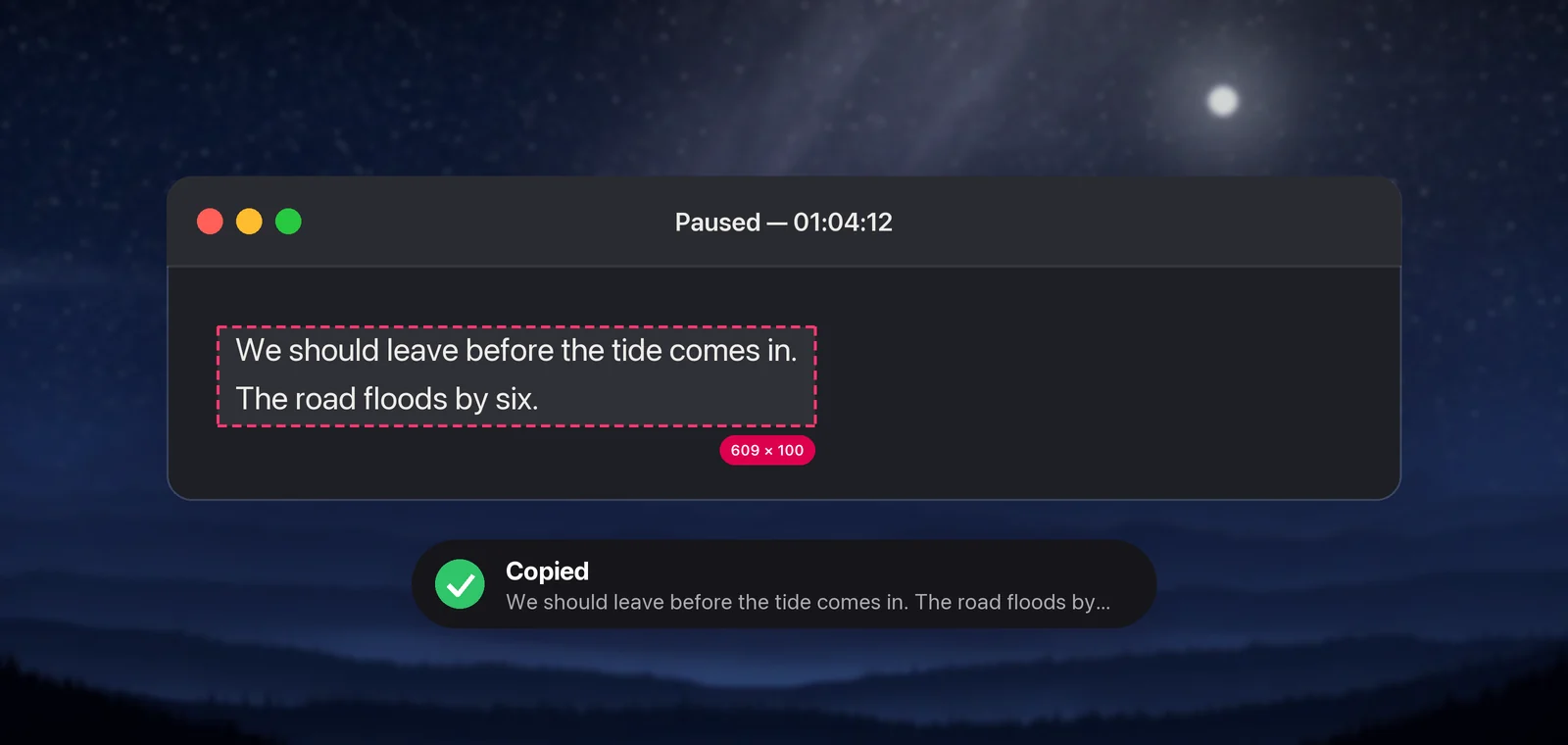
Three details help. With Keep line breaks turned off, a subtitle split over two lines comes out as one sentence. Every capture goes into a searchable history in order, so you can collect a scene’s lines first and copy them out afterwards. And holding ⌥ as you let go copies a translation into your language instead.
Online videos: transcripts and captions
Many video sites keep their captions as text, and getting at that is easier than capturing frames.
- YouTube: expand the description under the video and click Show transcript. A panel opens with the full captions, which you can select and copy. If the panel’s menu offers to hide timestamps, do that first so they don’t land in your paste. Our YouTube guide has the details.
- Course and conference sites often have a Transcript tab or button next to the player.
- Other players often load captions as a
.vttfile. With Safari’s web developer features turned on, open Web Inspector’s Network tab, reload the page, and type “vtt” in the filter. The caption file appears in the list, and you can open it as text. Use what you find for your own reference; the site’s terms still apply.
Streaming services: why captures may be black
Video from many subscription streaming services is protected by digital rights management. In Safari and Apple’s TV app, macOS usually keeps those frames out of screenshots and screen recordings, so a capture shows a black rectangle. Live Text sees nothing, and no capture tool, Unpixel included, can read those pixels.
For lines from a film or series, look for the published screenplay, the disc’s subtitle files, or a licensed transcript. Our article on why screenshots of videos are black explains the mechanism.
Frequently asked questions
How can I tell if subtitles are burned in?
Try to turn them off. If the player’s subtitle menu can hide them, they’re a separate file or an embedded track. If they stay on screen whatever you choose, they’re part of the picture.
Can I get a transcript without the numbers and timecodes?
Yes. The one-line Terminal command in this article removes the cue numbers, timecode lines and blank lines from an .srt or .vtt file and saves the rest as plain text.
Can I copy subtitles from a YouTube video?
Use YouTube’s transcript instead: expand the video description and click Show transcript, then select and copy the text from the panel that opens. YouTube offers it only for videos that have captions.
Can I share subtitles I extracted?
Subtitles are part of the work, and translations of them are someone’s writing too. Keeping a few lines for study or quoting is everyday use; publishing a full subtitle file usually needs permission.
Sources
- ffmpeg documentation — stream selection and the -map option ffmpeg.org
- ffprobe documentation ffmpeg.org
- ffmpeg — Homebrew Formulae formulae.brew.sh
- WebVTT: The Web Video Text Tracks Format — W3C w3.org
- macOS Ventura is now available (Live Text in paused video frames) — Apple Newsroom apple.com
- View video transcripts — YouTube Help support.google.com