iPhone Mirroring puts your iPhone’s screen in a window on your Mac, where you can use its apps with your keyboard and trackpad. Getting text out of that window works in two ways. Text the iPhone app lets you select comes across with ordinary copy and paste. Text it doesn’t, like words in a photo or a label drawn as a graphic, has to be read from the screen.
In the iPhone Mirroring window, select text the way you would on the iPhone: click and hold a word, drag the handles, then choose Copy. Press ⌘V in any Mac app to paste it; Universal Clipboard carries it across. Text you can’t select, such as words in a photo or an app’s graphics, can be read from the mirroring window with Live Text or a screen-OCR app.
What iPhone Mirroring needs
According to Apple, iPhone Mirroring works when:
- Your Mac has Apple silicon or the Apple T2 Security Chip and runs macOS Sequoia 15 or later.
- Your iPhone runs iOS 18 or later and has a passcode.
- Both devices are signed in to the same Apple Account with two-factor authentication, and both have Wi-Fi and Bluetooth turned on.
- The iPhone is locked and nearby. It can be charging in StandBy.
- The Mac isn’t sharing its internet connection or using AirPlay or Sidecar.
It isn’t available in the European Union. To start, open the iPhone Mirroring app on your Mac; the first time, it walks you through connecting your iPhone.
Selectable text: copy on the iPhone, paste on the Mac
Inside the mirroring window, a click acts as a tap. To copy text from a message, a note or a web page:
- Click and hold on a word until it’s selected, the same as a long press on the iPhone. Double-clicking works as a double-tap, which also selects a word.
- Drag the selection handles to cover the text you want.
- Choose Copy from the menu that appears above the selection.
- Switch to a Mac app and press ⌘V.
The text reaches your Mac through Universal Clipboard, the same feature that lets you copy on the iPhone in your hand and paste on the Mac. Apple notes that copied content stays on the clipboard for only a short time, so paste soon after you copy.
It works the other way too. Copy something on the Mac, click into a text field in the mirroring window, and paste.
When paste brings up something else
If ⌘V pastes whatever you last copied on the Mac, the iPhone’s copy didn’t arrive. Check the Universal Clipboard basics:
- Handoff is on for both devices. On the Mac, it’s in System Settings → General → AirDrop & Continuity (AirDrop & Handoff in some versions). On the iPhone, it’s in Settings → General → AirPlay & Continuity, or AirPlay & Handoff.
- Wi-Fi and Bluetooth are on, and both devices use the same Apple Account.
- The devices are close together. Apple suggests within about 10 meters (30 feet), and mirroring already needs the iPhone nearby.
Then copy again. Universal Clipboard not working has more fixes.
Text you can’t select
Plenty of what an iPhone shows isn’t selectable: a screenshot in your camera roll, a photo of a whiteboard, a boarding pass in an airline app, a map label, a game. You have three ways to get at it.
Use Live Text on the iPhone. Photos on the iPhone recognizes text in pictures, and that works inside the mirroring window too. Open the photo, then click and hold on the words, or click the Live Text button if it appears. Copy, and Universal Clipboard brings the text to your Mac. This is the best route for photos that are already on the phone.
Screenshot the window and use Live Text on the Mac. Press ⇧⌘4, then Space, and click the mirroring window to capture it as an image. Open the screenshot in Preview and select the text there.
Capture straight from the window. That’s the next section.
Capture text from the mirroring window
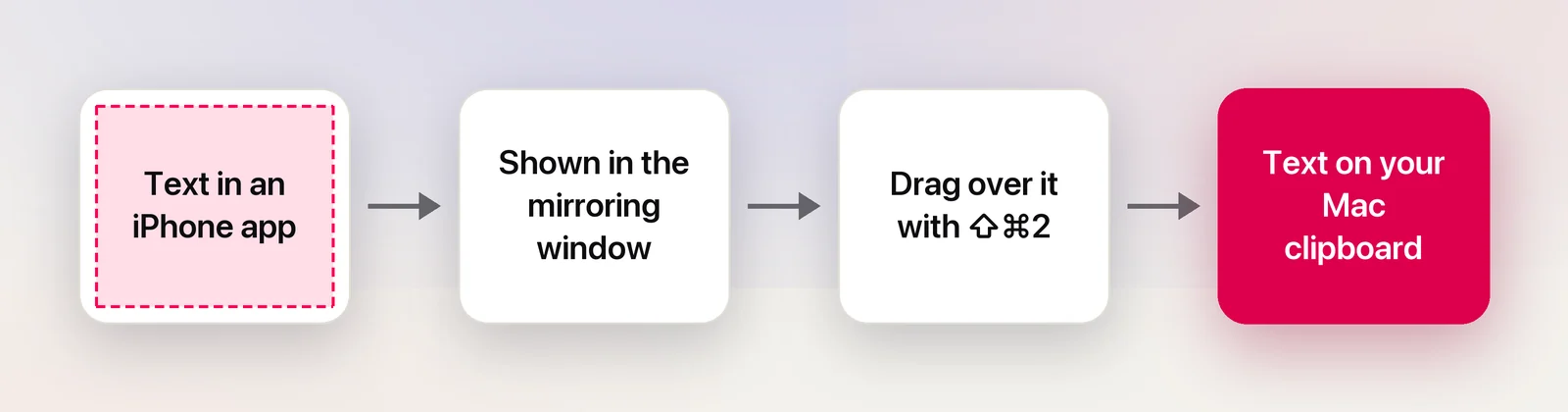
Once the iPhone’s screen is in a window on your Mac, it’s pixels on your display, and a screen-OCR tool can read it like anything else. In Unpixel, press ⇧⌘2, drag over the text inside the mirroring window and let go. The recognized text is on your Mac’s clipboard straight away, with no Universal Clipboard hop, and it’s saved in the capture history in the menu bar.
A few things help with accuracy:
- Make the text bigger. The window shows a stream of the iPhone’s screen, so small text looks a little softer than on the phone itself. Choose View → Larger (⌘+) in iPhone Mirroring, and zoom in within the iPhone app where you can.
- Select only the text. Leave out the status bar, icons and buttons around it.
- Use Accurate mode in Unpixel’s Settings → Recognition for small or faint text.
- Check codes character by character. Booking references, tracking numbers and Wi-Fi passwords are easy to misread when a letter and a digit look alike.
When the window shows black or nothing
- Protected video. Apple notes that content providers may restrict whether premium video can be mirrored. Streaming apps can show black or refuse to play, and the same content is usually blocked from screenshots on the Mac.
- A capture or screenshot comes out black. If the mirroring window looks fine but a screenshot of it, or a capture, comes out black or empty, the app or the window is blocking capture. Copy on the iPhone itself instead, with Live Text in Photos or by selecting the text, and let Universal Clipboard bring it over.
- Camera and microphone. iPhone Mirroring can’t use the iPhone’s camera or microphone, so camera-based text scanning doesn’t work through the window.
- The session paused. iPhone Mirroring needs the iPhone locked. Pick it up and unlock it, and mirroring stops until you lock the phone again.
Other ways to move text from iPhone to Mac
If you don’t use iPhone Mirroring, or it isn’t available where you live:
- Universal Clipboard on its own. Copy on the iPhone in your hand and paste on the Mac. Same requirements, no window.
- AirDrop. Share a note, a link or a screenshot to your Mac from the iPhone’s share sheet.
- An app that syncs. Paste into Notes or Reminders on the iPhone and open it on the Mac.
- Live Text with the iPhone camera. For a printed page or a sign, point the iPhone’s Camera at it, tap the Live Text button, copy, and paste on the Mac.
Universal Clipboard on Mac covers the requirements and limits in more detail.
Frequently asked questions
Is iPhone Mirroring available everywhere?
No. Apple says iPhone Mirroring isn’t available in the European Union. You can still copy between your devices there with Universal Clipboard, and use AirPlay to view the iPhone screen on a Mac without controlling it.
Can I drag text out of the iPhone Mirroring window?
Apple documents dragging files, photos and videos between the mirroring window and your Mac in supported apps. For text, copy and paste is the dependable route.
Why does ⌘V paste something I copied earlier on the Mac?
The copy from the iPhone didn’t reach the Mac, so it pasted its own last item. Check that Handoff, Wi-Fi and Bluetooth are on for both devices, then copy again.
Sources
- iPhone Mirroring: Use your iPhone from your Mac — Apple Support support.apple.com
- Use iPhone Mirroring on Mac — Apple Support (Mac User Guide) support.apple.com
- Copy and paste between devices with Universal Clipboard — Apple Support support.apple.com
- Use Handoff to continue tasks on your other devices — Apple Support support.apple.com