You’ve found an address in a message on your phone, and you need it in an email on your Mac. Retyping it invites typos, and sending it to yourself is clumsy. Universal Clipboard lets you copy on one Apple device and paste on another, with no app, button or menu involved. When it’s set up, it feels like the two devices share one clipboard.
Sign both devices in to the same Apple Account, turn on Wi-Fi, Bluetooth and Handoff, and keep them near each other. Copy on the iPhone as usual, then press ⌘V on the Mac. It works the other way too. There’s no button or app to open, and the copied item is only available briefly, until you copy something else.
What you need
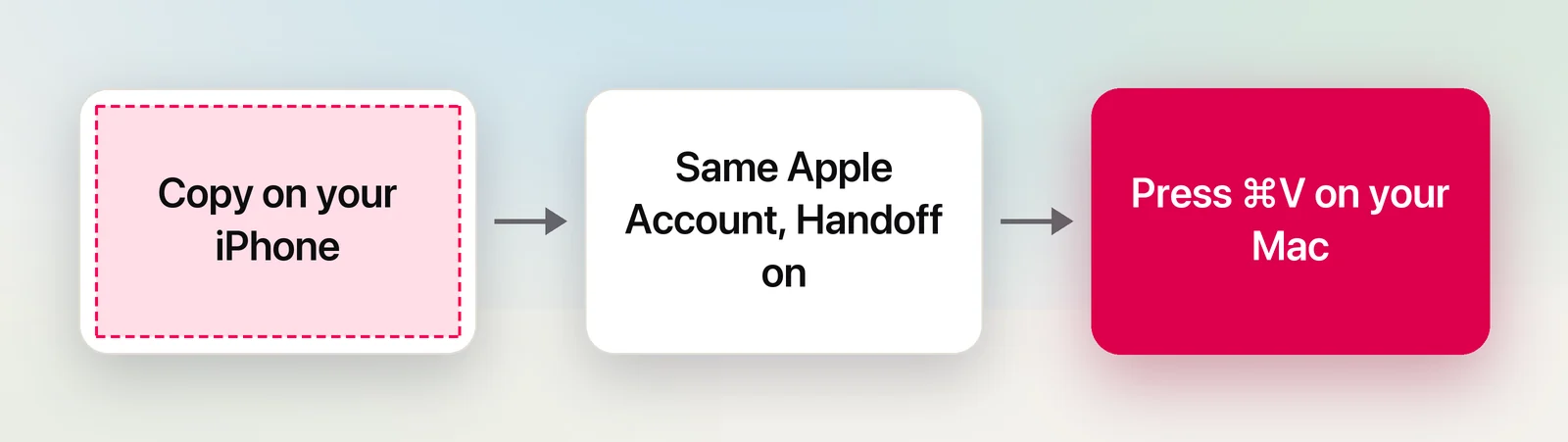
Apple lists four conditions. Universal Clipboard works between a Mac, iPhone, iPad or Apple Vision Pro when:
- The devices are near each other. Apple’s Mac guide puts the limit at about 10 metres (30 feet).
- Each one is signed in to the same Apple Account.
- Bluetooth and Wi-Fi are on on each device.
- Handoff is on on each device. It’s on by default, so check this only if pasting fails.
Each device also needs a reasonably recent version of its software. If you keep up with updates, you’re covered.
Turn on Handoff
On the Mac:
- Choose Apple menu → System Settings, then General.
- Click AirDrop & Continuity.
- Turn on Allow Handoff between this Mac and your iCloud devices.
On an iPhone or iPad, open Settings → General → AirPlay & Continuity and turn on Handoff. On older versions of iOS, that section is called AirPlay & Handoff.
Copy on iPhone, paste on Mac
- On the iPhone, select the text and tap Copy. For a photo, touch and hold it and tap Copy.
- On the Mac, click where the text or image should go.
- Press ⌘V, or choose Edit → Paste.
Larger items, such as a photo, can take a moment to arrive. The other direction works the same way: copy on the Mac with ⌘C, then touch and hold in a text field on the iPhone and tap Paste.
Live Text on iPhone plus Universal Clipboard
The iPhone’s camera makes this especially useful for paper. To get the words from a letter, a label or a page of a book onto your Mac:
- Open the Camera app on the iPhone and point it at the text.
- Tap the Live Text button when it appears.
- Select the words you need, or tap Select All, then tap Copy.
- On the Mac, press ⌘V.
The same works for a photo you’ve already taken: open it in Photos, touch and hold a word, drag the grab points to cover the text, and tap Copy. Your Mac receives plain text, ready to edit.
If you’d rather work from the Mac, our guide to Continuity Camera covers scanning a document straight into a Mac app with your iPhone.
How long copied items last
Apple doesn’t give a number. Its support article says the content stays on the other device’s clipboard briefly, or until you copy something else on either device. In practice, paste soon after you copy, and copy again if the paste brings up something older.
Universal Clipboard also doesn’t add to any history. On macOS Tahoe, Spotlight’s clipboard history doesn’t record items that arrive from an iPhone or iPad, according to MacMost’s tests. If you want to keep something, paste it into a note. See clipboard history on Mac for what Spotlight does keep.
When it doesn’t work
Work through these in order, checking both devices each time:
- Same Apple Account? On the Mac, your name at the top of System Settings shows which account it uses. On the iPhone, it’s at the top of Settings.
- Wi-Fi and Bluetooth on? Both radios have to be on, even if you’re not using them for anything else.
- Handoff on? Use the steps above, on both devices.
- Close together? Bring the iPhone next to the Mac and try again.
- Restart both devices and install any software updates, as Apple suggests.
If it still fails, Universal Clipboard not working goes further.
When you copied a picture of text
Sometimes what you copy on the iPhone is an image of words rather than the words themselves, like a screenshot of a timetable or a photo of a whiteboard. Universal Clipboard delivers it to the Mac as an image, and ⌘V pastes a picture.
On the Mac, Unpixel can read that picture. Click From Clipboard in its menu bar panel, and the text in the image replaces the image on your clipboard, recognised on your Mac. Unpixel itself is a Mac app with no iPhone version, so for paper documents the iPhone’s own Live Text is the quicker start. From Clipboard covers the case where you already sent the picture.
Frequently asked questions
Can I copy files with Universal Clipboard?
Apple says you can copy text, images, files and other content. Its Mac guide adds that it’s best for small selections of text or copied images; for several files, AirDrop or iCloud Drive is the better route.
Why does my Mac paste something I copied earlier?
The iPhone’s copy didn’t reach the Mac. Check that both devices use the same Apple Account with Handoff, Wi-Fi and Bluetooth on and are close together, then copy again.
Does Universal Clipboard work with Windows or Android devices?
No. It works only between Apple devices signed in to the same Apple Account, such as a Mac, iPhone, iPad or Apple Vision Pro.
Sources
- Use Universal Clipboard to copy and paste between your Apple devices — Apple Support support.apple.com
- Copy and paste between your Mac and other Apple devices — Apple Support (Mac User Guide) support.apple.com
- Use Handoff to continue tasks on your other Apple devices — Apple Support support.apple.com
- Copy and translate text from photos on your iPhone or iPad — Apple Support support.apple.com
- How To Use the Spotlight Clipboard History In macOS Tahoe — MacMost macmost.com