Instagram holds two kinds of text, and they need different tricks. The caption under a post is ordinary text that you can select on instagram.com. The words printed on a photo, a carousel slide or a Reel are part of the picture, so you need text recognition to get them out.
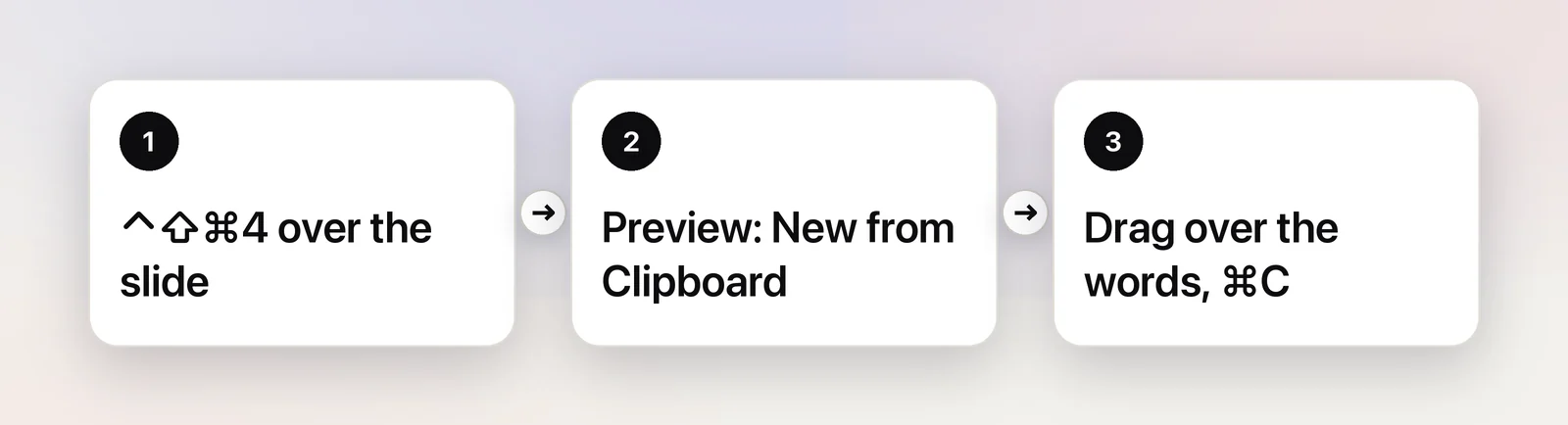
Captions are real text: open the post on instagram.com, click “more” if the caption is cut off, drag across it and press ⌘C. Words printed inside a photo, carousel slide or Reel are pixels. Show that slide, press ⌃⇧⌘4 to copy the area as an image, open Preview, choose File → New from Clipboard and select the words with Live Text.
Captions: select them on instagram.com
The caption, the comments and the bio on a profile are all real text in the browser, so plain copy and paste works in Safari, Chrome or any other browser.
- Open the post on instagram.com. In the feed, long captions end in “more”; click it to show the full caption, or open the post itself so the caption sits next to the photo.
- Put the pointer just after the last word of the caption.
- Drag backwards to the first word, then press ⌘C.
Dragging backwards matters more than it sounds. The caption starts with the creator’s username, and it’s often full of hashtags and @mentions. All of those are links, and a drag that starts on a link picks up the link instead of selecting text. Starting in plain text at the end avoids that.
Text inside the image or carousel slide
Live Text in Safari can read text in most images on the web: you hover over the words and drag. On instagram.com that often fails. Instagram has for years placed a transparent layer over the photos on its site, so the pointer lands on that layer rather than on the picture. If the text cursor never appears, or Copy Image is missing when you Control-click, that layer is the reason. The way around it is to copy the pixels yourself and let Preview read them.
- Show the photo or carousel slide with the text you want.
- Press ⌃⇧⌘4 and drag over the text. The extra Control key sends the capture to the clipboard, so no screenshot file lands on your desktop.
- Open Preview and choose File → New from Clipboard (⌘N).
- Hover over the words until the pointer becomes a text cursor, drag to select them, and press ⌘C.
Close the Preview window without saving and nothing is left behind. If you’d rather keep the image too, press ⌘S before closing.
Expect clean results from plain fonts on flat colours, which is how most text-heavy carousels are designed. Recognition gets shakier with script fonts, text curved around a shape, words over a busy photo and anything handwritten. Read numbers, prices and dates back against the image before you rely on them.
Text in Reels: pause, then capture
A Reel is a video, so the first job is to freeze the frame that shows the whole line of text. On instagram.com a click on the video usually pauses it. Captions that pop in word by word need a moment longer: pause after the last word has appeared, not halfway through.
Then capture the paused frame exactly as you would a photo: ⌃⇧⌘4, Preview, New from Clipboard, select. Spoken words are a different matter. If the creator didn’t put them on screen, there’s no text in the Reel to copy.
Copy a whole carousel quickly
Carousels are where copying gets tedious: six or ten slides, each a separate image. A little routine keeps the slides in order:
- Open a new note in Notes (or a TextEdit document) next to the browser.
- Show slide 1, copy its text with the steps above, and paste it under a “Slide 1” line.
- Click the arrow to move to the next slide and repeat.
Labelling each block with its slide number takes two seconds and saves you from shuffled paragraphs later, especially when several slides start with the same heading.
In Unpixel
If you collect text from social posts often, the Preview round trip gets old fast. Unpixel puts it on one shortcut: press ⇧⌘2, drag over the slide or the paused Reel, and let go. The recognized text is on your clipboard, read on your Mac by Apple’s Vision framework, and no screenshot file is made.
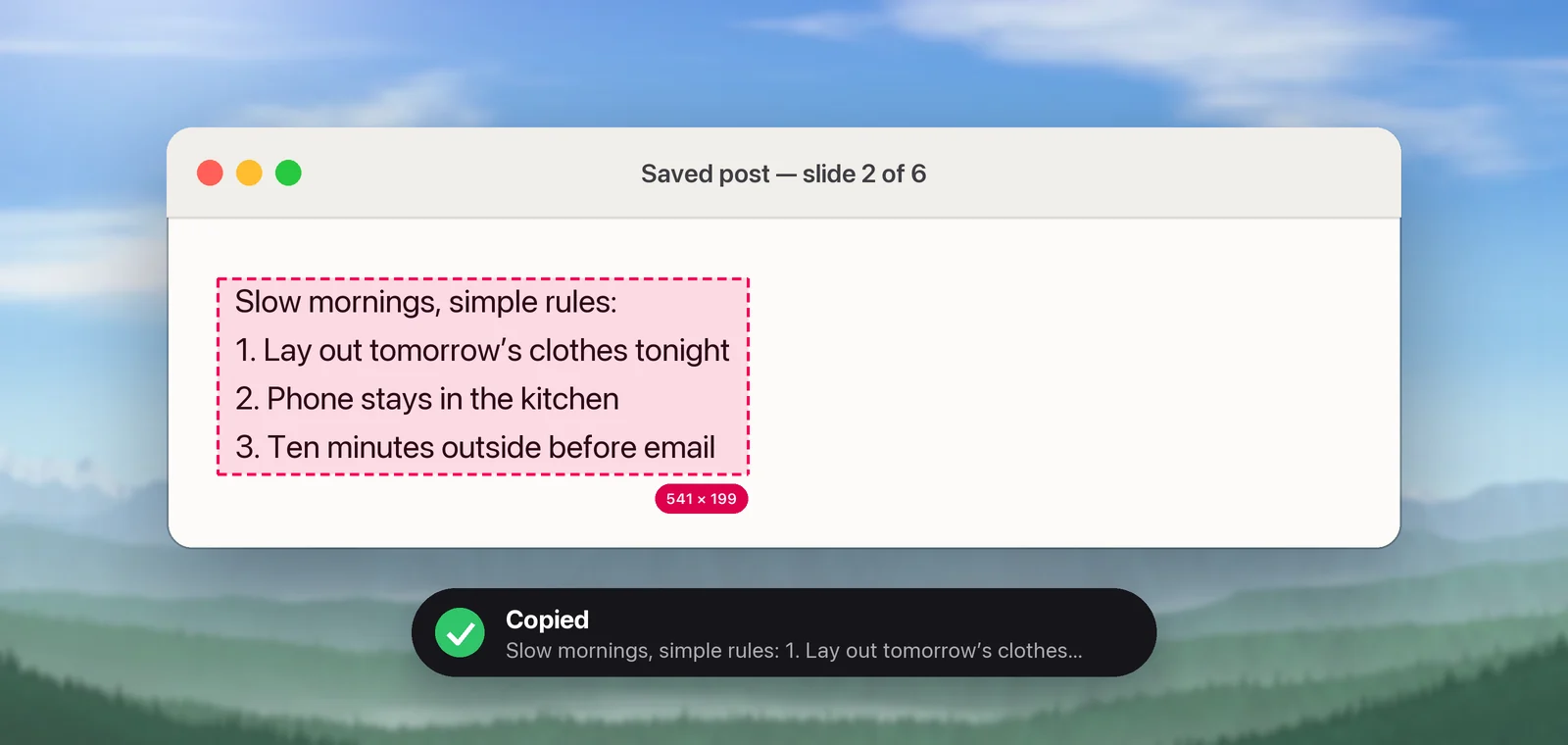
Two details help with carousels in particular. Each capture is saved in Unpixel’s local history with the app it came from (“Safari · Just now”), so you can capture all ten slides first and copy them out in order afterwards. And with Keep line breaks turned off in Settings → Recognition, lines that wrap inside a slide are joined back into sentences.
Translate a post in another language
For a caption, select the text, Control-click it and choose Translate. macOS shows the translation in a small window with a Copy Translation button. For text inside an image, do the same after selecting it with Live Text in Preview. In Unpixel, holding ⌥ as you let go of the selection copies the translation straight away. Memes, slang and text over video need more care; our guide to translating text in Instagram images covers those.
Credit the creator
Copying a caption to save a recipe, look up a quote or translate a post for yourself is everyday use. Reposting someone’s caption or carousel text as your own is not, and it’s the fastest way to annoy a creator. If you share it, quote the part you need, name the @account and link to the original post. Whether a particular use is allowed depends on where you live and what you do with the text, so check before you publish someone else’s words commercially.
Frequently asked questions
Why won’t my drag select the Instagram caption?
You’re probably starting on a link. Usernames, hashtags and the timestamp are links, so a drag that begins on one moves the link instead of selecting text. Start just after the last word of the caption and drag backwards.
Does this work for Instagram Stories?
Yes, as long as the story is still on screen. Stories move on by themselves, so pause the story first if your layout offers it, then capture the text the same way as a paused Reel. Stories also expire after 24 hours unless they’re saved to a highlight.
Do emoji come through when I copy?
From a caption, yes: emoji are characters, so they copy and paste like letters. From text inside an image, no: text recognition reads letters and numbers, and emoji are usually dropped or misread.
Can I copy text from Instagram without taking a screenshot?
Captions, yes, by selecting them. For text inside an image you need some kind of capture, but it doesn’t have to leave a file behind: ⌃⇧⌘4 copies the area to the clipboard, and an OCR app can read the area directly.
Sources
- Take screenshots or screen recordings on Mac — Apple Support (Mac User Guide) support.apple.com
- Interact with text in a photo in Preview on Mac — Apple Support support.apple.com
- Interact with text in images in Safari on Mac — Apple Support support.apple.com
- Why can’t I tag a photo on Instagram? (the transparent layer over images) — Hunchly Knowledge Base support.hunch.ly