QR codes turn up on screens all the time now: in a meeting invite, on a PDF ticket, on a two-factor setup page, in a screenshot someone sent you. A phone reads them in a second, but holding your phone up to your laptop feels silly, and then the result is on the wrong device. Here’s how to read a QR code from a screenshot or straight from the screen on a Mac.
macOS has no dedicated QR scanner, so decode the picture instead of pointing a camera at it. In Chrome, right-click the page, choose the Google Lens option and drag over the code. Or capture the code with an app that decodes QR codes on screen, which puts its contents on your clipboard. Read the link before you open it: QR codes are a favourite phishing trick.
Why your Mac can’t just point a camera at it
The Mac’s camera faces you, and macOS has no camera app that recognises codes. What you need instead is software that finds the code in the pixels already on your screen. That’s actually the easier job: a code on screen is flat, sharp and evenly lit, with none of the glare and angles a phone camera has to cope with.
The quick cheat still works, of course. Point your iPhone’s camera at the Mac screen and it reads the code. It’s fine for opening a link once, but the link ends up on your phone, which isn’t much help when you need it on your Mac.
Built in: Preview and Photos, sometimes
Apple’s Live Text technology can recognise QR codes as well as text: the developer session that introduced it to apps mentions QR code interaction. In practice, Apple doesn’t document QR codes for Preview or Photos on the Mac, and results vary.
It costs nothing to try. Open the image in Preview, hold the pointer over the code, and Control-click it. If an option to open the link appears, macOS decoded it. If nothing happens, move on to one of the next options.
Chrome’s Google Lens
If you use Chrome, Google Lens is built in and reads QR codes:
- Right-click an empty part of the page and choose Search with Google Lens, or open Chrome’s More menu (⋮) and choose Search this tab with Google Lens. Those are the labels in Chrome’s help as of October 2026.
- Drag over the code.
- The result appears in the side panel, with the link or text the code contains.
To read a code from an image file this way, drag the image into a Chrome window first. Bear in mind what Chrome’s help page says: when you search a tab with Lens, a screenshot of the page and page data are sent to Google. That’s fine for a restaurant menu, but think twice for a code from a bank letter or a 2FA setup screen.
Decode a code anywhere on screen
Lens needs Chrome, and the Preview check works only some of the time. A screen capture tool that decodes codes works in any app, including PDFs, slides and video calls.
In Unpixel
Unpixel decodes codes on your Mac, with nothing sent anywhere. Press ⇧⌘2, drag a rectangle around the code, and let go. A confirmation reading “QR code copied” shows what the code contains, and the full contents are on your clipboard.
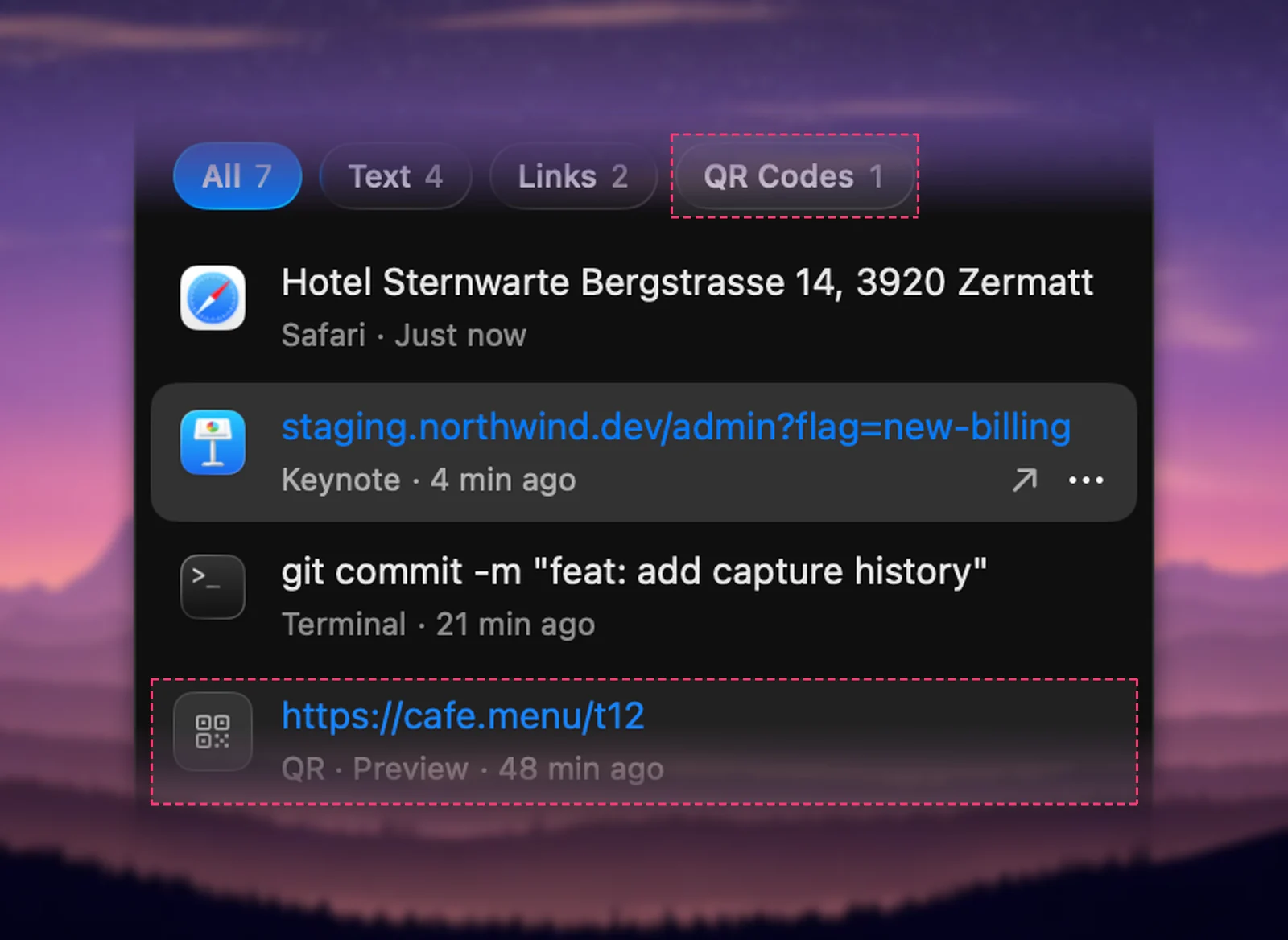
Three details are worth knowing:
- It works anywhere on screen: a web page, a PDF, a video call, a slide, an image in Messages.
- History keeps it. Codes are filed under QR Codes in Unpixel’s history, where clicking the row copies it again and Open Link opens it when you’re ready.
- Opening is your call. Open QR links automatically in Settings → Recognition starts switched off. Switched on, it acts only on a code whose whole content is one web link; Wi-Fi details, contact cards and other text are just copied. With it off, you always see the link first.
For a clean read, include the white margin around the code in your selection and make sure nothing covers it, including the pointer. If the code is tiny, zoom in first.
Codes in image files
For a screenshot or a PDF ticket, you don’t need to open the file at all. In Unpixel’s menu bar panel, click Open Image… and pick the file, or drag the file onto the panel or the menu bar icon. The same decoding runs on the file. If someone sent you the code as an image you copied, From Clipboard reads it from the clipboard.
Without an app, open the image in Preview and use Chrome’s Lens or the Preview check above.
Before you open the link
A QR code doesn’t show where it leads until it’s decoded, and scammers rely on that; the FTC’s consumer alerts describe codes that lead to phishing sites. Now that the link is text on your Mac, take a few seconds to read it.
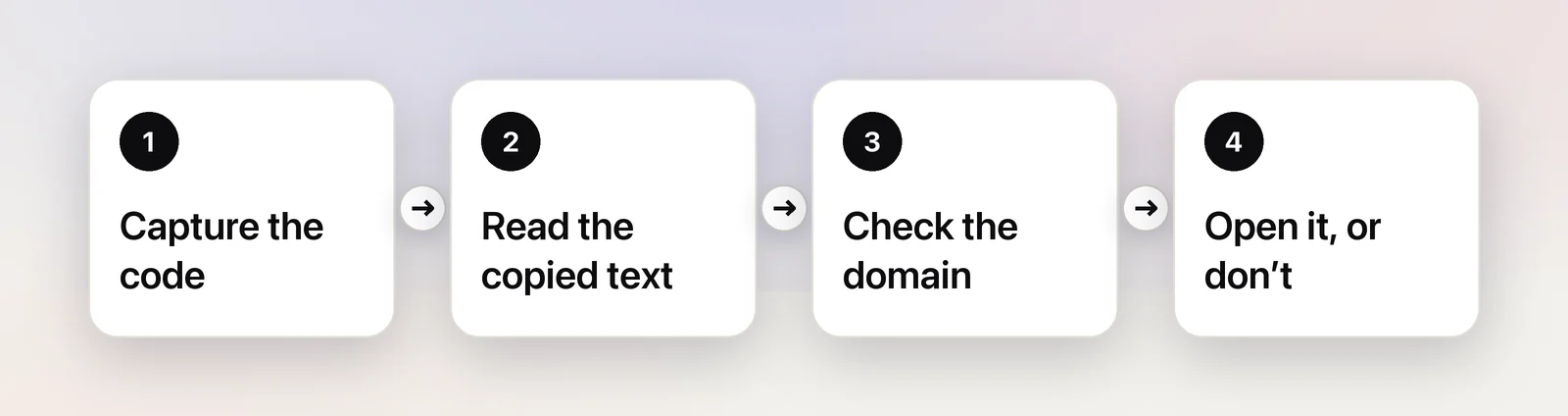
- Find the real domain. The host name sits between
//and the next/. Read it from the right, because its end decides whose site it is:https://example.com.ticket-refunds.net/claimbelongs to ticket-refunds.net, whatever comes before it. - Be wary of shortened links that hide the final address, and of lookalike spellings.
- Don’t sign in or pay from a page a QR code sent you to. Open the company’s site from a bookmark or by typing its address instead.
- Watch for urgency. “Your parcel is held” and “Confirm your account today” are classic lures.
Our guides to QR code scams and checking a link in a screenshot go further.
Not every code is a link. A code can hold Wi-Fi details (see getting the Wi-Fi password from a QR code), a contact card that starts with BEGIN:VCARD, an email address, or an otpauth:// key for setting up two-factor authentication. Treat that last one like a password: anyone who has it can generate your codes.
Other barcodes
The same trick works on the other barcodes you meet on screen. Product pages use EAN-13, EAN-8 and UPC-E, shipping labels use Code 128, boarding passes use PDF417, and tickets often carry Aztec or Data Matrix codes. Unpixel decodes all of these, alongside QR and Micro QR codes. More on that in reading a barcode from an image.
Frequently asked questions
Can I scan a QR code with my MacBook’s camera?
Not with anything built into macOS: there’s no camera app that scans codes. The camera faces you anyway, which is awkward for a code on paper. For a code on your screen, decoding the screen itself is easier.
Is it safe to decode a QR code from a screenshot?
Decoding only reveals the text inside the code, which is harmless. The risk comes from what you do next, usually opening a link. Check the domain before you open it, and don’t enter passwords or card details on a page a QR code sent you to.
Why won’t a QR code on my screen decode?
Usually the code is too small, cut off at an edge, partly hidden by the pointer or a notification, or blurry from being scaled up. Zoom in so the code is larger and sharp, and include the white margin around it in your selection.
What if the code isn’t a link?
Codes can hold any text: Wi-Fi details, a contact card, a calendar event, a 2FA setup key or a payment reference. A reader that shows the raw text lets you decide what to do with it.
Sources
- Search with Google Lens in Chrome — Google Chrome Help support.google.com
- Add Live Text interaction to your app (WWDC22) — Apple Developer developer.apple.com
- Scammers hide harmful links in QR codes to steal your information — FTC Consumer Advice consumer.ftc.gov