OCR is what lets a computer read the words in a picture. To your Mac, a scanned letter, a photo of a menu or a screenshot of an error message is just a grid of coloured dots. OCR finds the letters in those dots and turns them into text you can copy, search and edit.
OCR, short for optical character recognition, is software that finds the letters in a picture (a scan, a photo, a screenshot or a video frame) and writes them out as real text you can copy, search, edit or translate. It reads printed text well, neat handwriting sometimes and messy handwriting poorly. It copies characters, not layout or meaning, so check names and numbers.
OCR in one sentence
Optical character recognition is software that looks at an image, works out which shapes are letters, digits and punctuation, and writes them out as characters. IBM describes it as converting “images of text into a machine-readable format”, which is the whole point: before OCR, the words exist only as a picture.
A quick way to feel the difference: take a photo of a receipt and try to search your photos for the total. Without OCR, the number “12.40” isn’t anywhere on your Mac, only pixels shaped like it. After OCR, those five characters exist. You can paste them into a spreadsheet, search for them or have them read aloud by a screen reader.
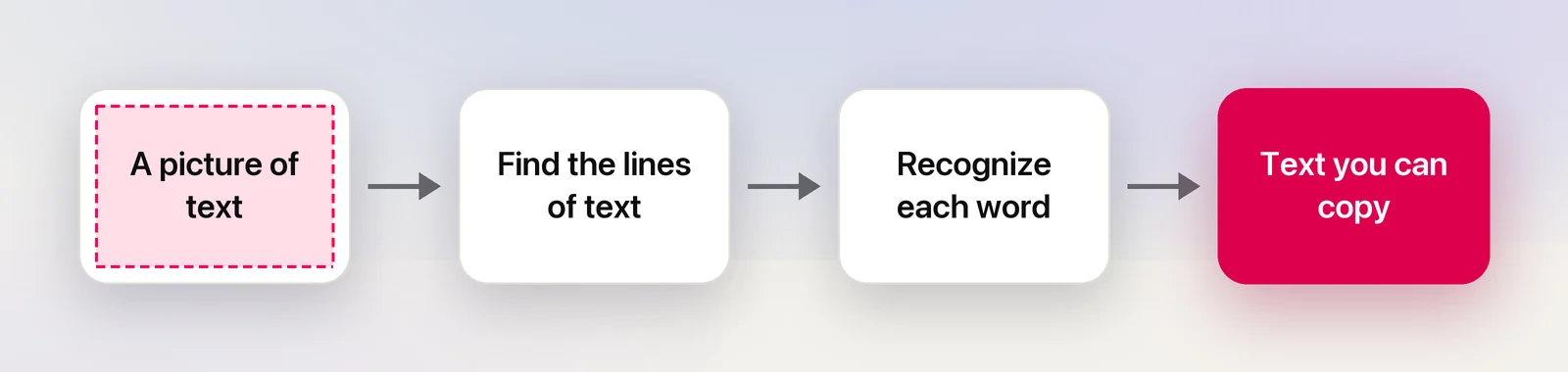
How the recognition step works inside (image clean-up, finding lines, neural networks that read whole words) is a topic of its own. Our explainer on how OCR works goes through it.
Where you already use OCR
Most people use OCR every week without calling it that:
- Live Text on iPhone and Mac. Selecting a phone number in a photo, or copying a paragraph from a screenshot in Preview, is OCR. One of Apple’s examples when it announced Live Text was capturing a phone number from a shopfront and calling it.
- Searching your files. Since macOS Ventura, Apple says Spotlight can search by the text inside images, so a screenshot can turn up because of what it says. See how to search text inside images.
- Scanning documents. A scanner app that produces a PDF you can search has run OCR and hidden the text behind the page image. That hidden layer is explained in what a searchable PDF is.
- Camera translation. Pointing a phone at a sign in another language works in two steps: OCR reads the sign, then a translator translates the text.
- Everyday infrastructure. Number plate cameras, mail sorting and cheque scanning in banking apps all depend on reading characters from images.
What OCR gives you, and what it doesn’t
OCR gives you the characters, usually line by line in reading order. Many tools also know where each word sat in the image, which is how a searchable PDF can highlight the right spot, and how sure the engine was about each word.
What it doesn’t give you is just as important:
- No formatting. Fonts, colours, bold and sizes are gone. A heading arrives as an ordinary line.
- Layout only sometimes. Two columns can come out interleaved, and a table usually arrives as a list of lines unless the tool has separate table recognition.
- No meaning. OCR doesn’t know that “Total” and “12.40” belong together, and it won’t notice that a figure is wrong.
- Only what’s in the pixels. Text cut off by your selection, hidden under a cursor or blacked out by a protected video can’t be recovered.
- The source’s own mistakes. A typo on the page comes through as a typo.
That last point is a useful way to think about OCR: it’s a transcriber, not an editor. If you need the text interpreted, summarized or corrected, that’s a separate step, and our comparison of OCR and AI vision models explains where each one fits.
Printed text vs handwriting
Printed text is the easy case. Every “a” in a font looks the same, letters sit on straight lines, and the gaps between words are regular.
Handwriting breaks all three. Your “a” differs from everyone else’s, and joined-up cursive hides where one letter ends and the next begins. Recognizing handwriting used to be treated as a separate technology, often called ICR (intelligent character recognition); our page on OCR vs ICR covers the terms. Modern recognizers handle both, but expectations should differ: neat printed handwriting often works, while quick cursive and faint pencil often don’t. The guide to converting handwriting to text on a Mac is honest about where the line is.
Why OCR makes mistakes
Errors almost always come from the image, not from bad luck:
- Look-alike characters. O and 0, l, 1 and I, rn and m. In many fonts they’re nearly identical, and context is the only clue. Our list of common OCR errors shows the usual suspects and how to catch them.
- Too few pixels. In a quick test on macOS 26, Apple’s Vision framework read a sentence set in 9-pixel type as “cleariy” instead of “clearly”. Rendered at 18 pixels, the same sentence came back perfect.
- Blur, glare and angles. Photos and paused videos add all three; screenshots of crisp text add none.
- The wrong language or script. An engine reads only the scripts it was trained on. Text in an unsupported script either comes back empty or as similar-looking letters from another alphabet.
- Dictionary “fixes”. Many engines nudge uncertain words towards real words, which helps with prose and hurts with codes, names and serial numbers.
Practical habits that prevent most of these are in how to improve OCR accuracy.
OCR on a Mac today
You don’t need to install anything to try it. Open a screenshot or photo in Preview, drag across the words as if they were in a document, then Control-click and choose Copy Text. If dragging draws a box instead, choose Tools → Text Selection first. That’s Live Text, and Apple says it runs on your Mac.
Shortcuts has an Extract Text from Image action, and Preview can add a hidden text layer to scanned PDFs. Apple also offers text recognition to developers through its Vision framework, which does all its processing on the device. That’s how third-party apps add OCR without sending your images anywhere. Our map of OCR on Mac lists every built-in option and when each one fits.
Unpixel, which we make, is one of those apps. It’s for text that isn’t in an image file yet. Press ⇧⌘2 and drag over anything on screen, such as a paused video, a slide in a call or an error dialog. The recognized text is on your clipboard, read on your Mac by Apple’s Vision.
A few terms you’ll run into
- Text layer: the invisible, OCR-produced text placed behind a scanned page so you can search and select it.
- Recognition language: the language or script the engine expects. Choosing the right one helps with short or small text.
- Confidence: the engine’s own estimate of how sure it is about a word. Apps rarely show it, but it’s why some words come back and others don’t.
- Language correction: a pass that swaps unlikely words for dictionary words. Useful for sentences, risky for codes.
- On-device OCR: recognition that runs on your computer instead of a server, so the image never leaves it.
Frequently asked questions
What does OCR stand for?
Optical character recognition. “Optical” because it works from an image of the text, and “character recognition” because it identifies the letters, digits and symbols in that image.
Is OCR a kind of AI?
Modern OCR is built on machine learning, so in a broad sense, yes. But it’s a narrow tool: it transcribes the characters it sees and doesn’t summarize, answer questions or rewrite anything.
Does my Mac have OCR?
Yes. Live Text is built into macOS and reads text in photos, screenshots, PDFs in Preview and paused videos. Apple says it uses on-device intelligence, so the image isn’t sent anywhere to be read.
Is OCR ever completely accurate?
On a sharp screenshot of ordinary text it’s often perfect, but there’s no guarantee. Small print, blur, unusual fonts, handwriting and look-alike characters such as O and 0 all cause mistakes, so check anything that matters.
Sources
- What is optical character recognition (OCR)? — IBM ibm.com
- iOS 15 brings powerful new features (Live Text uses on-device intelligence) — Apple Newsroom, June 2021 apple.com
- Interact with text in a photo using Live Text in Preview on Mac — Apple Support support.apple.com
- Recognizing Text in Images — Apple Developer Documentation developer.apple.com
- macOS Ventura is now available (Spotlight searches text inside images) — Apple Newsroom, October 2022 apple.com