You installed a menu bar app, it says it’s running, and its icon is nowhere to be seen. On a MacBook with a notch, the usual reason is simple: there’s no room left to the right of the camera housing, and macOS quietly leaves the extra icons out. Here’s how to make room, and how to reach an app whose icon you can’t click.
macOS doesn’t move menu bar icons that don’t fit next to the notch; it stops drawing them. On macOS 27 Golden Gate, click the double-arrow button beside the icons to show the hidden ones. On macOS Tahoe, switch to an app with short menus such as Finder, turn off icons you don’t need in System Settings → Menu Bar, tighten the spacing in Terminal, or use a menu bar manager.
Why icons vanish on notched MacBooks
The menu bar has two halves. The active app’s menus (File, Edit, View…) start on the left. The icons, which Apple calls menu bar extras, start at the clock on the right and grow leftwards. On a MacBook Air or MacBook Pro with a notch, nothing can be drawn under the camera housing, so the icons only have the stretch between the notch and the clock.
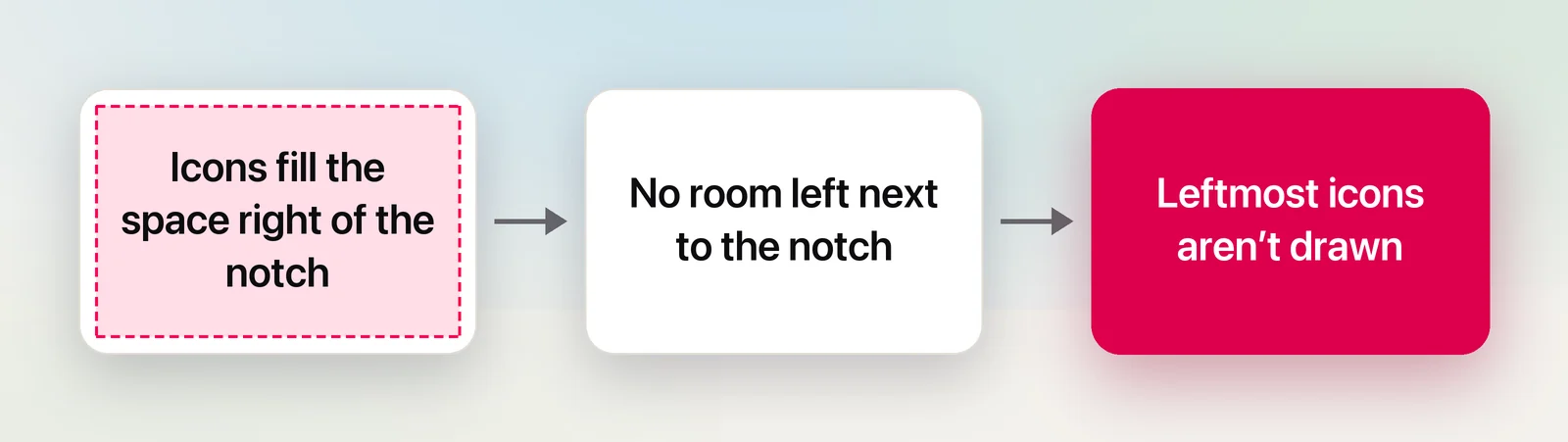
When that stretch fills up, macOS doesn’t wrap the icons onto a second row. The leftmost ones are simply not drawn, and before macOS 27 there was no built-in way to reach them. Two things make it worse:
- An app with long menus. If the front app’s menus don’t fit left of the notch, they continue on the right and take space from the icons. Click the desktop to switch to Finder, which has short menus, and hidden icons often reappear.
- Larger text or a scaled display. Under System Settings → Displays, a “Larger Text” resolution leaves fewer points for everything in the menu bar. Choosing a setting closer to “More Space” gives the icons more room.
macOS 27: click the overflow arrow
macOS 27 Golden Gate, released in September 2026, finally adds a way in. When the notch or a long app menu covers some icons, a small double-arrow button appears among your menu bar icons. Click it and the hidden icons show up to the left of the notch, where you can click them as usual. Click it again to hide them.
The reveal is temporary, so the icons you use all day still deserve a permanent spot. It’s also the quickest way to bring a newly installed app’s icon into view and ⌘-drag it closer to the clock. Everything below works on macOS 27 as well, and it’s the whole toolkit on macOS Tahoe, which has no overflow button.
Make room: turn off icons you don’t need
macOS Tahoe added a dedicated Menu Bar pane for this, and macOS 27 keeps it.
- Choose Apple menu → System Settings, then click Menu Bar in the sidebar (you may need to scroll).
- Under Menu Bar Controls, turn off Apple items you rarely click. Wi-Fi, Bluetooth, Sound and Focus are all in Control Center anyway. Items with a pop-up menu can be set to Show When Active instead of Always Show.
- Under Allow in the Menu Bar, turn off third-party apps whose icon you don’t need to see. The app keeps running; only its icon goes away.
- Shorten the clock with Clock Options. The clock always stays, but leaving out the date or the day of the week makes it narrower.
Some apps also have their own “Show in menu bar” setting, and quitting apps you don’t use frees space immediately. Our tour of menu bar customization covers the rest of that pane.
Tighten the spacing between icons
macOS leaves a fixed gap around each icon. A long-standing, unofficial preference shrinks it, which can be enough to fit two or three more icons. Open Terminal (in Applications → Utilities) and run these two commands, which change only your user account on this Mac:
defaults -currentHost write -globalDomain NSStatusItemSpacing -int 8
defaults -currentHost write -globalDomain NSStatusItemSelectionPadding -int 8
Then log out and back in. Smaller numbers pack icons tighter; try 6 if 8 isn’t enough. To go back to the normal spacing, delete both settings and log out again:
defaults -currentHost delete -globalDomain NSStatusItemSpacing
defaults -currentHost delete -globalDomain NSStatusItemSelectionPadding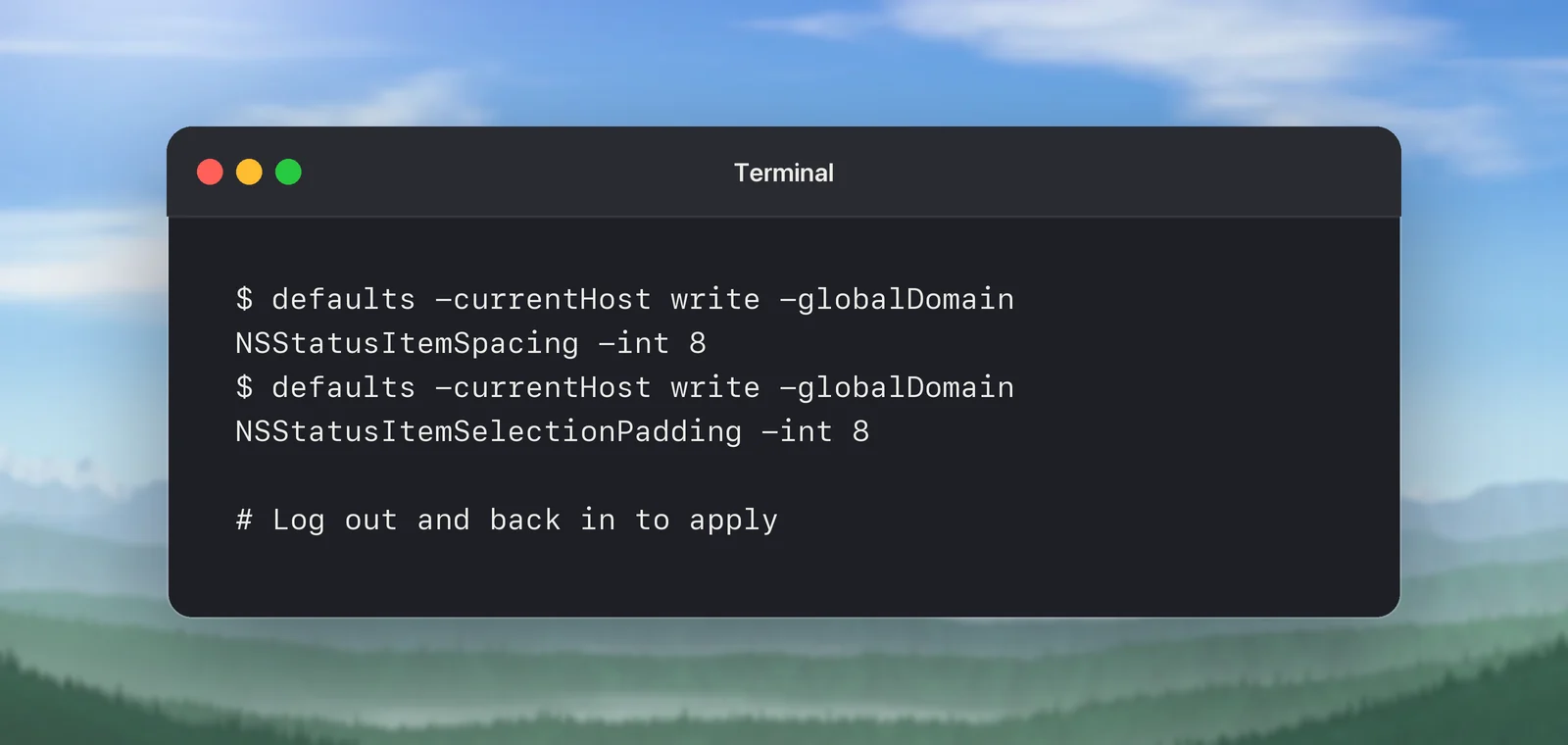
Apple doesn’t document these settings, so treat them as a tweak that a future update could ignore. They don’t touch any app or system file.
Use a menu bar manager
If you depend on more icons than will ever fit, a menu bar manager hides the ones you choose behind a single icon or in a second bar you open on demand. As of October 2026, Bartender is a long-running paid option, and there are free, open-source managers too. Major macOS releases can break these apps, so before installing one, check that it lists support for your version of macOS. Read which permissions it asks for, too, since managing other apps’ icons needs deep access to the menu bar.
Reach a hidden app anyway
You don’t always need the icon. Most menu bar apps can be reached another way:
- Its keyboard shortcut. Many menu bar apps exist mainly to be triggered from the keyboard.
- Open it again. Launch the app from Spotlight or the Applications folder; many menu bar apps respond by opening their settings window.
- Its URL scheme. Apps that support one can be opened from Terminal with
open, or from Shortcuts, Raycast or Alfred. - An external display. Its menu bar has no notch, so the icon is usually there.
In Unpixel
Unpixel lives only in the menu bar, so it’s exactly the kind of app the notch can hide. Its main job doesn’t need the icon at all: press ⇧⌘2, drag over text anywhere on screen, and the text is on your clipboard. Other commands work without the icon too. In Terminal, open unpixel://settings opens Settings, open unpixel://clipboard reads an image you’ve copied, and open unpixel://open lets you pick an image or PDF. The same links work from a Shortcuts “Open URL” action, Raycast or Alfred. The history panel hangs from the icon itself, so for that one, make room with the steps above or use the overflow arrow on macOS 27.
When it’s the app menus that are hidden
A different problem looks similar: an older app’s own menus sit under the notch. Apple has a per-app fix for that. Quit the app, select it in Applications, press ⌘I and turn on Scale to fit below built-in camera. The app then uses only the area below the camera, with black bars either side. The option disappears once the developer has updated the app for the notch.
Quick checklist
- On macOS 27, click the double-arrow button to reveal hidden icons.
- Click the desktop to switch to Finder and see if the icon comes back.
- Turn off icons you don’t need in System Settings → Menu Bar.
- ⌘-drag the icons you need most next to the clock.
- Tighten the spacing with the two
defaultscommands, then log out. - Use the app’s shortcut or URL scheme when the icon still won’t fit.
Frequently asked questions
Does macOS have an overflow menu for hidden menu bar icons?
macOS 27 Golden Gate does: when icons are hidden, a double-arrow button appears, and clicking it shows them to the left of the notch. macOS Tahoe and earlier have none; icons that don’t fit are simply not shown.
Why do I see the icon on my external display but not on the MacBook screen?
An external display has no notch and is usually wider, so more icons fit. The app is still running on the built-in screen too; its icon just doesn’t fit there.
Is the spacing tweak safe?
It only changes a display preference for your user account on this Mac, and deleting the two settings puts everything back. It isn’t an official Apple setting, so a future macOS update could ignore it.
Which icons disappear first?
The ones furthest to the left of the icon area, nearest the notch. Apps you open later usually add their icon on that side, so the most recently opened menu bar app is often the one you can’t see.
Sources
- Change Menu Bar settings on Mac — Apple Support (macOS Tahoe 26) support.apple.com
- How to adjust an app’s settings to appear below the camera area on your MacBook Air or MacBook Pro — Apple Support support.apple.com
- How to stop menu bar items being hidden behind the MacBook Pro notch — 9to5Mac (May 2026) 9to5mac.com
- macOS 27 Golden Gate: The MacStories Review (menu bar overflow control) — MacStories, September 2026 macstories.net
- Bartender — menu bar organizer for Mac macbartender.com