Yes, your Mac can read text in images, and you don’t need to install anything for most jobs. Apple has built text recognition into several parts of macOS, each covering a different kind of source. The gaps are text that isn’t in an image file yet, and jobs you repeat all day. This map shows what each option covers, so you can pick the shortest route.
Yes, macOS has OCR built in. Live Text reads text in Photos, Preview, Quick Look, Safari and paused videos. Shortcuts has an Extract Text from Image action, and Preview’s Embed Text export makes scanned PDFs searchable. For text inside other apps, calls or dialogs, take a screenshot first, or use a capture app that does both steps at once.
Yes, your Mac has OCR built in
Apple’s text recognition shows up in four places: Live Text in Apple’s own apps, an action in Shortcuts, an export option in Preview, and third-party apps. Those apps call Apple’s Vision framework or VisionKit, the developer version of Live Text. Apple says Live Text uses on-device intelligence and that Vision does all its processing on the device, so nothing has to be uploaded.
If none of the steps below select any text, check the switch first:
- Choose Apple menu → System Settings.
- Click General in the sidebar, then Language & Region.
- Scroll down and turn on Live Text, described as “Select text in images to copy or take action.”
Live Text: images you can open
Live Text makes the words in an image selectable, as if they were typed. Where you’ll find it:
| Where | How to use it |
|---|---|
| Photos | Open a photo, hold the pointer over the text, then drag across it |
| Preview | Drag across words in an image or a scanned PDF page; if you get a box, choose Tools → Text Selection |
| Quick Look | Select a file in Finder, press Space, then drag across the text in the preview |
| Safari | Select text inside images on web pages directly |
| Paused video | Pause a video in QuickTime Player or Safari, then select the text in the frame |
Once text is selected, Control-click it. Besides Copy Text, Apple lists Look Up, Translate and a web search, and phone numbers, email addresses and websites get their own actions.
What Live Text can’t do: it only works inside apps that support it, it has no language picker, and tables come out as lines of text. A slide in a video call, text in a game or a message in a dialog box is out of reach until you turn it into an image. Our Live Text guide covers the details and fixes.
Shortcuts: Extract Text from Image
The Shortcuts app has an action called Extract Text from Image. On its own it’s a building block; with two more actions it becomes a handy tool:
- In Shortcuts, choose File → New Shortcut.
- Add Get Clipboard, then Extract Text from Image, then Copy to Clipboard.
- Name it, and give it a key combination in the shortcut’s details.
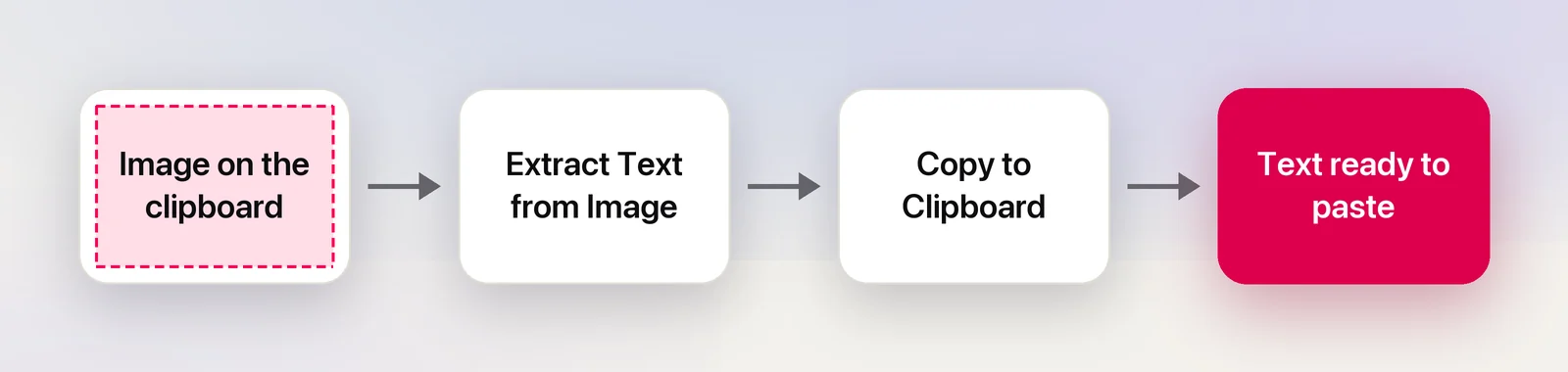
Now copy a screenshot with ⌃⇧⌘4, run the shortcut, and paste text. Variations can run from Finder as a Quick Action, or from Terminal with shortcuts run. The action has no settings, though: no language choice, no speed option, no QR codes. Step-by-step versions are in extracting text with Shortcuts.
PDFs: what’s built in and what isn’t
PDFs come in two kinds, and macOS treats them differently. A PDF made from a document already holds real text, so Preview selects it with no OCR at all. A scan is a picture of a page, and that’s where recognition comes in.
Built in:
- Selecting text on a scanned page with Live Text in Preview, for a passage or two.
- Adding a text layer to the whole file: in Preview, choose File → Export and select Embed Text. Apple notes the option only appears when no text was recognized in the document before.
Not built in: choosing the OCR language, straightening crooked scans, processing a folder of files, or exporting to Word with the layout intact. For those jobs, see our guide to PDF OCR software for Mac. If you’re not sure which kind of PDF you have, what a searchable PDF is explains how to tell.
Text that isn’t in an image yet
The biggest gap in the built-in tools is everything on screen that isn’t an image file. Think of a shared screen in a call, a remote desktop, a label in an app that won’t let you select it, or a video in a web player.
The free workaround turns the screen into an image first:
- Press ⌃⇧⌘4 and drag over the text. The screenshot goes to the clipboard, not the desktop.
- In Preview, choose File → New from Clipboard.
- Select the words, copy them, and close the window without saving.
It works almost everywhere. It’s also several steps every time, and that’s the problem screen-capture OCR apps solve. They put both steps on one shortcut: drag over the text and it lands on your clipboard as text.
Unpixel, which we make, is one of them. Press ⇧⌘2, drag over anything on screen and let go; recognition runs on your Mac with Apple’s Vision. It also pastes tables as spreadsheet cells, copies the contents of QR codes, and translates as it copies if you hold ⌥. It’s a one-time purchase from $5.99 and needs macOS 26 on Apple silicon. Other apps take different approaches, some free; our guide to OCR apps for Mac compares them by task.
Command line and developer options
If you’re scripting, every route above has a code equivalent:
shortcuts runruns your Extract Text shortcut from Terminal, with an image as input and text as output. Apple documents the command in the Shortcuts guide.- Vision: Swift code can call
VNRecognizeTextRequest, the request many Mac OCR apps use, with a choice of recognition level and languages. - VisionKit’s
ImageAnalyzergives an app the Live Text experience itself, including selectable text over images. - Tesseract, the open-source engine, can be added with Homebrew and works the same way on Linux and Windows.
Recipes for each are in OCR from the command line, and Apple Vision vs Tesseract compares the two engines.
Which should you use?
Pick by where the text is right now:
| The text is… | Shortest route |
|---|---|
| In a photo in your library | Live Text in Photos |
| In an image file in Finder | Quick Look: select it, press Space, drag |
| In a paused video in QuickTime Player or Safari | Live Text in the paused frame |
| In a scanned PDF you want to keep | Preview → File → Export → Embed Text |
| In a scanned PDF you only need a paragraph from | Live Text in Preview |
| On a web page as an image | Select it directly in Safari |
| In an app, a call, a game or a dialog | Screenshot to the clipboard, then Preview, or a capture app |
| In a folder of images, processed by a script | shortcuts run, Vision in Swift, or Tesseract |
If you only need OCR now and then, the built-in tools are enough. When the screenshot-then-Preview routine becomes a daily chore, that’s the moment a capture app earns its place.
Frequently asked questions
Does a Mac have OCR built in?
Yes. Live Text, the Shortcuts action Extract Text from Image and Preview’s Embed Text option all recognize text without any extra software, and Apple says Live Text runs on the device.
How do I turn on Live Text on a Mac?
Open System Settings → General → Language & Region and turn on Live Text (you may need to scroll down). Apple describes it as selecting text in images to copy or take action.
Can a Mac OCR a whole PDF?
Yes. Open the scanned PDF in Preview, choose File → Export and select Embed Text. The copy you save has a hidden text layer you can search and select in any PDF app.
Is there OCR on a Mac without the internet?
All of the built-in options work offline: Live Text, the Shortcuts action and Preview’s Embed Text recognize text on your Mac.
Sources
- Change Language & Region settings on Mac (Live Text) — Apple Support (macOS Tahoe 26) support.apple.com
- Interact with text in a photo using Live Text in Preview on Mac — Apple Support support.apple.com
- Use Live Text to interact with text in a photo in Photos on Mac — Apple Support support.apple.com
- macOS Ventura is now available (Live Text in paused video frames) — Apple Newsroom apple.com
- Embed text in a PDF in Preview on Mac — Apple Support support.apple.com
- Run shortcuts from the command line — Shortcuts User Guide (Apple Support) support.apple.com
- VNRecognizeTextRequest — Apple Developer Documentation developer.apple.com
- Recognizing Text in Images (processing happens on the device) — Apple Developer Documentation developer.apple.com
- ImageAnalyzer (Live Text in your app) — Apple Developer Documentation developer.apple.com