Your Mac has excellent tools for low vision: it can magnify the screen, enlarge the text under the pointer, restyle a page and read it aloud. They share one weakness. They work on real text, and a lot of what you need to read isn’t real text. A scanned letter, a screenshot someone sent you, a poster on a web page or a slide in a video call is a picture of words. Here’s how to turn those pictures into text your Mac can enlarge or speak.
Zoom, Hover Text, Accessibility Reader and Speak selection all work on real text. When the words are part of a picture, copy them out first: select them with Live Text in Preview, or capture the screen region with a text-recognition tool. Paste into TextEdit, make the font as large as you like, or press ⌘Esc for Accessibility Reader or ⌥Esc to hear it.
Built-in vision tools on Mac, at a glance
All of these are in Apple menu → System Settings → Accessibility. If you haven’t set them up yet, start here; the linked guides go step by step.
| You want to… | Tool | Where |
|---|---|---|
| Magnify the screen | Zoom (⌥⌘8 once set up) | Accessibility → Zoom |
| Enlarge the text under the pointer | Hover Text (hold ⌘) | Accessibility → Hover Text |
| Read a page in your own font, size and colours | Accessibility Reader (⌘Esc) | Accessibility → Read & Speak |
| Hear selected text | Speak selection (⌥Esc by default) | Accessibility → Read & Speak |
| Hear everything on screen | VoiceOver (⌘F5) | Accessibility → VoiceOver |
| See the pointer | Pointer size and colours | Accessibility → Display |
Hover Text on Mac covers Hover Text and Zoom in detail, and making text bigger covers text size across apps.
When the text is an image
You can usually tell quickly. You can’t select a single word, Hover Text doesn’t show the words, VoiceOver says “image”, and Accessibility Reader tells you it found no text.
Zoom still works, but it magnifies pixels. Small text in a compressed image gets blurrier the more you zoom, and you have to pan along every line. Two built-in features help in specific cases:
- VoiceOver image descriptions. With the VoiceOver cursor on an image, press VO-Shift-L to hear a description. VoiceOver Utility’s VoiceOver Recognition category has an On-Device Mode to keep that processing on your Mac, though Apple notes descriptions may be less detailed. A description is a summary of the picture, not a word-by-word reading.
- Magnifier for Mac. New in macOS Tahoe, it uses a connected camera or an iPhone to magnify things in the room, like a whiteboard or a printed page, and works with Accessibility Reader. It’s for paper, not for images already on your screen.
For text on your screen, the dependable route is to copy the words out.
Copy, then enlarge or listen
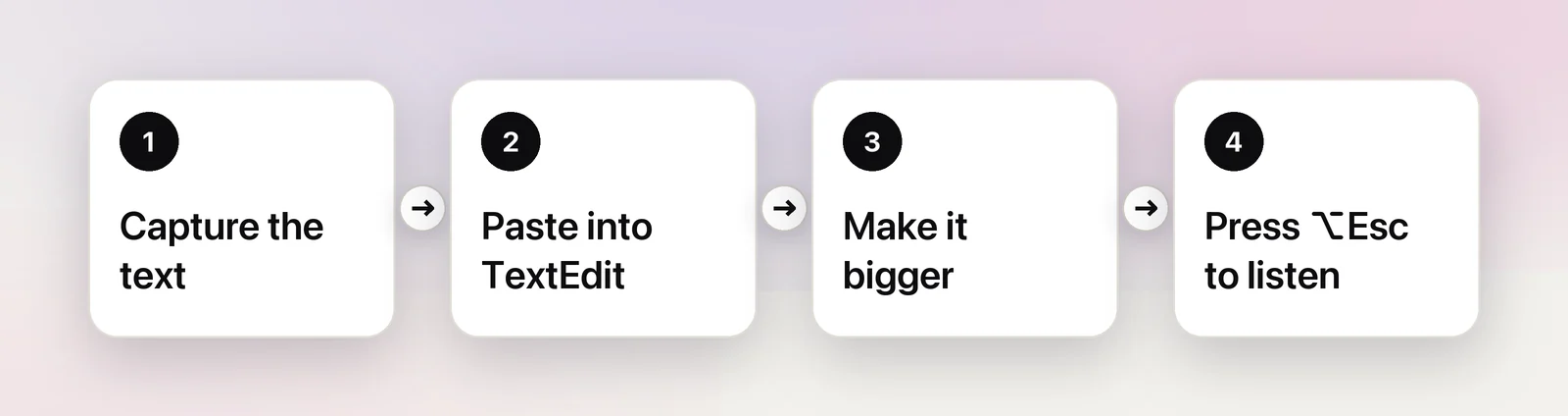
For an image file, such as a photo or a saved screenshot, Live Text does the copying:
- Open the image in Preview.
- Drag across the words; the pointer becomes a text cursor over text it recognizes.
- Press ⌘C.
- Open TextEdit, create a new document and press ⌘V.
- Make it readable: choose Format → Font → Show Fonts and pick a large size, or press ⌘Esc to open the text in Accessibility Reader with your own theme, font and spacing.
- To listen, select the text and press ⌥Esc, or press Play in Accessibility Reader.
For text that isn’t a file, like a slide in a video call or a picture inside an app, press ⌃⇧⌘4 and drag over it to copy a screenshot. Then choose File → New from Clipboard in Preview and continue from step 2. It works, but it’s a lot of small targets for tired eyes.
In Unpixel
Unpixel shortens the route to one shortcut. Press ⇧⌘2, drag a rectangle around the words anywhere on screen, and let go; the text is on your clipboard. Paste it into your reading pad and carry on from step 5. It doesn’t speak or enlarge the text itself; macOS does that part well already.
Details that matter if you have low vision:
- Confirmation by sound. Turn on Play sound in Settings → General if the small “Copied” message is hard to see. The message itself can be turned off.
- Joined lines. With Keep line breaks off in Settings → Recognition, the lines of a paragraph are joined. Pasted text then reflows at a large size instead of keeping the picture’s short lines.
- VoiceOver labels on the panel’s icon buttons, and a table’s size is read out as “5 rows by 3 columns”.
- Reduce Motion is respected: the menu bar icon dims steadily instead of pulsing while a longer job, such as a multi-page PDF, is being read.
- Small print reads better large. Zoom into the image or the page with ⌘+ before you capture.
Keyboard-first capture
Both the screenshot crosshair and Unpixel start from the keyboard, but choosing the area is a drag. Unpixel has no keyboard-only way to pick the region. If dragging is difficult, these help:
- Mouse Keys. Turn it on in System Settings → Accessibility → Pointer Control. Move the pointer with 7, 8, 9, U, O, J, K and L, press M to hold the button down, move to the far corner, and press the period key to let go. Apple lists the numeric-keypad keys too.
- A bigger pointer. In Accessibility → Display, raise Pointer size so the crosshair is easy to follow.
- Zoom in first. Selecting a large target on a zoomed screen is easier than a tiny one at normal size.
- Cancel freely. Esc cancels a capture without changing your clipboard.
Setting it up once
- In Accessibility → Read & Speak, turn on Speak selection and Accessibility Reader.
- Open Accessibility Reader once and choose a theme, font, size and spacing you’re comfortable with.
- Turn on Hover Text and Zoom if you use them, and check the pointer size.
- Set TextEdit’s default font size and keep it in the Dock.
- Pick your capture route: Live Text for image files, a screenshot or a capture tool for everything else.
Frequently asked questions
Can VoiceOver read text inside an image on a Mac?
VoiceOver can describe an image when you press VO-Shift-L with the VoiceOver cursor on it. A description tells you what the picture shows; for reading a long passage word by word, copy the text out first.
Can Unpixel speak the words for me?
No. It copies the text to the clipboard. macOS does the speaking: paste the text, select it and press ⌥Esc, or open it in Accessibility Reader and press Play.
Can I select an area without a mouse or trackpad?
Screen-region tools, including the macOS screenshot crosshair and Unpixel, need a drag. Mouse Keys in Accessibility → Pointer Control lets you press, move and release the pointer from the keyboard, which is slow but works for drags in general.
Sources
- Use Accessibility Reader on Mac — Apple Support (macOS Tahoe 26) support.apple.com
- VoiceOver Recognition category in VoiceOver Utility — Apple Support support.apple.com
- Have your Mac speak text that’s on the screen — Apple Support (macOS Tahoe 26) support.apple.com
- Control the pointer using Mouse Keys on Mac — Apple Support (macOS Tahoe 26) support.apple.com
- Apple unveils powerful accessibility features coming later this year (Magnifier for Mac) — Apple Newsroom, May 2025 apple.com
- Zoom in on your Mac screen — Apple Support (Mac User Guide) support.apple.com