Research runs on exact words. A paraphrase of a 1950s journal article, a misread figure in an archival ledger, or a quote with one word changed can undo an argument. A lot of that material only exists as scans and page images, so text recognition (OCR) is part of the job. The trick is to use it for speed and never trust it for accuracy.
Check whether the scan already has a text layer or the archive offers its own full text. If not, use Preview’s File → Export → Embed Text for whole PDFs, or capture just the passage you need. Then compare the copied quote with the page image word by word, keep the original spelling, and record the page, edition and archive reference before you move on.
Scanned papers and old journals
Many digitized articles already come with a text layer, made by the publisher or the library when they were scanned. Its quality varies a lot. Try it first: press ⌘F in Preview and search for a word you can see. If it finds the word, select and copy from the PDF directly, then check the result.
If there’s no text layer, Preview can make one for the whole document:
- Open the PDF in Preview and choose File → Export.
- Select Embed Text, save under a new name, and keep the original untouched.
- Open the copy and search or select as normal.
Old journals are hard on any recognizer. Expect trouble with:
- Two-column layouts. Select one column at a time, or lines from both columns get interleaved.
- Running heads, page numbers and footnote markers that end up in the middle of a sentence.
- Hyphenation at line ends, which leaves “recog- nition” split in two.
- Historical type. Ligatures, the long s (ſ), blackletter and worn type are often misread or skipped.
Archives and digitized collections
Before you capture anything from a digital collection, look for the text the archive already made. Many digital libraries offer a full-text or plain-text view next to the page images, and our guide to the Internet Archive’s full text shows one example. That text is usually machine-made too, so it needs the same checking. It can still save you hours.
When the viewer only shows images, zoom in until the passage fills most of the screen, then capture that region. Larger letters recognize better than a whole page at reading size. Respect the collection’s terms: some allow study copies but not republication of the images or transcripts.
Quote accurately: verify against the source
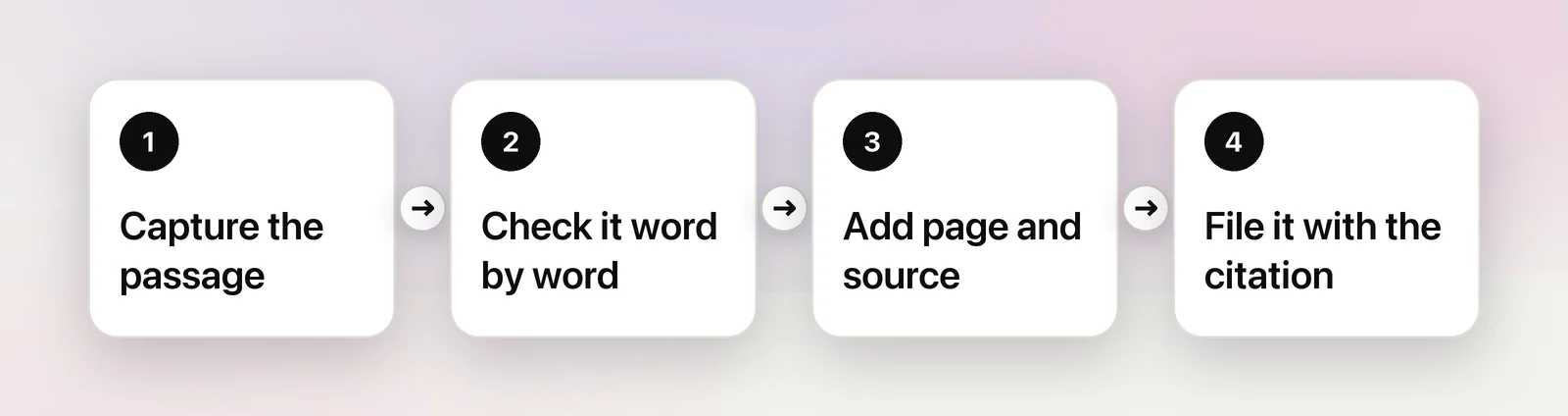
OCR errors are dangerous in quotes because they look plausible. Compare the copied text with the page image before it goes into your notes:
- Read it word by word, not sentence by sentence. Skimming finds nonsense; it doesn’t find “form” instead of “from”.
- Check every number, date and name. These have no context to catch a misreading, and 1867 versus 1857 changes a claim.
- Keep the original spelling and punctuation. Don’t let a spell checker modernize the source. Mark errors that are really in the original with [sic].
- Rejoin hyphenated words only where the hyphen was a line break, and keep genuine compounds as printed.
- Mark every omission with an ellipsis and every insertion with square brackets.
Into your reference manager or notes
If you use Zotero and the PDF has a text layer, its PDF reader does much of this for you. You can drag annotations into a note, and Zotero adds a citation and a link back to the PDF page. On a scan without a text layer there’s nothing to highlight, so make a copy with Embed Text first and attach it, or paste your checked quote into a note and type the page number yourself.
For plain notes, in Obsidian, Notes or a document, a fixed template keeps quotes usable later:
- the quote, in quotation marks
- author, title, edition or volume, page
- for archives: repository, collection, box or folder, item
- for online material: the URL and the date you accessed it
Tables in papers
Tables are where copy and paste from PDFs falls apart: cells come out in reading order with the columns lost. A table OCR tool rebuilds rows and columns, but check the output against the printed table. The common slips are merged header cells, footnote markers (a, b, *) glued to numbers, minus signs read as hyphens, and decimal points dropped in faint print. Re-add the column totals in your spreadsheet and compare them with the paper’s.
In Unpixel
Unpixel captures text from whatever viewer the source is in: a scanned PDF, an archive’s image viewer, a microfilm reader on screen, a figure in a paper. Press ⇧⌘2, drag over the passage, and the text is on your clipboard. Open Image… reads a whole PDF of up to 50 pages at once.
Three settings matter for research:
- Language correction (Settings → Recognition) fixes likely misreadings with a dictionary. Turn it off for historical texts, names and non-standard spellings, so the source isn’t “corrected”.
- Keep line breaks off joins the lines of a paragraph and repairs words hyphenated at line ends. Leave it on when line layout matters, as in poetry or ledgers.
- Detect tables pastes a table from a paper as real cells in Numbers or Excel. Right-click it in the history to copy it again as CSV or Markdown.
The history helps with provenance too. Each capture shows the app it came from, or the file name for files you open in Unpixel, with the time. That isn’t a citation; it can’t know the page number. But it does let you search your captures later and find the session a quote came from. For sources in other languages, holding ⌥ as you let go copies a working translation; quote the original.
Keep track of where text came from
Provenance is easier to record at capture time than to reconstruct a month later. A few habits:
- Write the reference before the quote. Page and source first, then paste.
- Keep the page image for anything you’ll quote in print, in the same folder or attached to the reference.
- Note the method for important transcriptions: “OCR, checked against the scan” tells a co-author how much to trust it.
- Never cite the OCR text as the source. You cite the document; the text is your working copy.
Frequently asked questions
Should I correct spelling mistakes in a historical source?
No. Quote the source as printed and mark its errors with [sic] if your style guide asks for it. Only fix mistakes the OCR introduced, which is why you compare the copy with the page image.
Can OCR read handwritten letters and manuscripts?
Neat, modern handwriting sometimes works. Old cursive, faded ink and dense manuscript pages rarely do, so plan to transcribe those yourself and use OCR for the printed parts.
Do I still need the page image once I have the text?
Yes. Keep the image or the page reference with your note. When a reviewer or your future self questions a quote, the image is the evidence; the OCR text is only your copy.
Sources
- Embed text in a PDF in Preview on Mac — Apple Support support.apple.com
- Interact with text in a photo using Live Text in Preview on Mac — Apple Support support.apple.com
- Zotero PDF reader: adding annotations to notes — Zotero Documentation zotero.org
- Notes — Zotero Documentation zotero.org