You select a paragraph in a PDF, copy it, paste it, and get symbols, empty boxes or letters that make no sense. The page looks perfect, so when copying text from a PDF gives weird characters like these, it feels like the clipboard is broken. It isn’t. The problem is inside the PDF, and the reliable way around it is to read the page as an image rather than copying its text.
Garbled text means the PDF’s fonts don’t say which letters their shapes stand for, so the copied characters are wrong even though the page looks fine. Try another PDF viewer first. If the paste is still nonsense, skip the PDF’s text and read the page as an image with Live Text or OCR. Missing “fi” and “fl” pairs are fixed with Find and Replace.
What the garbled paste looks like
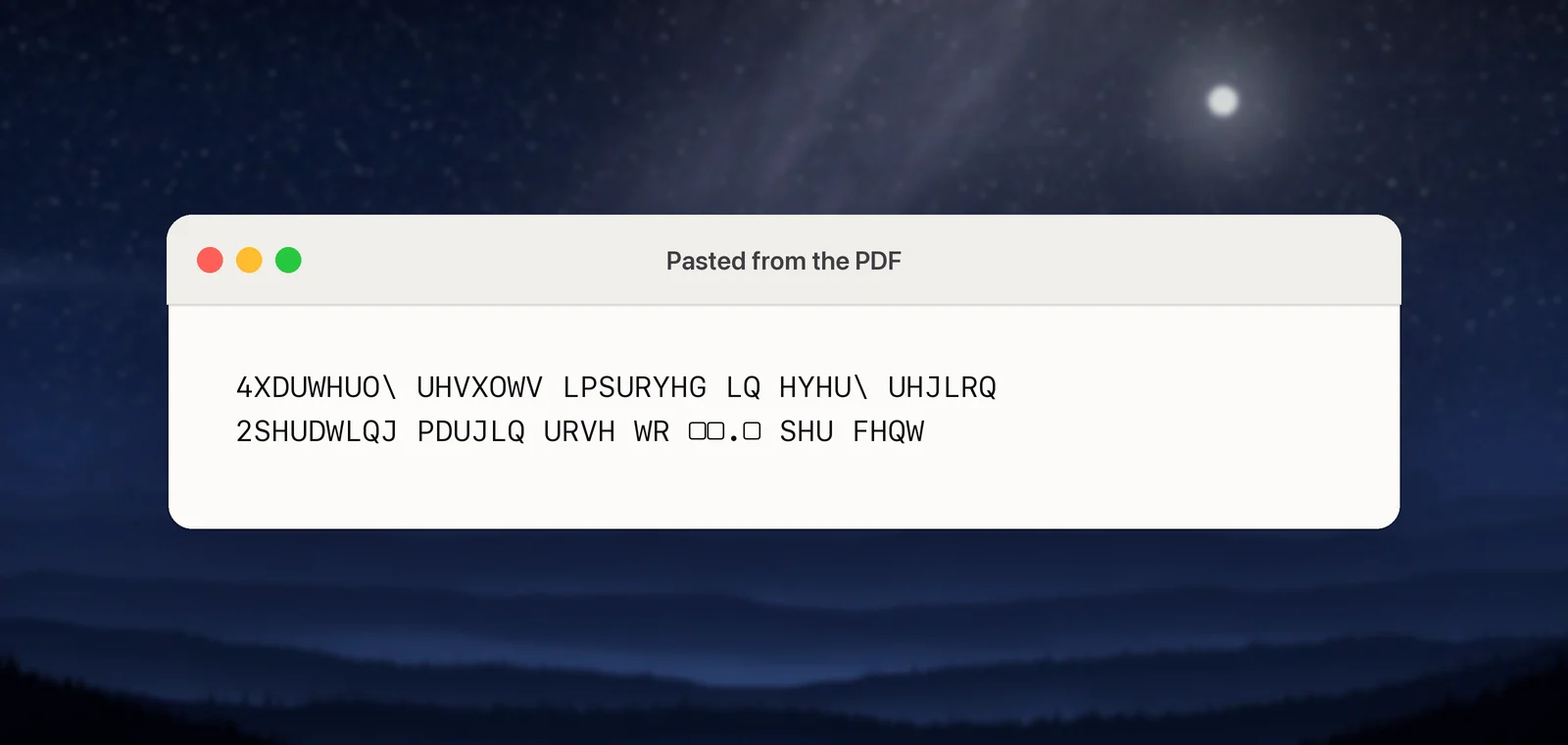
The nonsense comes in a few typical forms:
- Scrambled letters that follow a pattern, such as every letter replaced by another one.
- Symbols or empty boxes (□) instead of letters, often in headings or a special font.
- Missing letter pairs: “office” pastes as “oce” and “flow” as “ow”.
- Odd spacing: “T h e r e p o r t”, or words run together.
A quick diagnosis: press ⌘F in the PDF and search for a word you can see on the page. If search can’t find it, the PDF’s text is broken, and every app that copies or searches it will struggle.
Why PDFs paste nonsense
A PDF doesn’t store words the way a text file does. It stores codes that pick shapes from an embedded font and places them on the page. To copy text, your PDF viewer has to turn each code back into a real character. It does that from the font’s encoding or from a lookup table in the file called a ToUnicode map.
The PDF standard (ISO 32000-1, section 9.10) describes how viewers make that translation. It also says what happens when none of the methods work: there’s no way to tell what a code stands for, and the viewer has to guess. That guess is your gibberish.
It typically happens with:
- Fonts that were cut down to the characters used (subsetted) and given custom codes, which some older tools and print-to-PDF drivers produce.
- Symbol and icon fonts, whose shapes never had letters behind them.
- Deliberately scrambled text, which a few publishers use to discourage copying.
Ligatures and odd spacing
Two milder problems have simple fixes.
Ligatures. Many fonts draw “fi”, “fl”, “ff” and “ffi” as a single joined shape. A PDF can map that shape to a single special character (fi) or to nothing at all. In a text editor, replace them:
- Paste the text into TextEdit or your editor.
- Choose Edit → Find → Find and Replace….
- Replace “fi” with “fi” and “fl” with “fl”, or search for the broken words and fix them by hand.
Spacing. PDFs often position words without storing a space character between them, so viewers infer spaces from the gaps. Letter-spaced headings come out as “T h e”, and tight columns run words together. Retyping a heading is usually faster than fixing it. For line breaks in the middle of sentences, see removing line breaks copied from a PDF.
Try a different PDF viewer
Viewers extract text in their own ways, and one may cope where another doesn’t. Preview and Safari both use Apple’s built-in PDF technology, so switching between those two rarely changes the result. Instead, open the file in a viewer with its own engine, such as the PDF viewer built into Chrome or Firefox, or Adobe Acrobat Reader, and copy again. In Preview, also check that Tools → Text Selection is chosen.
If every viewer pastes the same garbage, the information simply isn’t in the file, and no viewer can recover it.
Read the page as an image instead
Text recognition (OCR) looks at the shapes on the page, exactly as you do, and never consults the PDF’s broken text. That’s why it fixes this problem.
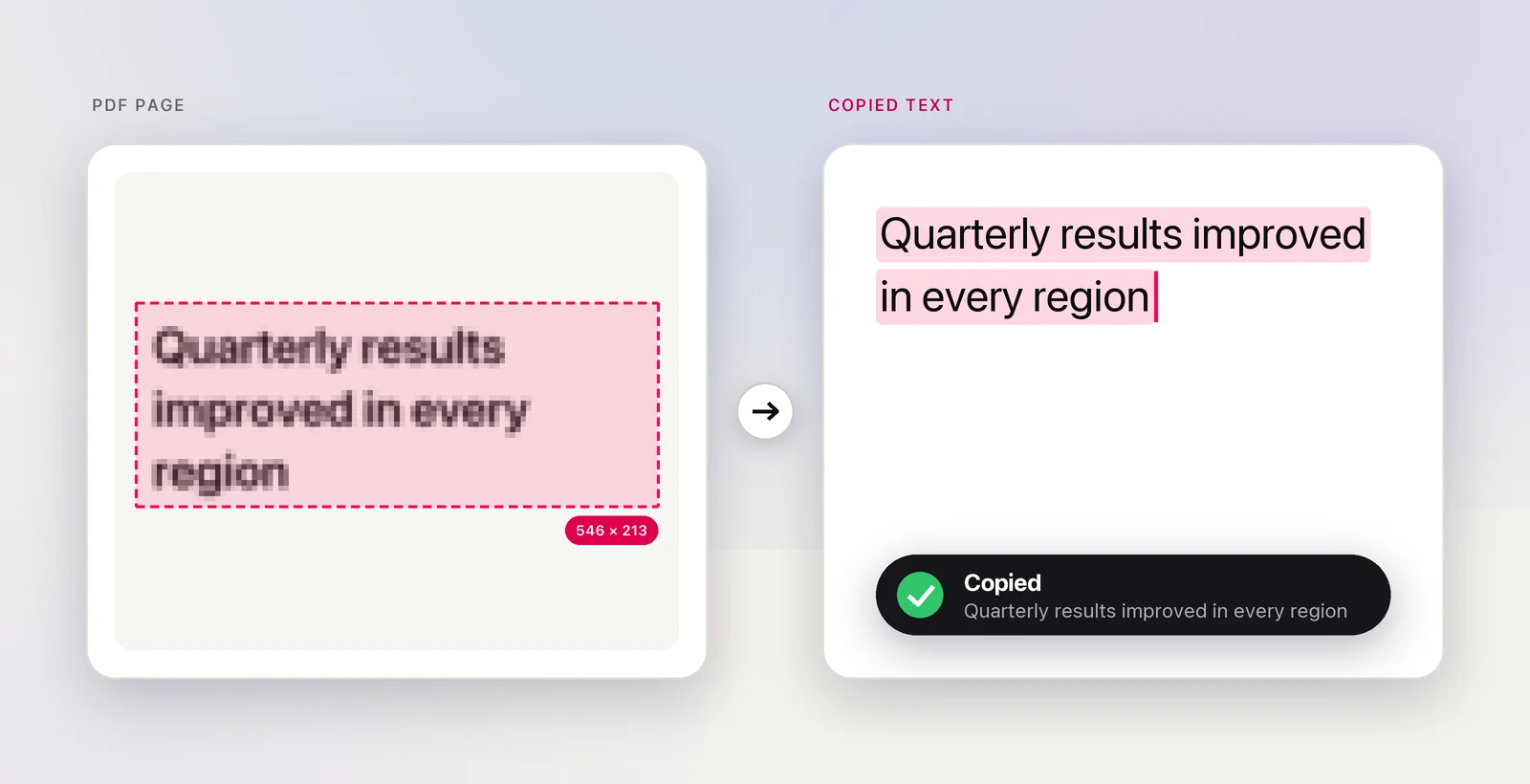
The built-in way, for a passage or two:
- Zoom the PDF so the text is comfortably large.
- Press ⌃⇧⌘4 and drag over the passage to copy it as an image.
- In Preview, choose File → New from Clipboard.
- Drag across the text in the new image with Live Text and press ⌘C.
You can also feed the screenshot to the Shortcuts app’s Extract Text from Image action. Either way, check names, numbers and accented letters against the page: OCR can misread, too.
In Unpixel
Unpixel shortens that to one step. Press ⇧⌘2, drag over the passage on screen and let go; the recognized text is on your clipboard, read on your Mac. For whole pages, choose Open Image… and pick the PDF, or drop it on Unpixel’s menu bar icon. Unpixel reads the pages as images, up to 50 per capture, so the broken text is never involved. With Keep line breaks turned off, lines of a paragraph come back joined, and a table on the page pastes into Numbers or Excel as cells.
Tell the document owner
If the PDF comes from a colleague, a supplier or a public body, it’s worth a short note. The same broken map that garbles your paste also breaks search in the document and makes screen readers read nonsense aloud, so fixing it helps more than just you. Things to ask for:
- A new PDF exported straight from the original app (File → Export or Save as PDF) rather than produced by an old print driver.
- Fonts embedded with their Unicode mapping, which modern export settings do by default.
- An accessible (tagged) PDF, or the source document itself.
Quick checklist
- Search the PDF for a visible word: no match means broken text.
- Try another viewer, such as Safari’s.
- Fix ligatures with Find and Replace.
- Still garbled? Read the page as an image: Live Text on a screenshot, or OCR.
- Ask the sender for a properly exported PDF.
Frequently asked questions
Why does the PDF look fine but paste wrong?
The page is drawn from the font’s shapes, while copying relies on a separate map from those shapes back to letters. When that map is missing or wrong, the picture is right and the text underneath isn’t.
Will converting the PDF to Word fix it?
Usually not, if the converter reads the same broken text. A converter that runs OCR on the page images can work, because it ignores the PDF’s own text.
Can I repair the PDF file itself?
Not reliably. The clean fix is a new export from the original document, with fonts embedded properly. Ask whoever made the PDF.