You turned the app on in Privacy & Security, but it still records a black window, shares only your desktop picture or insists it needs permission. The setting and the running app have got out of step. The fixes below close that gap, from the quickest to the most thorough.
Quit the app completely and open it again: an app picks up Screen Recording permission when it starts. If it still captures only your wallpaper, open Privacy & Security → Screen & System Audio Recording, select the app, click −, add it back with +, turn it on and relaunch it. As a last resort, reset the permission for that app with the tccutil command.
What “permission not applied” looks like
When an app tries to capture the screen without working Screen Recording access, macOS doesn’t show it your windows. The usual signs:
- Captures show only the wallpaper, sometimes with the menu bar, but none of the windows that were open.
- A screen share shows your desktop picture or a black frame to everyone else on the call.
- The app keeps showing its own “needs permission” message although the switch is on.
- Text-capture tools find nothing, because the picture they received has no text in it.
Two look-alikes have different fixes. If the switch won’t turn on at all, see Screen Recording blocked by your administrator. If everything captures except a playing video, that video is protected: see why screenshots of videos are black.
1. Quit the app completely, then reopen it
An app checks its access when it starts, so a switch you turn on while it’s running often does nothing until the next launch. When macOS offers Quit & Reopen, choose it.
Closing the window isn’t enough. Press ⌘Q, or for a menu bar app, choose Quit from its menu. If you’re not sure it has gone, open Activity Monitor, search for the app’s name and quit it there. Then open it again and try a capture.
2. Turn the switch off and on again
- Choose Apple menu → System Settings → Privacy & Security.
- Click Screen & System Audio Recording.
- Turn the app’s switch off, then on again. Enter your password or use Touch ID if asked.
- Quit and reopen the app.
This rewrites the permission for the app, which clears up most cases where the list and the app disagree.
3. Remove the app and add it again
When toggling doesn’t help, give macOS a clean entry:
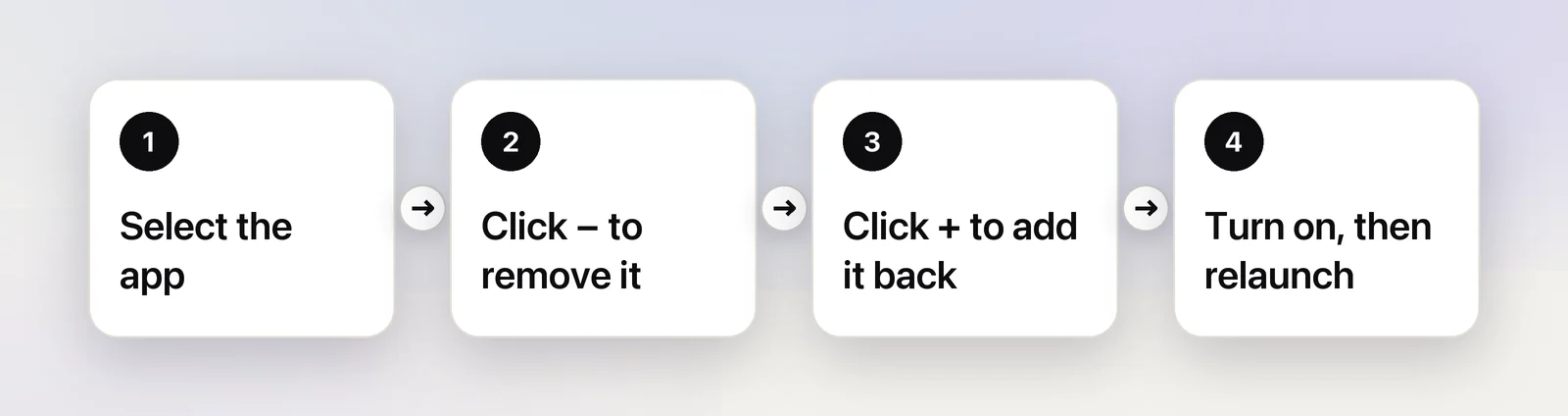
- In Screen & System Audio Recording, select the app in the list.
- Click the Remove button (−) below the list.
- Click the Add button (+), open Applications, select the app and click Open.
- Turn on its switch, then quit and reopen the app.
4. Look for a second copy of the app
The switch belongs to one copy of the app. If there’s another copy on your Mac, you may be running a different one from the one you allowed. This happens a lot with apps you downloaded more than once:
- An older copy in Downloads, or a second one in a folder inside Applications.
- An app opened straight from its disk image (.dmg) instead of from Applications.
Search for the app’s name in Spotlight or Finder. For each result, choose File → Get Info and look at Where. Keep the copy in Applications, move the others to the Trash, and eject any disk image. Then repeat fix 3 so the list points at the copy that stays.
5. After an update or a reinstall
macOS ties the permission to the app’s identity: its bundle ID and the developer’s code signature. Normal updates keep both. A copy from another source, a beta build or a reinstall from a different download can look like a new app to macOS. The switch then refers to the old one, even though it still shows as on. Remove the app and add it again (fix 3).
6. Reset the permission with tccutil
macOS has a Terminal command that clears your Screen Recording decision for one app, so it asks again from scratch. Apple’s name for this permission is ScreenCapture, the same name its device-management documentation uses.
Quit the app.
Find its bundle ID. Replace the app name in this command, keeping the quotes:
mdls -name kMDItemCFBundleIdentifier -r "/Applications/App Name.app"Reset Screen Recording for that bundle ID only:
tccutil reset ScreenCapture com.example.appOpen the app and capture something. When macOS asks, allow it in System Settings, then quit and reopen the app once more.
7. Restart the Mac and check for updates
If an app still can’t capture after all this, restart your Mac and install any waiting macOS update in System Settings → General → Software Update. Then check whether the app’s developer has released an update for your version of macOS.
In Unpixel
Unpixel needs Screen Recording and nothing more. It uses the permission only for the area you select after pressing ⇧⌘2, when you let go, and for that same area when you press Capture Again (⇧⌘1). Nothing is recorded or saved as video.
Two places help when the permission doesn’t seem to stick:
- Settings → General shows Screen Recording as Granted or Not granted. When it’s missing, Open System Settings goes straight to the right list.
- The welcome guide notices when you’ve been to System Settings but the change hasn’t taken effect. It says “Already turned it on? macOS applies the change after Unpixel relaunches.” and offers a Relaunch Unpixel button.
The tell-tale sign in Unpixel: you press ⇧⌘2 and, instead of the crosshair, a Screen Recording needed message appears, even though the switch is on. Quit and reopen Unpixel first. The tccutil steps above work for it too. Run the mdls command on /Applications/Unpixel.app to get its bundle ID. The Screen Recording help article has the details.
Quick checklist
- Quit the app fully and reopen it.
- Toggle its switch off and on, then relaunch.
- Remove it with −, add it back with + from Applications.
- Delete extra copies; run the app from Applications, not a disk image.
- Reset with
tccutil reset ScreenCaptureplus the bundle ID. - Restart and update. On a work Mac, ask IT.
Frequently asked questions
Why does my screen share show only my wallpaper?
The app sharing your screen doesn’t have working Screen Recording access yet, so macOS gives it the desktop picture without your windows. Quit and reopen it after turning the switch on. For meetings in a browser, the browser needs the permission.
Is it safe to reset permissions with tccutil?
Yes. It only clears your earlier decision, and the app asks again the next time it captures. Leave out the bundle ID and it clears Screen Recording for every app, so you’d have to grant it to each one again.
Does a screen capture app also need Accessibility permission?
Not to see the screen. Screen Recording covers reading what’s on the display; Accessibility is for apps that control other apps. Some tools ask for both because they do both.