A searchable PDF is a scanned document that you can search, select and copy from, even though every page is still a photograph of paper. The trick is an invisible layer of text, produced by OCR and placed exactly behind the words in the image. Knowing how that layer works explains most of the odd things scanned PDFs do.
A searchable PDF is a scanned document with an invisible layer of OCR text placed exactly behind the words on each page image. It looks identical to the scan, but you can search it, select and copy text, and find it with Spotlight. On a Mac, Preview makes one for free: choose File → Export and select Embed Text.
Three kinds of PDF
Every PDF you meet is one of three kinds, and they can look exactly alike on screen:
| Kind | What’s inside | Search and copy |
|---|---|---|
| Digital | Real text with fonts, saved from a word processor, a browser or an app | Work perfectly |
| Image-only scan | One picture per page, from a scanner or a phone | Nothing to find or copy |
| Searchable scan | The same pictures, plus an invisible OCR text layer | Work, with any OCR mistakes included |
A fourth variety exists but is less common: a scan converted to editable text, where the software has rebuilt each page with real text and fonts. It behaves like a digital PDF, but the page no longer looks exactly like the paper.
Searchable scans are what you want for archives: contracts, statements, letters and manuals that you’ll need to find again by what they say. Spotlight searches the text in PDFs, and the hidden layer is ordinary PDF text, so the file can turn up when you search your Mac for a phrase in it.
How to tell which one you have
Two quick tests in Preview, or any PDF viewer, tell the three apart:
- Zoom in to 400%. Digital text stays crisp at any size. Scanned pages, searchable or not, turn soft or jagged at the edges of letters.
- Search for a word you can see. Press ⌘F and type a word from the page.
| Crisp when zoomed | Blurry when zoomed | |
|---|---|---|
| Search finds the word | Digital PDF | Searchable scan |
| Search finds nothing | Rare: text drawn as shapes | Image-only scan |
If you’re comfortable in Terminal, pdffonts from the free Poppler tools (brew install poppler) lists a file’s fonts. An image-only scan has none. A text layer made by Tesseract-based tools, such as OCRmyPDF, often shows a font called GlyphLessFont, a placeholder that exists only to carry invisible text.
When text selects but pastes as nonsense, that’s a different problem, a broken text layer, covered in why PDF text pastes as gibberish.
How a text layer is added
OCR software works through the document page by page:
- It reads the page image and finds every word, along with the exact box it occupies.
- It writes each word into the PDF as text, at the same position and size as the word in the picture.
- It draws that text in the PDF format’s invisible rendering mode. The PDF standard defines a text rendering mode that neither fills nor strokes the letters, so they take up space without showing.
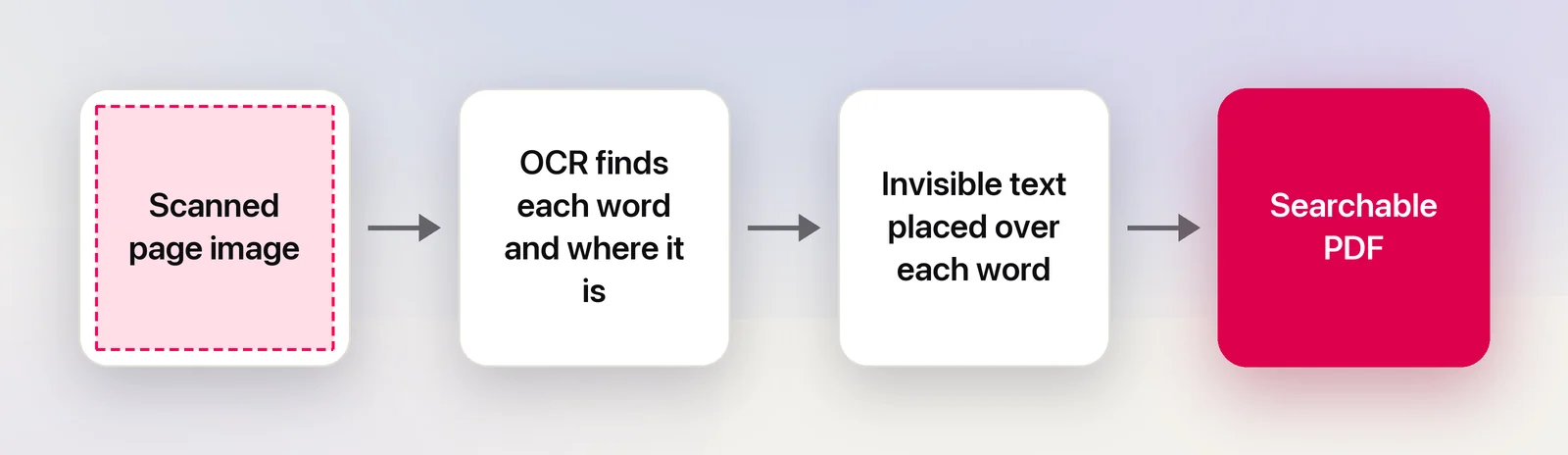
The image still sits on top, so the page looks untouched. When you search, select or copy, your PDF viewer uses the hidden words underneath. Tesseract’s own PDF writer, for example, begins each block of text with that invisible mode before placing the words.
This design has side effects worth knowing:
- Highlights can be slightly off. On a skewed or curled page, the selection may not line up perfectly with the letters you see.
- Mistakes are invisible. The page looks perfect, but a misread word in the hidden layer means search misses it and your copy contains the error. Check names and numbers you copy out.
- The visible text still can’t be edited. You’ve added text behind the picture, not replaced the picture.
- It isn’t full accessibility. A screen reader can read the hidden text, but a properly accessible PDF also needs tags for headings and reading order, which OCR alone doesn’t add.
Making a searchable PDF on a Mac
Preview, built in and free:
- Open the scanned PDF in Preview.
- Choose File → Export.
- Select Embed Text, give the file a new name so the original stays untouched, and click Save.
Apple notes that Embed Text only appears when no text was recognized in the document before. You can’t choose the language or straighten pages, and it works on one file at a time.
OCRmyPDF, free and open source: install it with brew install ocrmypdf (add brew install tesseract-lang for languages beyond English), then run:
ocrmypdf -l eng --deskew --rotate-pages scan.pdf scan-searchable.pdf--deskew straightens slightly tilted pages and --rotate-pages fixes pages scanned sideways. By default the output is PDF/A, an archiving format; add --output-type pdf for a regular PDF. If a file already has text, OCRmyPDF stops rather than overwrite it, and its documentation explains the options for redoing OCR.
Paid PDF editors: as of October 2026, Adobe Acrobat’s OCR is under All tools → Scan & OCR, for the open file or several at once. Adobe describes the result the same way: an invisible text layer behind the page image. ABBYY FineReader PDF and PDF Expert offer OCR too. Our guide to PDF OCR software for Mac compares them, with prices.
Whatever you use, test the result: search for three or four words from different pages, including a name and a number.
When you just need the text
A searchable PDF is the right tool for an archive. If you only need a paragraph, a table or a page of text in another app, you don’t need a new PDF at all:
- One passage: select it with Live Text in Preview, then copy.
- Every page: copying text from a scanned PDF walks through the options.
Unpixel, which we make, sits in this second camp. It doesn’t create searchable PDFs; it copies text. Use Open Image… or drag a PDF onto its menu bar icon, and the recognized text of up to 50 pages is on your clipboard, read on your Mac. To capture just one part of a page, press ⇧⌘2 and drag over it; a table pastes into a spreadsheet as cells. For a document you’ll want to search later, use Preview or OCRmyPDF instead.
Frequently asked questions
Does a searchable PDF look different from the original scan?
No. The page image is unchanged; the text layer is drawn invisibly behind it. The file usually grows only slightly, because text takes far less space than images.
Can I edit the text in a searchable PDF?
Not the words you see, because they’re still a picture. To edit them, you need a conversion to an editable format, such as Word, which rebuilds the page as real text and may change its look.
Why doesn’t search find a word I can see in my searchable PDF?
OCR probably misread it, so the hidden text holds a slightly different word. Try searching for part of the word, or re-run OCR with the right language on a cleaner scan.
Is a searchable PDF the same as PDF/A?
No. PDF/A is an archiving standard, and a searchable PDF is any PDF with a text layer. They can overlap: OCRmyPDF, for example, produces PDF/A by default.
Sources
- Embed text in a PDF in Preview on Mac — Apple Support support.apple.com
- ISO 32000-1:2008, Document management — Portable document format — Part 1: PDF 1.7, §9.3.6 Text rendering mode (Adobe-hosted copy) opensource.adobe.com
- pdfrenderer.cpp (invisible text and GlyphLessFont) — Tesseract source on GitHub github.com
- Installing OCRmyPDF — OCRmyPDF documentation ocrmypdf.readthedocs.io
- Cookbook — OCRmyPDF documentation ocrmypdf.readthedocs.io
- Recognize text in scanned documents — Adobe Acrobat Help (read October 2026) helpx.adobe.com