A scanned contract, an old thesis, a stack of receipts fed through the office copier: a scanned PDF is really a set of photos of pages. Copying one paragraph is easy enough. Getting all 40 pages out as text is where most methods make you work page by page, so this guide is about doing the whole document in one pass.
In Preview, choose File → Export, select Embed Text and save a copy. Preview recognizes the text on every page and adds a layer you can search, select and copy. To put the text straight on your clipboard instead, open the PDF with Unpixel’s Open Image…, which reads up to 50 pages per capture. Google Docs can convert scans too, but the file is uploaded.
Is it really a scan? A 10-second check
Before choosing a method, make sure the PDF has no text layer. Open it in Preview and try these:
- Search for a word you can see. Press ⌘F and type a word from the page. No results means there’s no text behind the picture.
- Zoom right in. At 400%, scanned letters turn soft or blocky at the edges, while real text stays crisp at any size.
- Try to select a line. With Tools → Text Selection on, a scan either selects nothing or treats the whole page as one image.
If the text does select but pastes as nonsense, the file has a broken text layer rather than none. Our PDF copy troubleshooting guide covers that case.
Built in: Preview’s Embed Text
Preview can run text recognition over every page of a scan and save the result as a new PDF with a hidden text layer. It costs nothing and keeps the file on your Mac.
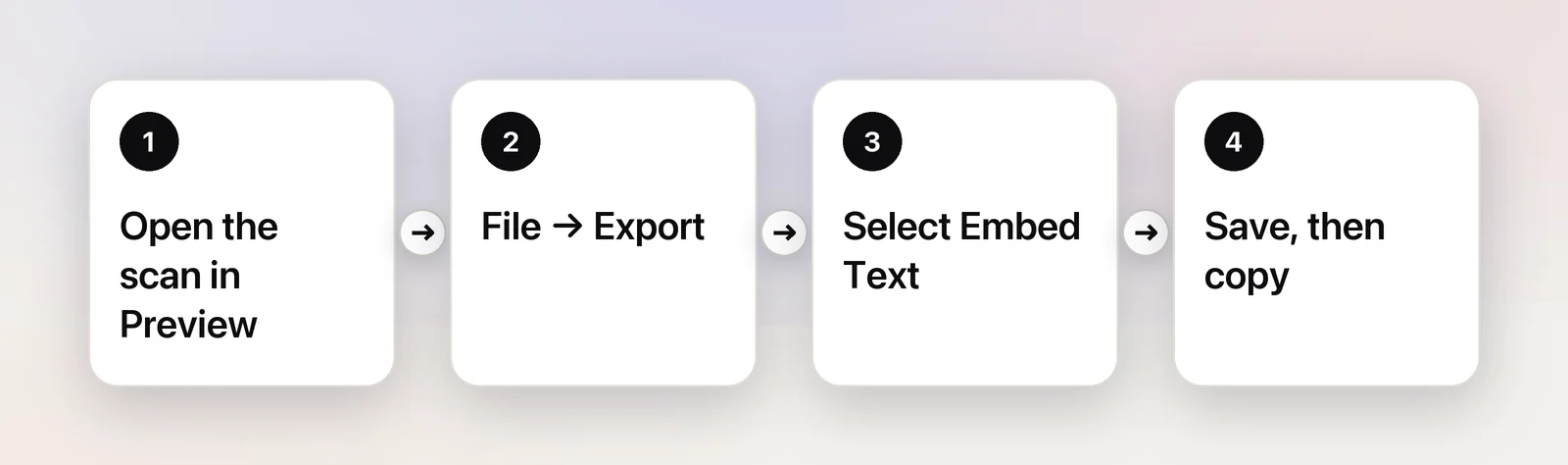
- Open the scanned PDF in Preview.
- Choose File → Export.
- Select Embed Text, give the export a new name so you keep the original, and click Save.
- Open the exported copy. Click in the text, press ⌘A to select it and ⌘C to copy, then check that the paste includes every page.
Two details from Apple’s guide: the Embed Text option only shows up when the document has no recognized text yet, and the result can be selected in any PDF viewer, not just Preview. You also end up with a searchable PDF to keep, which is handy for an archive.
Free, in the browser: Google Docs
Google Drive can turn a scan into an editable document. Upload the PDF to Drive, right-click it and choose Open with → Google Docs. Drive creates a new document with the recognized text, ready to copy or edit.
As of October 2026, Google’s help page sets these limits:
- The file must be 2 MB or smaller.
- It works with PDFs and with JPEG, PNG and GIF images.
- Text should be at least 10 pixels high, and pages must be right side up.
- Bold, italics and line breaks are likely to survive; lists, tables, columns and footnotes usually aren’t detected.
The trade-off is privacy: the document goes to Google’s servers. That’s fine for a public report, less so for a lease or a medical letter. The 2 MB cap also rules out most long scans unless you split them first.
All pages at once, straight to the clipboard
In Unpixel
When you want the text itself rather than a new PDF, Unpixel can read the whole file in one step.
- Click the Unpixel icon in the menu bar, then Open Image… (or drop the PDF on the icon, or use Open With → Unpixel in Finder).
- Choose the scanned PDF. A long file takes a little while, and a “Reading N pages…” note shows until it’s done.
- When it’s done, every page is on your clipboard in order, with a blank line between pages. Paste it into Pages, Word, Notes or your editor.
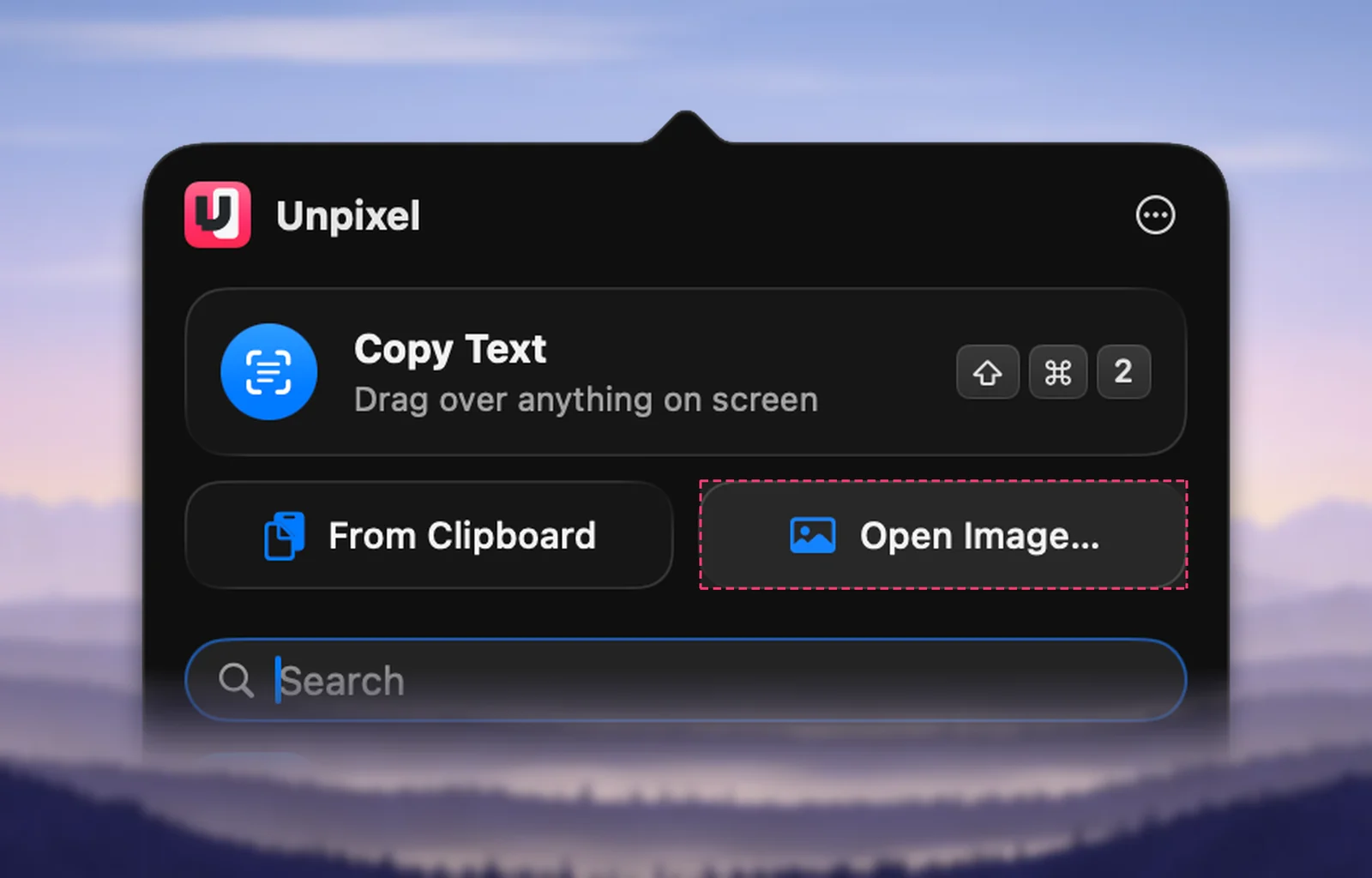
Recognition runs on your Mac with Apple’s Vision framework, so the file isn’t uploaded anywhere. Turn off Keep line breaks in Settings → Recognition to get running paragraphs instead of the scan’s line endings, with hyphenated words joined back together. Tables on the pages paste as real cells in Numbers or Excel. Unpixel doesn’t change the original file or produce a new PDF; for that, Embed Text is the tool.
Longer than 50 pages? Work in parts
Unpixel reads up to 50 pages per capture. For a longer scan, make smaller PDFs first:
- In Preview, choose File → Print.
- Set the page range, for example 51 to 100.
- Open the PDF menu at the bottom of the print dialog and choose Save as PDF.
- Repeat for each part, then read the parts one by one and paste them in order.
The same split also brings large files under Google Docs’ 2 MB limit.
Scan quality decides the result
Every method above is only as good as the scan. If you control the scanning, a few habits make a big difference:
- Resolution over file size. Choose a higher resolution in the scanner settings. Small text needs enough pixels per letter.
- Straight and right side up. Rotate pages in Preview with Tools → Rotate Left or Rotate Right before you export.
- Strong contrast. Dark text on a clean, light page reads best. Faint photocopies and colored paper cause most misreadings.
- Flat pages. Press book spines flat, because lines that curve into the binding are hard to read.
Expect to proofread names, numbers and dates whichever method you choose. For tables in particular, see copying a table from a scanned PDF, and for Word output, converting a PDF to Word on Mac.
Frequently asked questions
How many pages can Unpixel read at once?
Up to 50 pages per capture, from one PDF or from several files together. If there are more, the confirmation says it read the first 50 pages.
Will the copied text keep the original layout?
Not exactly, with any tool. You get the words in reading order with page breaks as blank lines; headers, footnotes and complex layouts usually need some tidying.
Is converting a scan with Google Docs private?
The recognition runs on Google’s servers, so the file is uploaded to your Google Drive. For contracts, medical records or anything confidential, Preview’s Embed Text keeps the work on your Mac.
Sources
- Embed text in a PDF in Preview on Mac — Apple Support support.apple.com
- Convert PDF and photo files to text — Google Drive Help support.google.com