You press ⇧⌘4, drag, and nothing happens. Or the shutter clicks but the file never turns up on your desktop. Mac screenshots rarely break outright. Usually a setting has moved, or another app is holding the shortcut, so start with the symptom that matches yours.
Open System Settings → Keyboard → Keyboard Shortcuts… → Screenshots and make sure the shortcuts are ticked. If you hear the shutter but find no file, press ⇧⌘5, click Options and check Save to: Clipboard or another folder may be selected. If nothing happens at all, quit apps that may have taken the shortcut, then restart your Mac.
Match the symptom to the fix
| What happens | Most likely cause | Section below |
|---|---|---|
| No crosshair, no sound, nothing | Shortcut turned off, changed or taken by another app | Check the shortcuts; Another app took the shortcut |
| Shutter sound, but no file on the desktop | Saving to another folder, or to the clipboard | Saving somewhere else; Saved to the clipboard |
| The file appears a few seconds late | The floating thumbnail | The file waits for the thumbnail |
| Toolbar or thumbnail stuck on screen | The screenshot process has hung | Restart the screenshot service |
| Part of the picture is black | Protected content | Black or blank areas |
Check the screenshot shortcuts are switched on
macOS lets you turn each screenshot shortcut off or change it, and that’s easy to do by accident while setting up another app.
- Choose Apple menu → System Settings, then click Keyboard in the sidebar.
- Click Keyboard Shortcuts…, then Screenshots in the list on the left.
- Make sure every shortcut you use is ticked. If a key combination looks wrong, double-click it and press the shortcut you want.
- Click Done and try again.
Apple shows a warning icon next to shortcuts that clash with another one, so look for that while you’re there.
To rule out the keyboard altogether, open the Screenshot app from Applications → Utilities (or search for it with Spotlight) and click one of its capture buttons. If that works, screenshots are fine and the shortcut is the problem.
Is it saving somewhere else?
Shortcut screenshots land on the desktop by default, as PNG files named “Screenshot” plus the date and time. If you’ve ever changed the destination, they quietly go there instead.
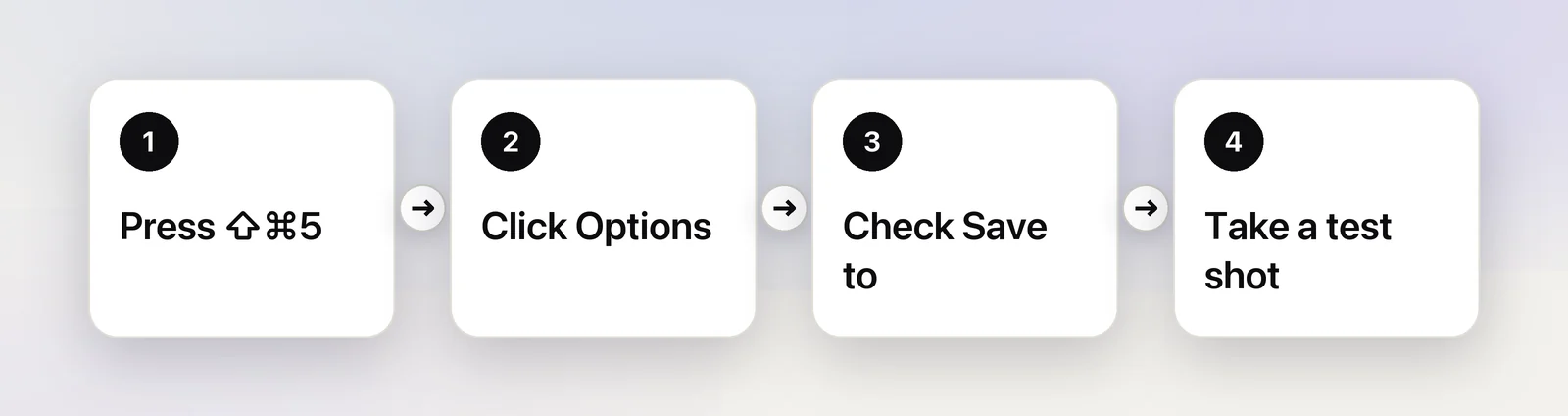
- Press ⇧⌘5 to open the Screenshot toolbar.
- Click Options.
- Look at Save to. The ticked item is where files go.
- Press Esc, take a test screenshot and look in that place.
If Save to points at a folder you’ve since deleted or renamed, or at a drive that isn’t connected, pick Desktop or choose Other Location… again. Our guide to changing where screenshots are saved covers the Terminal setting too.
Saved to the clipboard by mistake
There are two ways a screenshot ends up on the clipboard instead of in a file:
- You held Control. ⌃⇧⌘4 and ⌃⇧⌘3 copy the image and save nothing.
- Save to is set to Clipboard. Then every screenshot is copied, whichever shortcut you use.
To check, open Preview and choose File → New from Clipboard. If your screenshot appears, it was on the clipboard all along; press ⌘S to save it. If you prefer working this way, our guide to screenshots on the clipboard shows how to paste them straight into other apps.
The file waits for the thumbnail
With Show Floating Thumbnail turned on, which is the default, a small preview sits in the corner for a few seconds after each capture. The file is written when the thumbnail slides away. Drag the thumbnail into a document or folder and the screenshot goes there instead of the desktop.
Swipe the thumbnail to the right to save at once. If you’d rather have the file immediately every time, press ⇧⌘5, click Options and untick Show Floating Thumbnail.
Another app took the shortcut
A global shortcut can only belong to one app. Screenshot utilities often offer to replace the macOS shortcuts, some cloud-storage apps offer to handle screenshots for you, and launchers or key remappers can claim the same keys.
- Quit the apps in your menu bar one at a time, trying ⇧⌘4 after each.
- When the shortcut starts working, open that app’s settings and turn off or change its screenshot shortcut.
- Also check Keyboard Shortcuts… → App Shortcuts for anything you assigned to the same keys yourself.
Our guide to keyboard shortcuts that stop working covers other causes, such as Secure Input.
Restart the screenshot service
The Screenshot toolbar and the floating thumbnail run in a background process called screencaptureui. If it hangs, you might see a thumbnail that won’t leave or a toolbar that won’t close.
- Open Activity Monitor from Applications → Utilities.
- Type
screencaptureuiin the search field. - Select it, click the Stop button in the toolbar, then click Quit. Use Force Quit if it doesn’t respond.
macOS starts it again the next time you take a screenshot. If it isn’t in the list, it isn’t running, so there’s nothing to restart. Many guides also suggest restarting SystemUIServer, which runs parts of the menu bar. It’s harmless to try; the menu bar icons blink and come back on their own:
killall SystemUIServerNeither step deletes anything. If shortcuts still do nothing, restart your Mac from the Apple menu.
Black or blank areas in the picture
A screenshot that works but shows a black rectangle isn’t broken:
- Protected video. Many streaming services keep their video out of screenshots and recordings, so it comes out black. Our explainer on why screenshots of videos are black covers how to tell and what you can do.
- Apps that block capture. Apple notes you may not be able to capture windows in some apps, such as DVD Player.
- Managed Macs. A work or school profile can turn screenshots off. See Screen Recording blocked by your administrator.
If a third-party capture app shows only your wallpaper while macOS’s own shortcuts work, that app is missing permission: see Screen Recording permission not working.
When the screenshot was only for the text
Plenty of screenshots are taken just to grab some words: an error code, an address, a line from a slide. If that’s you, Live Text can read the screenshot once you open it in Preview or Quick Look. Our Live Text troubleshooting guide helps if selecting the words doesn’t work.
In Unpixel
Unpixel skips the file entirely. Press ⇧⌘2, drag over the text and let go: the recognized text is on your clipboard, read on your Mac, and there’s no image to lose on the desktop. Its shortcut doesn’t overlap the macOS screenshot shortcuts. If you change it to one macOS already uses, the shortcut field shows a warning and explains the clash. The same rule about protected video applies: Unpixel sees the black rectangle too.
Quick checklist
- Shortcuts ticked in Keyboard Shortcuts… → Screenshots.
- Save to in the ⇧⌘5 Options menu points to a folder that exists.
- No ⌃ in the shortcut unless you want the clipboard.
- Wait for the thumbnail, or swipe it away to save at once.
- Quit other screenshot or launcher apps to find a stolen shortcut.
- Quit screencaptureui in Activity Monitor if the toolbar is stuck, then restart if needed.
Frequently asked questions
Why does Shift-Command-4 work but Shift-Command-3 doesn’t?
Each screenshot shortcut has its own checkbox in Keyboard Shortcuts… → Screenshots. One of them may be unticked or set to a different key combination. Tick it again, or double-click it and press the keys you want.
Where do Mac screenshots go by default?
To the desktop, as PNG files named “Screenshot” followed by the date and time. If Save to in the ⇧⌘5 Options menu points somewhere else, they go there instead.
Can I take screenshots on a Mac my employer manages?
Only if the management profile allows it. A profile can turn off screenshots and screen recording, and there’s no setting on the Mac you can change to undo that. Ask your IT team.
Sources
- Take screenshots or screen recordings on Mac — Apple Support (Mac User Guide) support.apple.com
- Take a screenshot on Mac — Apple Support support.apple.com
- Change a conflicting keyboard shortcut on Mac — Apple Support support.apple.com
- Quit an app or process in Activity Monitor on Mac — Apple Support support.apple.com