The Shortcuts app on your Mac has an action called Extract Text from Image. Apple describes it in one line: it “uses OCR to extract text from an image”. On its own it does nothing visible, but give it an image and a place to put the result, and you have a free text grabber you built yourself. Here’s a version worth keeping, three ways to feed it, and the places where it falls short.
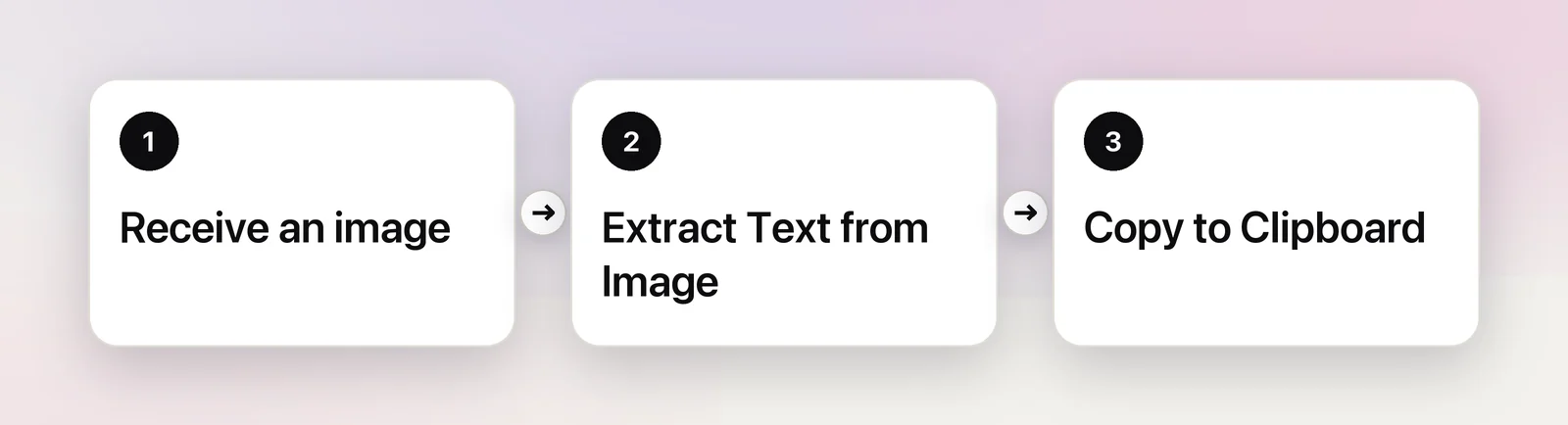
Open the Shortcuts app, click the add button and add two actions: Extract Text from Image, then Copy to Clipboard. In the shortcut’s details, select Use as Quick Action, limit the input to Images and set “If there’s no input” to Get Clipboard. It then reads a file you Control-click in Finder or a screenshot you just copied. Add Keyboard Shortcut lets you run it from anywhere.
The actions you need
A useful OCR shortcut needs very little. These are the pieces, all named as they appear in the Shortcuts action list:
| Piece | What it does here |
|---|---|
| Receive line (from Use as Quick Action) | Accepts the image you Control-click in Finder |
| Get Clipboard (as the “no input” fallback) | Uses a screenshot you copied when there’s no file |
| Take Screenshot (optional) | Captures part of the screen inside the shortcut |
| Extract Text from Image | Reads the words in the image |
| Copy to Clipboard | Puts the text where ⌘V finds it |
| Show Notification (optional) | Shows what was found, or that nothing was |
Build it step by step
- Open Shortcuts. It’s in your Applications folder, or press ⌘Space and type its name.
- Click the add button (+) in the toolbar. An empty shortcut opens. Click its name at the top and call it “Copy Text from Image”.
- In the action list on the right, type “extract” in the search field and double-click Extract Text from Image.
- Search for “clipboard” and double-click Copy to Clipboard. It picks up the extracted text by itself.
- Click the Shortcut Details button (ⓘ) at the top of the editor, click Details and select Use as Quick Action. A Receive line appears above your actions.
- In that line, click the input types, click Clear, and turn on Images only.
- Next to “If there’s no input”, click Continue and choose Get Clipboard.
- Check that Extract Text from Image reads from Shortcut Input. If it shows another variable, click it and choose Shortcut Input.
Close the editor to save. To test it, press ⌃⇧⌘4, drag over some text, then hover the shortcut in the main window and click its run button. Paste into TextEdit to see the result.
Three ways to feed it an image
A file in Finder
Control-click an image and choose Quick Actions → Copy Text from Image. If the shortcut isn’t listed, choose Quick Actions → Customize… and switch it on there. This is the quickest route for a photo or a saved screenshot. Handling a whole selection of images, PDFs, and saving the result into Notes takes a few more actions, so it has its own walkthrough: an Extract Text Quick Action for Finder.
A screenshot on the clipboard
Press ⌃⇧⌘4 and drag over the text. Nothing is saved to the desktop; the picture goes straight to the clipboard. Run the shortcut, and because it received no file, the Get Clipboard fallback reads that picture instead. This works for text in a paused video, a slide in a call or an error dialog. There’s no file left behind to clean up.
A capture made by the shortcut itself
Duplicate the shortcut (select it and choose File → Duplicate), then add Take Screenshot as its first action. Set Type to Interactive, then pick Custom rather than Window for the selection, so you drag over an area instead of grabbing a whole window or screen. Point Extract Text from Image at the screenshot, and turn off Use as Quick Action, since this version doesn’t need input.
If the first run asks for permission to capture the screen, allow it. The switch for that lives in System Settings → Privacy & Security → Screen & System Audio Recording.
Give it a keyboard shortcut
A shortcut you have to dig out of an app isn’t much faster than doing the job by hand. Keys fix that.
- Open the shortcut and click the Shortcut Details button (ⓘ).
- Click Add Keyboard Shortcut and press a combination, such as ⌃⌥⌘E.
- Close the editor and try it in another app.
macOS refuses combinations it reserves, and an app that uses the same keys may win while it’s in front, so pick something unusual. To remove it later, click the Run with field and press Delete.
With keys, the clipboard version becomes: ⌃⇧⌘4, drag, your shortcut, then ⌘V. The screenshot version is shorter still: your shortcut, drag, paste. You can also start either one from Spotlight by typing its name.
Limits of the built-in action
The action is simple, which is its charm and its ceiling.
- No settings. It takes an image and returns text. You can’t choose a recognition language or trade accuracy for speed.
- Layout is flattened. A table comes out as loose lines, and side-by-side columns can be read across rather than down. Expect to tidy anything with structure.
- Words only. QR codes and barcodes aren’t decoded, and Shortcuts’ own Scan QR or Barcode action uses a camera. A QR code shortcut for Mac works around that.
- PDFs need a detour. Use Get Text from PDF for PDFs with real text, or Make Image from PDF Page first for scans.
- No memory. Once you copy something else, the text is gone. Add Append to Note if you want a record.
- Handwriting varies. Neat print often works; quick cursive and faint pencil often don’t.
Add Show Notification after the copy step while you test. It tells you at a glance whether the shortcut found the text you expected, or found nothing at all.
When a dedicated tool is faster
If you grab text a few times a week, the shortcut above is all you need. If it’s many times a day, the extra steps add up: take a screenshot, run the shortcut, wait for it to start, then paste.
Unpixel is a menu bar app that folds those into one gesture. Press ⇧⌘2, drag over the text and let go; the recognized text is on your clipboard, read on your Mac by Apple’s Vision framework. It also covers the gaps listed above: tables paste into Numbers or Excel as real cells, QR codes and barcodes come back as their contents, and every capture lands in a searchable history. Holding ⌥ as you let go copies a translation instead.
The two also work together. A shortcut with a single Open URLs action pointing at unpixel://capture starts an Unpixel capture. When later actions need the text, use Open X-Callback URL with unpixel://x-callback-url/capture instead: the shortcut waits while you drag and gets the recognized text back, ready for Get Dictionary Value and whatever comes next. Using Unpixel with Shortcuts has more recipes, and Unpixel vs Shortcuts’ Extract Text from Image compares them side by side.
Quick checklist
- Core: Extract Text from Image → Copy to Clipboard.
- Finder: Use as Quick Action, input limited to Images.
- Copied screenshots: “If there’s no input” → Get Clipboard.
- Speed: Add Keyboard Shortcut in the details.
- Testing: Show Notification to see what was read.
Frequently asked questions
Why doesn’t my shortcut appear under Quick Actions in Finder?
Either its input types don’t include the kind of file you Control-clicked, or it’s switched off. Choose Quick Actions → Customize… from the same menu and turn it on, then check that the Receive line includes Images.
Can the shortcut read a PDF?
Not directly, because the action wants images. For a PDF with real text, use Get Text from PDF instead. For a scanned PDF, add Make Image from PDF Page before the extract step so each page becomes an image.
Can I pick the recognition language?
No. The action has a single setting, the image to read, so there’s no language, speed or accuracy choice to make.
Can I run it from Control Center or the menu bar?
Yes, through Control Center. Open it, click Edit Controls, choose Shortcuts and add Run Shortcut for this shortcut. Or select Pin in Menu Bar in the shortcut’s details and add the Show ‘Menu Bar’ Collection control, which lists every pinned shortcut.
Sources
- Create a custom shortcut on Mac — Shortcuts User Guide (Apple Support) support.apple.com
- Limit the input for a shortcut on Mac — Shortcuts User Guide (Apple Support) support.apple.com
- Run a shortcut from another app on Mac — Shortcuts User Guide (Apple Support) support.apple.com
- Take screenshots or screen recordings on Mac — Apple Support (Mac User Guide) support.apple.com