Shortcuts is already on your Mac, in the Applications folder, and most people never open it. That’s a pity, because the small jobs you repeat every day are exactly what it’s for: cleaning up pasted text, renaming a batch of files, copying the words out of a screenshot. This guide gets you from an empty window to a few shortcuts you’ll actually use, without any programming.
Shortcuts is Apple’s automation app, included with macOS. A shortcut is a list of actions that run from top to bottom, each handing its result to the next. Start in the Gallery and click Add Shortcut, or click the add button and build your own from the action list. Run it from the app, Spotlight, a keyboard shortcut, Control Center or Finder.
What Shortcuts is
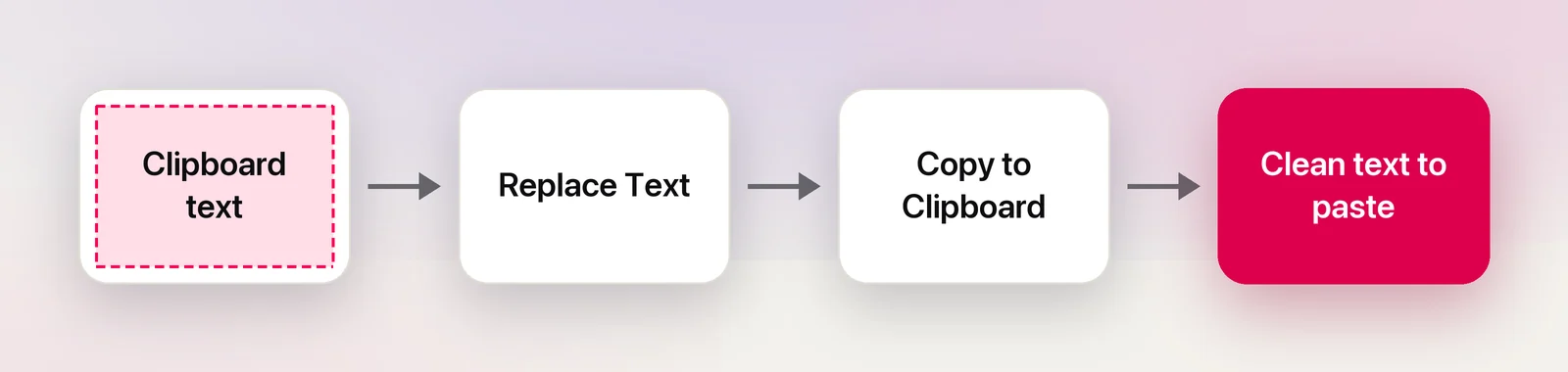
A shortcut is a recipe. Each step is an action, such as Get Clipboard, Resize Image or Send Message, and actions run in order from the top. Most actions take something in and hand something out, so the result of one becomes the input of the next. Think of it as content flowing down the list.
Actions come from macOS itself, from Apple’s apps and from other apps you install that support Shortcuts. Shortcuts can also run AppleScript, JavaScript and shell scripts, so most jobs you once did in Automator or Terminal can live inside one. Shortcuts vs Automator covers when the older app is still the better fit.
The app has three areas worth knowing: Gallery (ready-made shortcuts from Apple), All Shortcuts (your collection) and the editor, where the action list sits on the right.
Start from the Gallery
The Gallery is the fastest way to see what’s possible, and to learn by taking shortcuts apart.
- Open Shortcuts and click Gallery in the sidebar.
- Scroll the rows of categories, or click See All to open one. Use the search field in the top-right corner to look for a task, such as “text” or “PDF”.
- Click a shortcut to read its description. To see its actions first, click the More button, then Done.
- Click Add Shortcut. If it needs setup, answer the questions and click Add Shortcut again.
It now appears in All Shortcuts. Double-click it to open the editor and see how it’s built. Changing a working shortcut is a gentler start than a blank page.
Build your first shortcut
Here’s a small one that earns its place: text copied from a PDF often arrives with a line break at the end of every line. This shortcut joins those lines back into paragraphs.
- Click the add button (+) in the toolbar. Click the name at the top and type “Clean Text”.
- In the action list on the right, search for “clipboard” and double-click Get Clipboard.
- Search for “replace” and double-click Replace Text.
- Click the find field and type the pattern below. In the replacement field, type a single space.
- Click the arrow on Replace Text to show its options, and turn on Regular Expression.
- Add Copy to Clipboard at the end.
- Click the run button at the top of the editor to test it.
(?<!\n)\n(?!\n)That pattern matches a line break that isn’t part of a blank line, so paragraphs stay separate while the lines inside them join up. Copy some broken text, run the shortcut, and paste.
If something goes wrong, put a Quick Look action between two steps. When you run the shortcut, it shows exactly what is being passed along, which makes the faulty step easy to spot.
Ways to run a shortcut
A shortcut is only useful if starting it is quicker than doing the job by hand. These are the options, and most are set in the shortcut’s details (the Shortcut Details button, ⓘ, at the top of the editor):
| Where | How |
|---|---|
| The app | Hover a shortcut in the main window and click its run button |
| Spotlight | Press ⌘Space and type its name; ⌘3 shows only actions |
| Keyboard | Add Keyboard Shortcut in the details, then press your keys |
| Control Center | Open it, click Edit Controls, choose Shortcuts, then Run Shortcut |
| Menu Bar collection | Pin in Menu Bar in the details, then add the Show ‘Menu Bar’ Collection control the same way |
| Finder | Use as Quick Action, then Control-click a file and choose Quick Actions |
| Any app | Services Menu in the details, then the app’s Services submenu |
| Dock | Select it and choose File → Add to Dock, then click it in the Dock |
| Terminal | shortcuts run "Clean Text" |
| A link | shortcuts://run-shortcut?name=Clean%20Text |
Spotlight is the one most people overlook. Our Spotlight tips cover quick keys, short strings of letters that jump straight to an action.
Since macOS 26, shortcuts can also run on their own as automations: at a time of day, when a file is saved to a folder, or when a display connects, among other triggers. Click Automation in the sidebar, then the add button, or choose File → New Automation. Pick a trigger, then choose Run Immediately or Run After Confirmation, which asks with a notification first.
Five useful text shortcuts
Each of these takes a minute to build with the steps above. Action names are as they appear in the list.
- Word count. Get Clipboard → Count set to Words → Show Alert. Handy for forms with a word limit.
- Date stamp. Format Date on Current Date, with Date Format set to ISO 8601 → Copy to Clipboard. Paste a sortable date into file names and notes.
- Clean Text. The shortcut you just built.
- Text from an image. Extract Text from Image → Copy to Clipboard, set up as a Quick Action. Our guide to extracting text with Shortcuts covers it step by step.
- Translate the clipboard. Get Clipboard → Translate Text → Copy to Clipboard. For translating words inside pictures, see translating an image with Shortcuts.
Shortcuts can also start other apps through their links. Unpixel, a menu bar app that copies text from anything on screen, is one example. A shortcut with a URL action set to unpixel://capture, followed by Open URLs, starts a text capture that you can pin or trigger from Spotlight. Its x-callback-url links go further: Open X-Callback URL with unpixel://x-callback-url/capture waits for the capture and passes the text to the shortcut’s next action. Our page on URL schemes on Mac explains how links like this work.
Share and import
To share a shortcut as a link, open it in the editor, click the Share button and choose Copy iCloud Link, then click Share and paste the link anywhere. Whoever opens it sees a description and a Get Shortcut button.
To share it as a file, select it and choose File → Export. The For menu decides who can run it: Anyone, which sends a copy to Apple for checking, or People Who Know Me, which includes your contact details. To import a .shortcut file, double-click it, or drag it into the Shortcuts window or onto its Dock icon.
Treat shared shortcuts like any other software. Open each one and read its actions before you run it. Shortcuts that include scripts need Allow Running Scripts in Shortcuts → Settings → Advanced. Apple warns that running scripts could cause data loss, so leave it off unless you trust the source.
Quick checklist
- Learn: add from the Gallery, then open the editor to see how it works.
- Build: add button, search the action list, double-click actions in order.
- Test: add Quick Look between steps to see what each one passes on.
- Run faster: a keyboard shortcut, Spotlight or Control Center.
- Share safely: Copy iCloud Link or File → Export, and read others’ actions first.
Frequently asked questions
Is Shortcuts the same as Automator?
No. Automator is the older automation app. It’s still included in macOS 26 and its workflows still run, but newer features, such as automations that start on their own, arrive in Shortcuts. Shortcuts can also run AppleScript and shell scripts with its Run AppleScript and Run Shell Script actions.
Why won’t a shortcut with a script run?
Shortcuts blocks scripts until you allow them. Choose Shortcuts → Settings, click Advanced and select Allow Running Scripts, and only do that for scripts you trust.
Can a shortcut run by itself at a set time?
Yes, on macOS 26 or later. Apple added automations to Shortcuts on Mac with macOS 26, so a shortcut can start at a time of day, when a file is saved to a folder or when a display connects.
Where are the shortcuts I added from the Gallery?
In All Shortcuts in the sidebar. Double-click one to open it in the editor and see exactly which actions it uses.
Sources
- Intro to Shortcuts on Mac — Shortcuts User Guide (Apple Support) support.apple.com
- Discover shortcuts in the Gallery — Shortcuts User Guide (Apple Support) support.apple.com
- Create a custom shortcut on Mac — Shortcuts User Guide (Apple Support) support.apple.com
- Run a shortcut from Spotlight — Shortcuts User Guide (Apple Support) support.apple.com
- Run a shortcut from another app — Shortcuts User Guide (Apple Support) support.apple.com
- Share shortcuts on Mac — Shortcuts User Guide (Apple Support) support.apple.com
- Import shortcuts — Shortcuts User Guide (Apple Support) support.apple.com
- Advanced Shortcuts settings — Shortcuts User Guide (Apple Support) support.apple.com
- Spotlight keyboard shortcuts — Apple Support (Mac User Guide) support.apple.com
- macOS Tahoe 26 — Apple Newsroom (June 2025) apple.com
- An Introduction To Shortcuts Automation In macOS Tahoe — MacMost macmost.com