Click a mailto: link and Mail opens with a new message. Click a link to join a video call, and your browser offers to open the meeting app. Both happen because of URL schemes: short prefixes that apps register so macOS knows where to send a link. Once you know how they work, you can open apps, settings panes and even shortcuts from Terminal, notes, launchers and scripts.
A URL scheme is the part of a link before the colon, such as mailto: or shortcuts:, and it tells macOS which app should handle the link. Open one by clicking it, with open "scheme:…" in Terminal, or with Shortcuts’ Open URLs action. To see which schemes an app supports, read CFBundleURLSchemes in its Info.plist with plutil.
What a URL scheme is
A link has parts, and the first one decides who handles it. Take this Shortcuts link:
shortcuts://run-shortcut?name=Clean%20Text&input=clipboard
| Part | Here | Job |
|---|---|---|
| Scheme | shortcuts: |
Picks the app, in this case Shortcuts |
| Command | run-shortcut |
Tells the app what to do |
| Parameters | name=Clean%20Text&input=clipboard |
The details, joined with & |
Web links are the familiar case: https: belongs to your default browser. Any app can register more schemes in its own Info.plist file. macOS reads those when the app is installed, and from then on every link with that prefix goes to it.
Spaces and other special characters in parameters must be percent-encoded, which is why a space appears as %20. Apple’s Shortcuts guide admits that encoded links can be difficult to read and that many schemes are hard to debug. Build them step by step, and test each part.
Open one from Terminal
The open command treats a URL just as if you had clicked it:
open "mailto:[email protected]?subject=Weekly%20notes"Three details save frustration:
- Always quote the URL. zsh, the default shell on a Mac, reads
?and*as file name patterns, and an unquoted link usually fails with “no matches found”. -gkeeps the app in the background. Useful when a script opens a link but you want to stay where you are.-uforces URL handling. Perman open, it opens the link with whatever app claims the scheme, even if the text also looks like a file path.
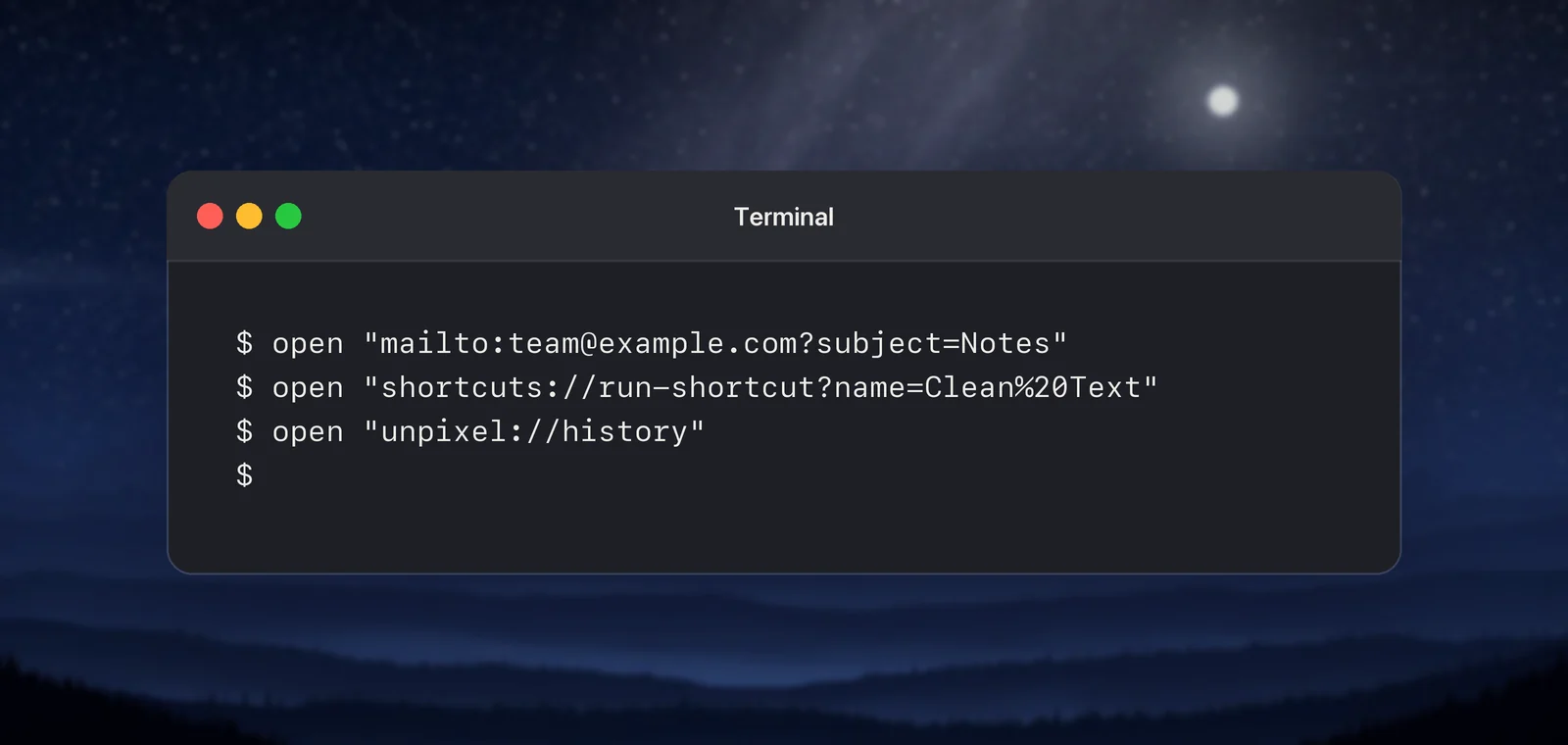
The same links work from places that turn text into clickable links. Paste one into Notes, Calendar or a Markdown editor, and clicking it does the same thing.
Find an app’s schemes
Every app lists its schemes under CFBundleURLTypes in Contents/Info.plist inside the app bundle. plutil, which ships with macOS, prints them:
plutil -extract CFBundleURLTypes json -o - /System/Applications/Notes.app/Contents/Info.plistOn macOS 26, that shows Notes claiming notes and applenotes. Doing the same for a few other built-in apps turns up mailto and message (Mail), sms and imessage (Messages), facetime (FaceTime) and x-apple.systempreferences (System Settings). If an app declares none, plutil answers “No value at that key path”, and the app has no scheme of its own.
The list tells you a scheme exists, not what it accepts. The commands and parameters come from the developer’s documentation, and Apple’s Shortcuts guide suggests asking the developer when you can’t find any. Undocumented commands you find by guessing can change in any update.
System Settings links
System Settings answers the x-apple.systempreferences: scheme, followed by the identifier of a settings pane. On macOS 26, those identifiers match the bundle IDs of the settings extensions, for example:
| Link ends with | Opens |
|---|---|
com.apple.Keyboard-Settings.extension |
Keyboard |
com.apple.Displays-Settings.extension |
Displays |
com.apple.Sound-Settings.extension |
Sound |
com.apple.LoginItems-Settings.extension |
Login Items & Extensions |
com.apple.preference.security?Privacy_ScreenCapture |
Privacy & Security, at Screen & System Audio Recording |
The last one uses an older identifier with an anchor after the ?. Apps use links like it for an “Open System Settings” button that lands on the right permission.
To list the identifiers on your own Mac, read the bundle IDs of the extensions themselves:
cd /System/Library/ExtensionKit/Extensions
for f in *.appex; do /usr/libexec/PlistBuddy -c "Print :CFBundleIdentifier" "$f/Contents/Info.plist"; done | grep -i settings
Apple doesn’t document these links for general use, so treat them as convenient rather than permanent, and retest after major macOS updates.
Links worth keeping
A few that are documented, or that the apps themselves declare:
- New email:
mailto:[email protected]?subject=Hello&body=Hi—subjectandbodyare defined in the mailto standard (RFC 6068). - Run a shortcut:
shortcuts://run-shortcut?name=NAME— add&input=clipboardto hand it the clipboard, or&input=text&text=…for your own text. Apple’s guide documents both. - A settings pane:
x-apple.systempreferences:plus an identifier from the table above.
In Shortcuts itself, the pattern is a URL action holding the link, followed by Open URLs. Launchers such as Raycast and Alfred can store links like these and open them from a few keystrokes, which turns any scheme into a command.
In Unpixel
Unpixel, a menu bar app for copying text from anywhere on screen, registers the unpixel: scheme. Its unpixel://capture link starts a selection, exactly like pressing ⇧⌘2, and adding ?translate=1 copies a translation of what you select. The unpixel://clipboard link reads an image you already copied, unpixel://open opens images or PDFs, and unpixel://history shows the history panel. Its unpixel://x-callback-url/… links follow the x-callback-url convention, so an app that calls them, such as Shortcuts with its Open X-Callback URL action, gets the recognized text back. The full list, with copy buttons, is in the About tab of its settings and in the URL scheme reference.
Security: what schemes can and can’t do
A scheme is a request, not a remote control. The app decides which commands exist and what they’re allowed to do. Apple’s developer guidance asks apps to validate every parameter, reject malformed links, and never let a link delete data or reveal sensitive information.
That shapes what you should expect:
- No hidden powers. A link can only trigger commands the app chose to offer. Unpixel’s commands, for instance, never read the screen without your own selection.
- Ownership isn’t guaranteed. If two apps claim the same scheme, Apple says the app the system picks is undefined. That’s one reason not to put passwords or tokens in links.
- Browsers ask first. A web page that tries to open another app gets a confirmation prompt instead of opening it silently. Read it before you click Allow.
- Check before you run. A link from a stranger that targets an automation app can start actions you didn’t plan. Read the whole link before clicking.
Quick checklist
- Open any link:
open "scheme:…", always quoted. - Find schemes:
plutil -extract CFBundleURLTypes json -o - App.app/Contents/Info.plist. - Settings panes:
x-apple.systempreferences:plus the pane’s identifier. - Your own commands:
shortcuts://run-shortcut?name=…. - In Shortcuts: a URL action followed by Open URLs.
Frequently asked questions
Why does Terminal say “no matches found” when I open a URL?
zsh, the default Mac shell, treats ? and * as file name patterns. Put the whole URL in quotes, as in open "shortcuts://run-shortcut?name=Test", and the shell passes it through untouched.
Can I create my own URL scheme without writing an app?
Not as a new scheme, because schemes are declared inside an app’s bundle. The closest thing is the Shortcuts link shortcuts://run-shortcut?name=…, which runs any shortcut you build.
Which app opens a scheme that two apps both claim?
Apple’s developer documentation says the result is undefined, and there’s no setting to choose. If it matters, remove or update the app you don’t want to answer.
Do System Settings links keep working after a macOS update?
Often, but not always. Apple doesn’t document the pane identifiers, so test your links after a major update and look up the new identifier if one stops working.
Sources
- Defining a custom URL scheme for your app — Apple Developer Documentation developer.apple.com
- Run a shortcut from a URL on Mac — Shortcuts User Guide (Apple Support) support.apple.com
- Use another app’s URL scheme — Shortcuts User Guide (Apple Support) support.apple.com
- open: open files, folders and URLs — SS64 ss64.com
- RFC 6068: The mailto URI Scheme — RFC Editor rfc-editor.org