
Most of a Keynote presentation is real text: titles, bullets, text boxes, tables and presenter notes all select and copy like a document. Pictures are the exception. A screenshot of a dashboard dropped onto a slide, a scanned chart or a photo of a whiteboard is made of pixels, and so is a deck someone sent you as exported images. Keynote can’t select a word of any of them. This page covers those cases, plus the way back in when a table in a picture needs to become a real Keynote table.
Text you type in Keynote is already selectable, and so are presenter notes. Words inside a picture on a slide aren’t: copy the picture, choose File → New from Clipboard in Preview and select the words with Live Text, or press ⇧⌘2 in Unpixel and drag over them. A deck exported as images needs text recognition on every slide.
Start with what’s already text
Before you reach for text recognition, check whether the words were typed:
- Click the text once. If a text box, shape or table gets selection handles, double-click inside it to select the words and copy them.
- Presenter notes: click the View button in the toolbar and choose Show Presenter Notes. The notes field under each slide is ordinary text.
- Every title and bullet at once: Keynote’s outline view lists the text in each slide’s title and body placeholders. Our guide to copying text from PowerPoint slides shows how it works in both apps.
Keynote opens PowerPoint files too, so the same checks apply to a .pptx that arrived by email.
Text inside a picture on a slide
When one click selects a whole rectangle and double-clicking doesn’t give you a text cursor, the words are part of an image. The free way out goes through Preview:
- Click the picture and press ⌘C.
- Open Preview and choose File → New from Clipboard.
- Hover over the words until the pointer becomes a text cursor, drag across them, then Control-click and choose Copy Text. If dragging draws a box, choose Tools → Text Selection first.
That’s fine for one picture. Live Text copies each line as it appears, though, so a paragraph arrives with a break at the end of every line, and a table loses its columns.
In Unpixel
You don’t have to leave Keynote. Press ⇧⌘2, drag over the words in the picture right on the slide, and let go. The text is on your clipboard, recognized on your Mac by Apple’s Vision framework. With Keep line breaks turned off in Settings → Recognition, the lines of each paragraph come back joined, so they paste into a text box as normal sentences that take on the box’s style.
Small print is easier to read when it’s larger on screen, so zoom the slide in before you capture. If the picture has been shrunk to fit the slide, try the copy route instead. Select it, press ⌘C and click From Clipboard in Unpixel’s menu bar panel: that reads the copied picture rather than the pixels that fit on your display.
Decks you only have as a PDF or images
People often share a finished deck instead of the Keynote file. What you can copy depends on how it left Keynote through File → Export To:
| You received | Typed text | Words inside pictures |
|---|---|---|
| A .key file | Selectable in Keynote | Need text recognition |
| A PDF | Normally selectable in Preview | Need text recognition |
| One image per slide | Need text recognition | Need text recognition |
For a PDF, select and copy what you can in Preview first. For slides exported as images, or a scanned handout, every word needs recognition. In Unpixel, choose Open Image…, select all the slide images in the dialog and click Open. They’re read as one capture, one file after another, up to 50 pages in total, and the text of the whole deck lands on your clipboard. A multi-page PDF is read the same way.
If you’re the one exporting and your readers will want the words, send a PDF rather than images. Apple’s export options also let you include presenter notes, so the notes travel with the slides.
Copy from a playing slideshow
A slideshow normally fills the display. When you’re rehearsing, or presenting on one screen while you need other apps, choose Play → In Window. The slides play in an ordinary window you can move and resize, and Play → Show Presenter Display in Window adds the presenter display with your notes. Pause on a slide and capture what you need from it.
When someone else presents and you’re watching over a video call, the slide reaches you as video. Our pages on Zoom and Google Meet cover making the shared screen large enough to read. If you photographed the slides in a room, turning slide photos into notes walks through that.
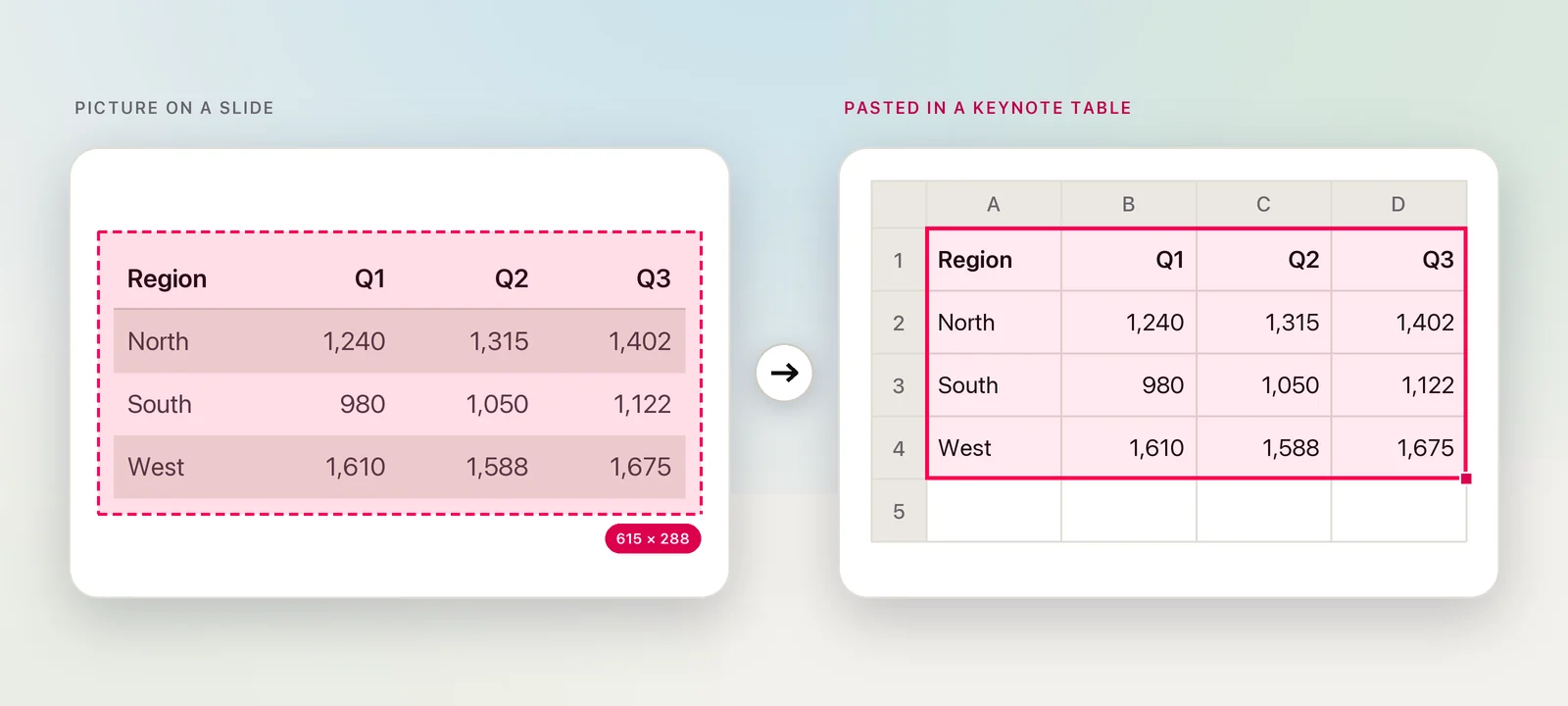
Tables into Keynote
A table that only exists as a picture, on a slide or in a PDF report, can come back as a Keynote table you can restyle:
- Press ⇧⌘2 and drag over the table, header row included. The confirmation says “Table copied” with the number of rows and columns.
- In Keynote, add a table with the Table button in the toolbar and give it at least as many rows and columns as the capture.
- Click once to select the top-left cell, then paste. Don’t double-click first: that puts a text cursor inside the cell, and the whole table can end up in it.
- If the cells come in with formatting that clashes with your theme, undo and choose Edit → Paste and Match Style, which uses the table’s own style.
If everything lands in one cell anyway, undo, paste into a Numbers table first, then copy that table and paste it onto the slide. Our guide to copying a table from a slide covers blurry, low-resolution tables.
Localizing a deck? Hold ⌥ as you let go of the selection. Unpixel translates the table cell by cell with Apple’s on-device Translation framework, leaves numbers and prices alone, and still copies it as a table. For text on slides during a live meeting, see translating slides in a meeting.
Frequently asked questions
Why can’t I select the words in a picture on my slide?
Keynote treats a picture as an image object, so a click selects the whole picture rather than its words. Copy it into Preview, where Live Text can select the text, or read it with a screen text tool.
Does exporting a deck to PDF keep the text selectable?
Text you typed in text boxes, shapes and tables normally stays selectable in the PDF. Words that were part of a picture are still a picture, and a deck exported as images has no selectable text at all.
Can I translate a table on a slide and keep it as a table?
Yes, with Unpixel: hold ⌥ (Option) as you let go of the selection. The table is translated cell by cell on your Mac, numbers and prices stay as they are, and it still pastes as cells.
Sources
- Add and view presenter notes in Keynote on Mac — Apple Support support.apple.com
- Present on your Mac in Keynote — Apple Support support.apple.com
- Export to PowerPoint or another file format in Keynote on Mac — Apple Support support.apple.com
- Add and edit cell content in Keynote on Mac — Apple Support support.apple.com
- Interact with text in a photo using Live Text in Preview on Mac — Apple Support support.apple.com