You copy a hostname inside a remote session, switch to your Mac, press ⌘V, and get whatever you copied an hour ago. Remote desktop apps send you pictures of the remote screen and send your keystrokes back. The clipboard travels separately, and when that channel is off or stuck, nothing crosses. Here’s how to get it working, and what to do when it’s off on purpose.
Check the client’s clipboard setting first. In Windows App, edit the PC, open Devices & Audio and set the clipboard to Bidirectional; in macOS Screen Sharing, choose Edit → Use Shared Clipboard. If an administrator has switched the clipboard off, no client setting overrides it, so don’t work around it for restricted data. For harmless text like an error code, reading it off the screen works.
Why copy and paste breaks in remote sessions
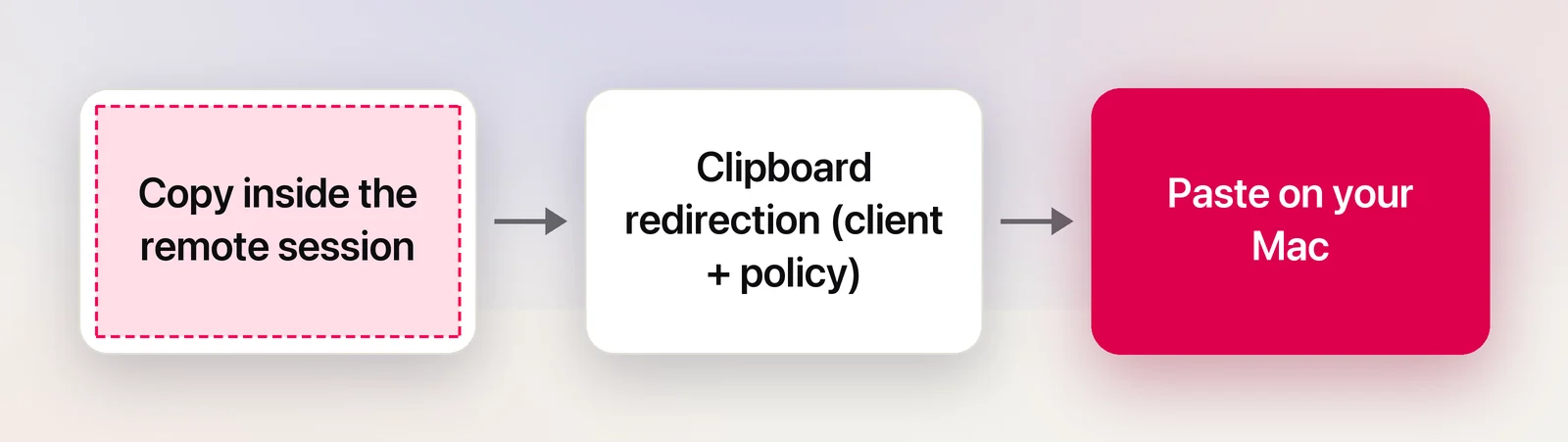
Sharing a clipboard between two computers is an extra feature of the remote desktop protocol, usually called clipboard redirection. For text to reach your Mac, three things have to line up:
- The client on your Mac has to allow it, in the right direction.
- The server or session policy has to allow it. Administrators can switch it off or limit it to one direction, and the stricter setting wins.
- The helper inside the session that hands copies across has to be running.
One more trap is the copy itself. In a remote PC session, the copy shortcut is Ctrl-C. Depending on your client’s keyboard settings, ⌘C may or may not be passed through as Ctrl-C. If in doubt, use the remote app’s own Edit → Copy menu or a right-click Copy, so you know the copy happened.
Windows App: clipboard settings
Microsoft’s Windows App (the client that replaced Microsoft Remote Desktop) has a per-connection clipboard setting on the Mac. Microsoft documents it like this:
- Open Windows App, select Devices, and find the PC you connect to.
- Select the pencil icon (edit) on the PC’s card.
- For a Cloud PC or an Azure Virtual Desktop, tick Use customized settings. For a remote PC you added yourself, skip this step; Microsoft notes the box doesn’t apply there.
- On the Devices & Audio tab, set the clipboard to Bidirectional, or to Remote to Local Only if you only need copies to come out.
- Select Save, then disconnect and connect again.
If the setting is already right and copying worked before, the helper inside the session may be stuck. Disconnecting and reconnecting restarts it, which fixes most cases. On a remote PC you administer, the helper is a process called rdpclip.exe; ending it in Task Manager and running it again does the same without disconnecting.
For Azure Virtual Desktop and Windows 365 sessions, Microsoft says the administrator decides whether you can use the clipboard and in which direction. When their policy is stricter than your setting, theirs wins.
macOS Screen Sharing and VNC
Between two Macs, the built-in Screen Sharing app shares the clipboard once you ask it to:
- Start the screen sharing session.
- Choose Edit → Use Shared Clipboard.
- Copy on the remote Mac, then paste on yours.
Once it’s on, text and images copy both ways, and you can drag content from one Mac to the other. Don’t count on Universal Clipboard here: Apple says it doesn’t work while a screen sharing session is active.
Third-party VNC viewers each have their own clipboard option, usually in the connection’s settings or the viewer’s menu. The original VNC protocol only carries plain Latin-1 text, so emoji and scripts such as Greek, Cyrillic or Chinese can arrive as question marks unless both ends support a newer clipboard extension. If a name pastes with odd symbols, that’s why.
Citrix and Horizon (formerly VMware) sessions
In Citrix Workspace sessions, the clipboard is controlled by your organisation, not by you. Citrix’s documentation describes a Client clipboard redirection policy that administrators set to allow or prohibit copying between the session and your device, plus further settings that restrict which formats may pass. Omnissa Horizon (formerly VMware Horizon) has an equivalent clipboard redirection policy. When copying fails in these environments and the session otherwise works, it’s almost always policy. Your help desk can tell you what’s allowed.
If IT disabled the clipboard on purpose
Companies switch the clipboard off for a reason: to keep customer records, source code or health data inside the remote environment. Microsoft lists disabling clipboard redirection as one of the controls to pair with screen capture protection, which blocks remote content in screenshots and screen sharing. If the remote session shows up black when you take a screenshot, that protection is on.
Treat that as a clear answer. Don’t move restricted data out with photos, retyping or screen capture. Ask for the approved route instead, whether that’s a file transfer, a shared folder or a ticket attachment.
What usually is fine is short, non-sensitive text you’d otherwise retype: an error code, a hostname, a ticket number, a build version. If you’re unsure which side of the line something falls on, ask.
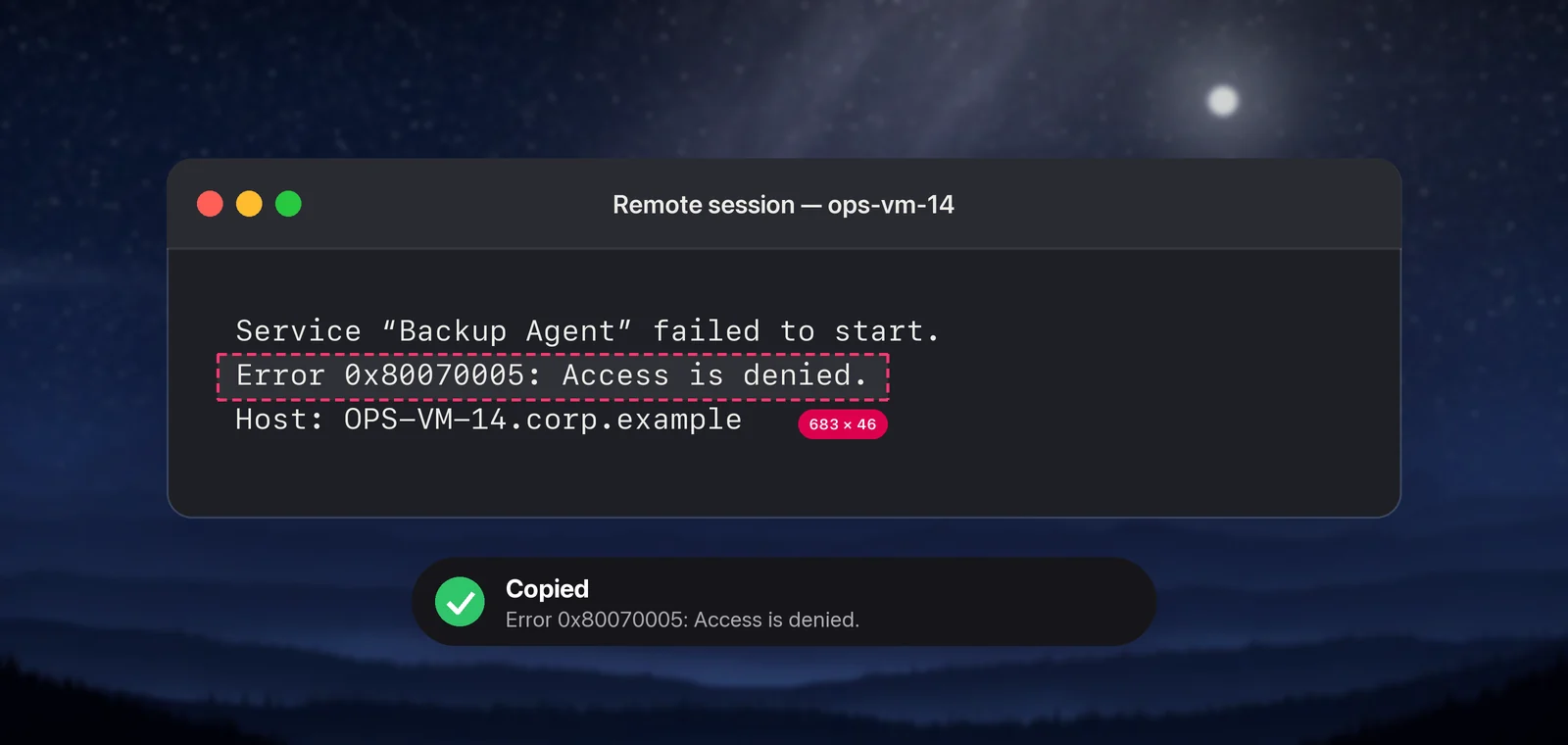
Copy an error code or hostname with OCR
When the clipboard is off but the screen isn’t protected, you can read the text from the pixels your Mac is already showing. With built-in tools, that means copying the area and using Live Text:
- Press ⌃⇧⌘4 and drag over the code to copy that area as an image.
- In Preview, choose File → New from Clipboard.
- Select the code with the text cursor and copy it.
In Unpixel
Unpixel shortens that to one step. Press ⇧⌘2, drag over the code in the remote session, and let go: the text is on your Mac’s clipboard. Because it reads the screen, it doesn’t matter which client you use, and recognition runs on your Mac, so the text isn’t sent anywhere. It can’t see anything screen capture protection hides; a black window has no text to read.
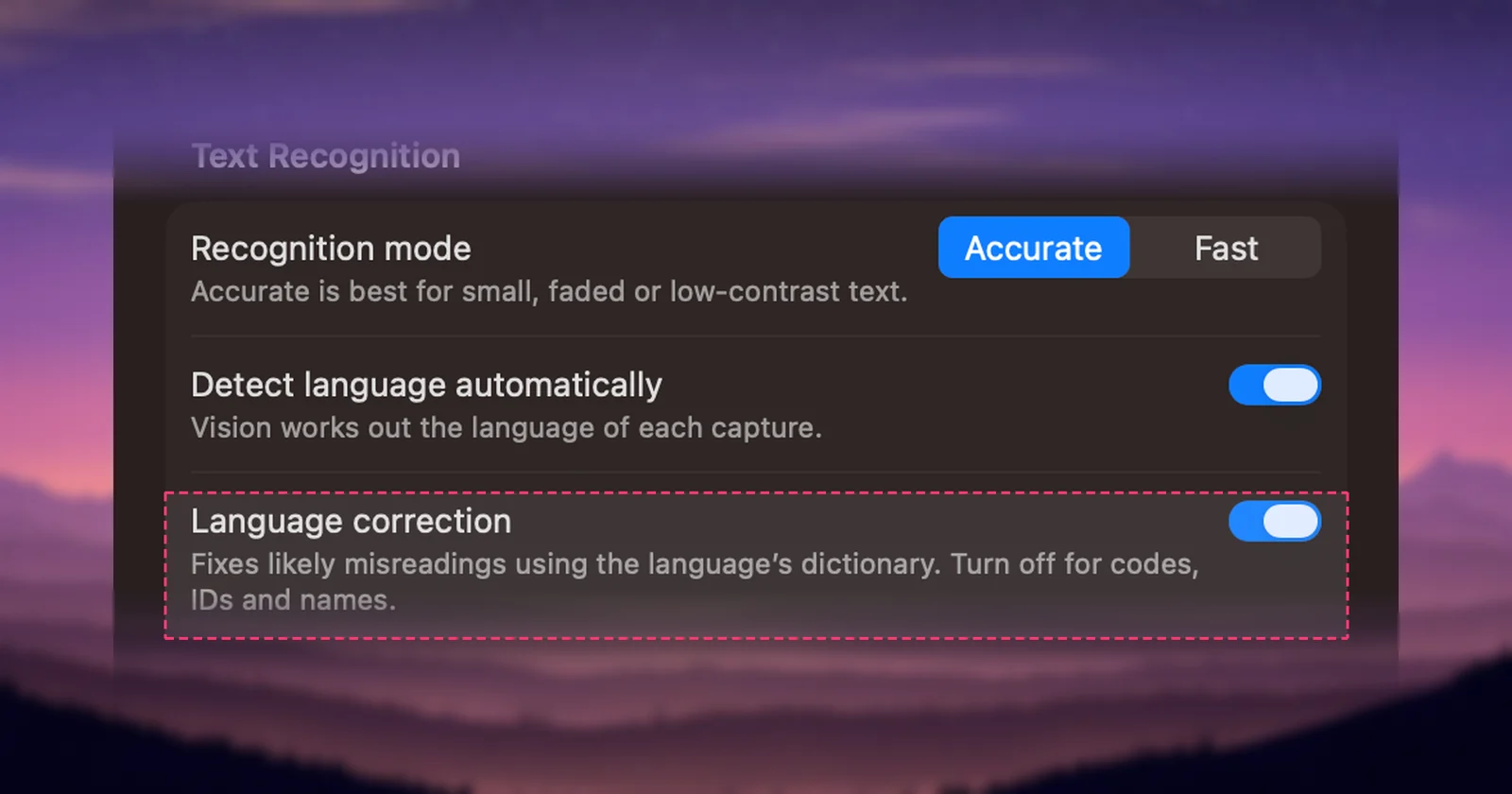
Before capturing codes, turn off Language correction in Settings → Recognition. Left on, it can “fix” a hostname or an ID into a dictionary word.
Typing it back without mistakes
Whether you read a code off the screen or retype it, the same characters cause trouble: O and 0, l, 1 and I, S and 5, B and 8, and “rn” that looks like “m”. A few checks catch most of them:
- Use what the format allows. Hex codes like
0x80070005contain only 0–9 and A–F, so an O must be a zero. GUIDs always follow the 8-4-4-4-12 pattern. - Paste into a monospaced font. In TextEdit, Format → Make Plain Text switches to a font where 0 and O, or 1 and l, look clearly different.
- Count the characters. If the original code has 10, so should your copy.
- Search before you act. Paste the hostname into a ping or a lookup before you paste it into a config file.
Frequently asked questions
Why does copy and paste work in only one direction?
The clipboard can be limited to one direction. In Windows App the choices are Bidirectional, Local to Remote Only, Remote to Local Only and Disabled, and an administrator’s policy can restrict it further. If the setting on your Mac already says Bidirectional, the limit comes from the server side.
Why is the remote session black in my screenshots?
The organisation has turned on screen capture protection. Microsoft describes it as blocking remote content in screenshots and screen sharing on client devices. It’s a deliberate security control, so talk to IT rather than looking for a way around it.
Can I copy files from a remote desktop to my Mac?
Often, but not always through the clipboard. Windows App for Mac can redirect a local folder into the session, which then appears as a network drive there. Your administrator decides whether that’s allowed.
Does Universal Clipboard work with Screen Sharing?
No. Apple notes that Universal Clipboard doesn’t work during an active screen sharing session. Inside the session, choose Edit → Use Shared Clipboard instead.
Sources
- Redirect local devices, audio, and folders in Windows App — Microsoft Learn learn.microsoft.com
- Screen capture protection in Azure Virtual Desktop — Microsoft Learn learn.microsoft.com
- Share the clipboard with another Mac during screen sharing — Apple Support support.apple.com
- RFC 6143: The Remote Framebuffer Protocol (VNC), cut-text messages — IETF rfc-editor.org
- Clipboard redirection policy settings — Citrix Virtual Apps and Desktops documentation docs.citrix.com