If you want OCR in a Mac script or app, you’ll end up choosing between two engines: Apple’s Vision framework, built into macOS, and Tesseract, the long-running open-source engine. Both are free and both run offline. They’re good at different things, and the right pick depends mostly on your languages, your images and where else your code has to run.
On a Mac, Apple’s Vision is the better default: it’s built in, needs no setup, copes well with screenshots, photos and Chinese, Japanese or Korean, and runs on the device. Pick Tesseract when you need a language Vision lacks (Greek, Hebrew, Hindi, historical scripts), code that also runs on Linux or Windows, or direct output as searchable PDF, hOCR or ALTO.
The short answer
| Apple Vision | Tesseract | |
|---|---|---|
| Install | Nothing, it’s part of macOS | brew install tesseract (5.5.3 as of October 2026) |
| Runs on | Apple platforms only | macOS, Linux, Windows |
| Languages | 30 in accurate mode on macOS 26, 6 in fast mode | More than 100, plus script models |
| Best input | Screenshots, photos, video frames, mixed backgrounds | Clean, high-resolution scans of print |
| Vertical Chinese, Japanese, Korean | Text request missed vertical Japanese in our test (Live Text read it) | Dedicated vertical models |
| Output | Lines with positions and confidence; tables via document recognition | Text, hOCR, PDF with a text layer, TSV, ALTO, PAGE |
| Licence | Proprietary, free to use in apps | Apache 2.0 |
For most Mac users, the answer is Vision, often without knowing it: Live Text, the Shortcuts action Extract Text from Image and most Mac OCR apps sit on top of it. Tesseract earns its place in specific cases, listed at the end.
Setup and integration
Vision is a system framework. In Swift you create a VNRecognizeTextRequest, set the recognition level (accurate or fast) and, optionally, the languages, and get back lines of text with bounding boxes and a confidence score. There are no models to download. From Python, the MIT-licensed ocrmac wrapper calls the same framework. Without writing code at all, a Shortcuts shortcut built around Extract Text from Image runs from Terminal with shortcuts run. The catch is portability: none of this runs off Apple hardware.
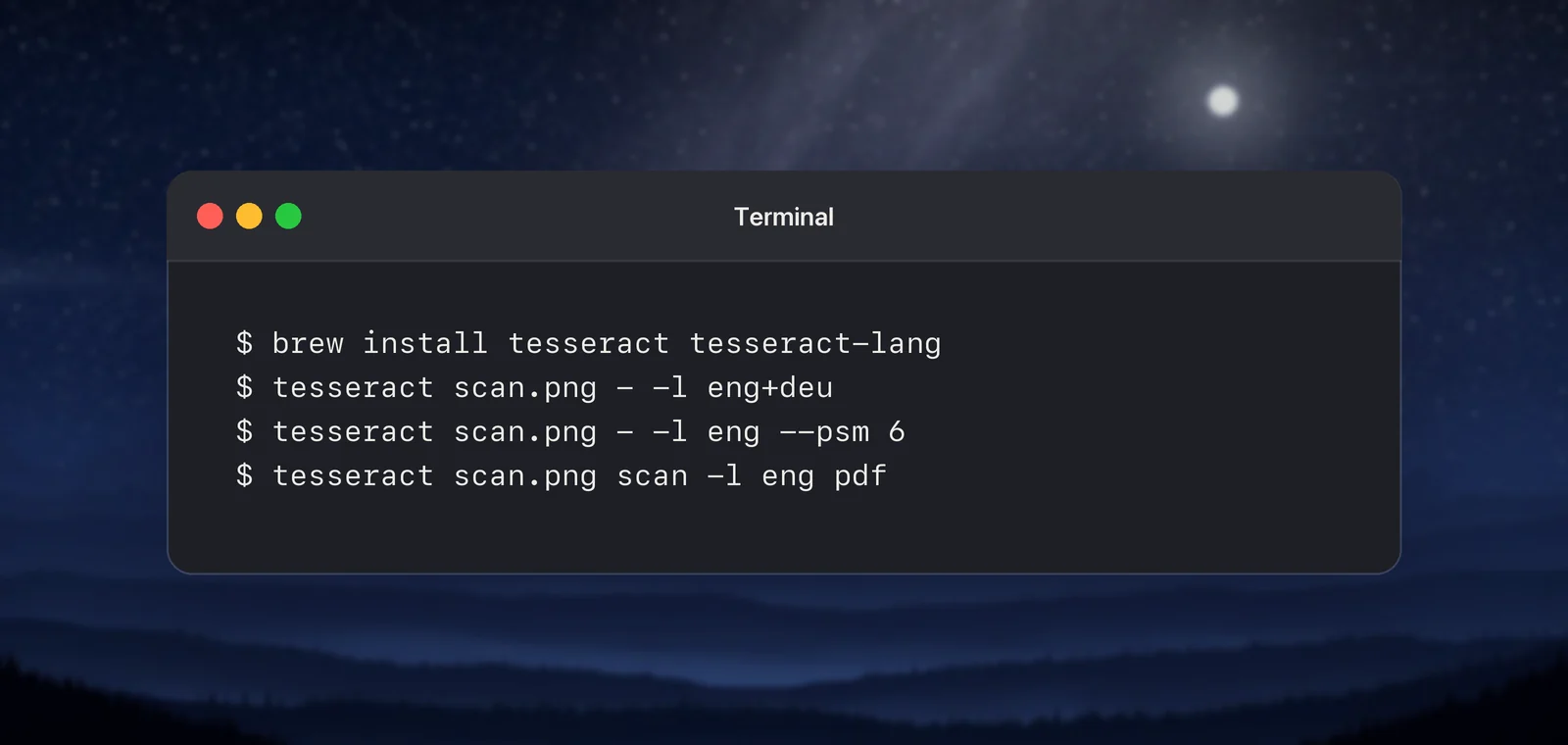
Tesseract is a command-line program and a C++ library:
- Install the engine with
brew install tesseract. Homebrew ships ready-built versions for Apple silicon. - Add the other languages with
brew install tesseract-lang. - Run
tesseract scan.png - -l engto print the text, or addpdfto write a searchable PDF.
Bindings exist for most languages, such as pytesseract for Python, and the same code runs on a Linux server. Our command-line OCR guide has working recipes for both engines.
Languages and scripts
This is where the two differ most.
Vision on macOS 26 reads 30 languages and variants in accurate mode: Western, Central and Eastern European languages, Russian and Ukrainian, Chinese and Cantonese, Japanese, Korean, Arabic, Thai, Vietnamese, Turkish, Indonesian and Malay. Fast mode reads six. The full list is in which languages Mac OCR can read.
Tesseract’s README says it recognizes more than 100 languages out of the box. Its trained models cover scripts Vision doesn’t, including:
- Greek, Hebrew and Hindi, which Vision on macOS 26 doesn’t read at all
- Historical text: Ancient Greek, Middle English, and German Fraktur (now published as
deu_latf) - Syriac, Sanskrit and many smaller languages
- Vertical Chinese, Japanese and Korean, with separate
_vertmodels
Tesseract can also be trained on new fonts or scripts, which Vision can’t. Its models come in two published sets: tessdata_best, described as the most accurate, and tessdata_fast, which its README calls a speed/accuracy compromise.
Screen text vs scans
The engines were shaped by different inputs.
Tesseract grew up on scanned pages. Its own documentation says it works best on images of at least 300 dpi. It also recommends straightening the page, removing dark scan borders and choosing a page segmentation mode (--psm 6 treats the image as one block of text; --psm 7 as a single line). For other input, the same guide suggests resizing low-resolution images, removing noise and, from version 4 on, using dark text on a light background. So a screenshot of small, light-on-dark interface text will usually need enlarging and cleaning up before Tesseract sees it.
Vision’s accurate mode uses a neural network that finds whole lines and words, which Apple compares to the way people read. It copes well with what screens produce: anti-aliased text, colour, gradients and some blur. In our tests on macOS 26, it read a 9-pixel sentence without a mistake in both Helvetica and Georgia, and white text on a slightly blurred blue-to-pink gradient. An 11-pixel Japanese label came back with two wrong characters when Vision guessed the language, and perfectly once Japanese was set.
One weak spot showed up, though. Vision’s text request returned nothing for columns of vertical Japanese, while Live Text’s engine (VisionKit’s ImageAnalyzer) read the same image correctly. Tesseract’s jpn_vert model is the other option. We didn’t benchmark Tesseract for this article, so test it on your own pages.
How we tested. We drew the samples ourselves and read them with Vision’s VNRecognizeTextRequest in accurate mode, and with ImageAnalyzer, on a Mac with an Apple M2 chip running macOS 26.6.2. Tesseract wasn’t installed on that Mac, so every statement about it here comes from its own documentation.
Speed on Apple silicon
Both are fast enough for interactive use on an Apple silicon Mac; the differences matter only in big batches. As a reference point, ocrmac’s README reports about 0.2 seconds per call for Vision’s accurate mode on an M3 Max. Tesseract runs on the CPU, and its time grows with page size and the number of languages you load.
Rather than trusting anyone’s numbers, time both on a sample of your own files. The second line assumes a shortcut named OCR that passes its input to Extract Text from Image:
time tesseract sample.png - -l eng > /dev/null
time shortcuts run "OCR" -i sample.png > /dev/null
Run each a few times and ignore the first run, which includes loading. Then compare the text, not just the clock: a faster engine that misreads your invoice numbers isn’t faster.
When Tesseract is the better pick
- Your language isn’t in Vision’s list: Greek, Hebrew, Hindi or another Indian script, or historical text.
- The code must run off the Mac: a Linux server, a Docker container, a Windows machine.
- You want files, not just text: a searchable PDF, hOCR or ALTO straight from the engine. OCRmyPDF builds on this for whole PDFs.
- You need to train it on an unusual font, a form layout or a script.
- Vertical CJK that Vision’s text request misses, if Live Text isn’t an option in your pipeline.
For everything else on a Mac, such as screenshots, photos, slides and mixed Chinese, Japanese and Korean text, Vision is less work and the more natural fit.
Where Unpixel fits
Unpixel, which we make, is an app rather than an engine: it uses Apple’s Vision on your Mac to copy text from anything on screen with ⇧⌘2. That means it inherits Vision’s strengths and its language list, including the gaps above. If you work mostly in Greek or Hebrew, Tesseract or a tool built on it will serve you better.
Frequently asked questions
Is Tesseract more accurate than Apple Vision?
It depends on the input. Tesseract’s own documentation says it works best on images of at least 300 dpi, such as good scans. Vision copes well with screen text: in our test it read a 9-pixel sentence and white text on a colour gradient without a mistake. We didn’t run Tesseract, so test both on a sample of your own files before committing.
How do I install Tesseract on a Mac?
With Homebrew: run brew install tesseract for the engine and English, and brew install tesseract-lang for the other languages. Homebrew offers ready-built versions for Apple silicon.
Can I use Apple Vision OCR from Python?
Yes, through wrappers such as the MIT-licensed ocrmac, which calls Vision (or the Live Text engine on recent macOS) and returns text with positions and confidence. It only runs on a Mac.
Does Live Text use the same engine as the Vision framework?
They’re closely related but not identical. Apple exposes Live Text to apps separately through VisionKit, and results can differ: in our test, Live Text read vertical Japanese that Vision’s text request didn’t.
Sources
- VNRecognizeTextRequest — Apple Developer Documentation developer.apple.com
- Recognizing Text in Images (fast and accurate paths) — Apple Developer Documentation developer.apple.com
- ImageAnalyzer (Live Text in your app) — Apple Developer Documentation developer.apple.com
- Tesseract OCR — GitHub (README and releases, read October 2026) github.com
- tesseract — Homebrew Formulae (read October 2026) formulae.brew.sh
- tessdata_best: trained models for Tesseract — GitHub github.com
- Improving the quality of the output — Tesseract documentation tesseract-ocr.github.io
- Command Line Usage — Tesseract documentation tesseract-ocr.github.io
- ocrmac — GitHub (README timings, read October 2026) github.com