Whether you have a MacBook Air, a MacBook Pro, an iMac or a Mac mini, screenshots work the same way: three shortcuts cover nearly everything, and an app covers the rest. This guide walks through each one, what to do when the keyboard isn’t an option, and how the shortcuts translate to a Windows keyboard.
Press ⇧⌘3 to capture the whole screen, or ⇧⌘4 and drag to capture part of it. Press ⇧⌘5 for a toolbar with window capture, a timer and screen recording. Screenshots land on the desktop as PNG files; add Control to any shortcut to copy the image instead. Without a keyboard, open the Screenshot app from the Utilities folder.
Whole screen: Shift-Command-3

Press ⇧⌘3. That’s it: there’s nothing to drag or click. You’ll hear a camera shutter if your sound is on, and a thumbnail slides into the bottom-right corner of the screen. Leave it for a few seconds and the screenshot is saved to your desktop.
With a second display connected, you get one image per display rather than one wide image. Everything visible is included, so close private windows and notifications first.
Part of the screen: Shift-Command-4
Press ⇧⌘4, drag a box around what you want, and let go. Two keys change what it does:
- Press Space before you drag to switch to capturing a single window. Click the window you want.
- Press Esc to cancel.
This is the shortcut most people end up using daily. Our guide to screenshotting part of your screen covers its extra tricks, such as moving the selection while you drag and leaving out a window’s shadow.
The Screenshot toolbar: Shift-Command-5
⇧⌘5 opens a small toolbar near the bottom of the screen. It’s the Screenshot app, and it puts every option in one place:
- Capture Entire Screen, Capture Selected Window and Capture Selected Portion take screenshots.
- Record Entire Screen and Record Selected Portion make a screen recording, saved as a MOV file.
- Options sets where captures are saved and adds a timer. It also shows or hides the floating thumbnail and the mouse pointer.
- Capture or Record starts it. Press Esc to close the toolbar.
On macOS Tahoe 26 and later, supported Macs also get a Capture Format choice in Options. SDR (Most compatible) saves PNG files, while HDR saves HEIF files that keep the extra brightness but don’t open everywhere.
Without the keyboard
If a key is broken, or you simply prefer the mouse or trackpad, the Screenshot app works without any shortcut:
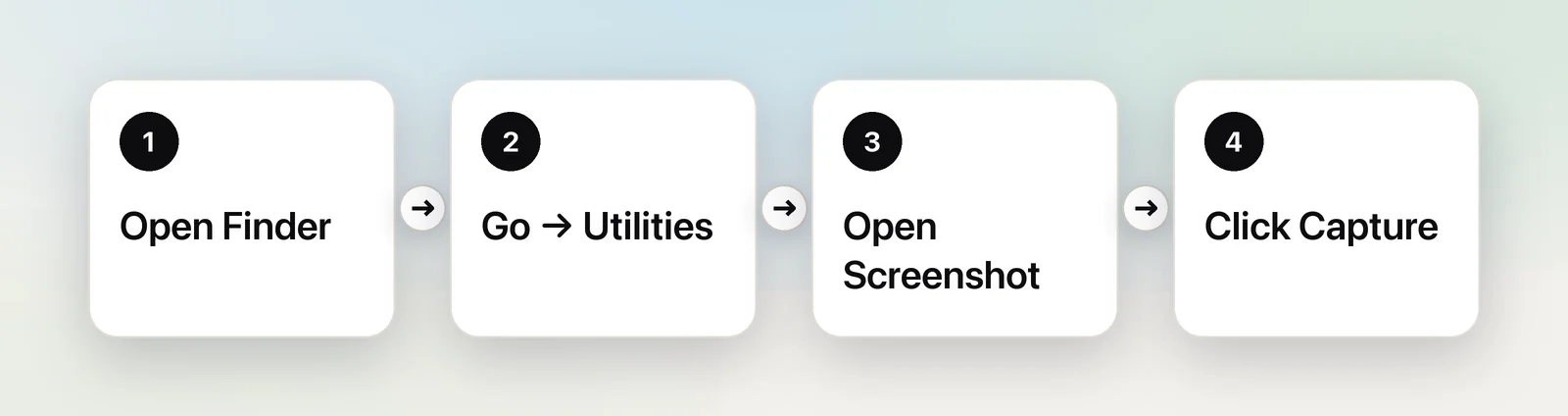
- Click Finder in the Dock.
- Choose Go → Utilities from the menu bar.
- Double-click Screenshot. The same toolbar as ⇧⌘5 appears.
- Pick a capture mode, then click Capture.
To keep it handy, Control-click the Screenshot icon in the Dock while it’s open and choose Options → Keep in Dock.
Preview is another route. Its File → Take Screenshot menu offers From Selection, From Window and From Entire Screen, and the result opens in Preview, ready to crop or annotate.
On a Windows keyboard
Apple’s rule for keyboards made for Windows PCs is simple: use Alt for Option, and the Windows logo key (or Ctrl) for Command. On most Windows keyboards plugged into a Mac, that makes the shortcuts:
| On a Mac keyboard | On a Windows keyboard |
|---|---|
| ⇧⌘3 | Shift + Windows logo key + 3 |
| ⇧⌘4 | Shift + Windows logo key + 4 |
| ⇧⌘5 | Shift + Windows logo key + 5 |
macOS doesn’t use the Print Screen key out of the box. You can give it a job, though. Open System Settings → Keyboard, click Keyboard Shortcuts… and select Screenshots. Double-click the shortcut next to Save picture of screen as a file, then press Print Screen (macOS may show it as F13). The same list is where you can turn screenshot shortcuts back on if they’ve stopped working.
Where screenshots go
Unless you’ve changed it, every screenshot lands on your desktop as a PNG file. Its name starts with “Screenshot” and includes the date and time it was taken. Screen recordings use the same naming, starting with “Screen Recording”.
To send them somewhere else, press ⇧⌘5, click Options and pick a place under Save to: Documents, Mail, Messages, Preview, Clipboard, or Other Location… for any folder. Choosing Clipboard means nothing is saved as a file; the image is ready to paste instead. Our guide to sending screenshots to the clipboard covers that habit.
Screenshot cheat sheet
| What you want | Press | Result |
|---|---|---|
| Whole screen | ⇧⌘3 | PNG on the desktop |
| Part of the screen | ⇧⌘4, then drag | PNG on the desktop |
| One window | ⇧⌘4, Space, click | PNG with the window’s shadow |
| Any of the above, to paste | Add ⌃ to the shortcut | Image on the clipboard |
| Timer, recording, save location | ⇧⌘5 | Screenshot toolbar |
| No keyboard | Applications → Utilities → Screenshot | Screenshot toolbar |
When you wanted the text, not a picture
A lot of screenshots are taken to keep a few words: a confirmation number, an address, an error message. The picture can’t be searched or edited, so you end up reading the words back out of it. Live Text does that for free: select the screenshot in Finder, press Space, drag across the words and copy them. Copying text from a screenshot explains the details.
If that’s your usual reason for a screenshot, Unpixel skips the picture. Press ⇧⌘2, drag over the words just as you would with ⇧⌘4, and let go. The recognised text goes straight to your clipboard, read on your Mac, and no image file is created.
Frequently asked questions
How do I screenshot on a MacBook Air or MacBook Pro?
Exactly as on any other Mac: ⇧⌘3 for the whole screen, ⇧⌘4 for part of it and ⇧⌘5 for the toolbar. The shortcuts are the same on every Mac keyboard.
Why won’t my Mac take a screenshot?
Some apps, such as the Apple TV app, don’t allow screenshots of their windows, and a Mac managed by an employer or school can have screen capture restricted. If the shortcuts do nothing anywhere, check System Settings → Keyboard → Keyboard Shortcuts… → Screenshots in case they were changed or turned off.
Can a Mac take a scrolling screenshot of a whole web page?
Not with the built-in tools: they capture what’s visible on screen. In Safari, File → Export as PDF saves a whole page as a PDF instead; for a single tall image you need a third-party app.
Sources
- Take a screenshot on Mac — Apple Support support.apple.com
- Take screenshots or screen recordings on Mac — Apple Support (Mac User Guide) support.apple.com
- Mac keyboard shortcuts (Windows keyboards) — Apple Support support.apple.com