Screen sharing in a video call shows only your wallpaper, a recorder captures a black rectangle, or a screenshot tool says it “needs permission”. All three point at the same macOS setting. Here’s where it lives, how to grant or take it back for any app, and why the app usually has to restart before it works.
Open System Settings → Privacy & Security → Screen & System Audio Recording and turn on the switch next to the app. If the app isn’t listed, click the Add button (+) under the list and choose it from Applications. Most apps only notice the new permission after a restart, so choose Quit & Reopen when macOS offers it, or quit and reopen the app yourself.
What the permission allows
macOS doesn’t let apps look at what’s on your screen by default. An app that wants to see other apps’ windows has to be on the Screen & System Audio Recording list in Privacy & Security, and you’re the only one who can put it there. The permission covers two things:
- The screen: the pixels of other apps’ windows, the desktop and anything else visible while the app captures.
- System audio: the sound your Mac plays, such as the other side of a call or a video’s soundtrack. Apple’s settings let an app record your screen and audio, or only audio.
The apps that typically ask are video-call apps (to share your screen), browsers (for screen sharing in web meetings), screen recorders, screenshot and text-capture tools, and remote-support apps. A text editor or a game has no business asking.
Grant it in Privacy & Security
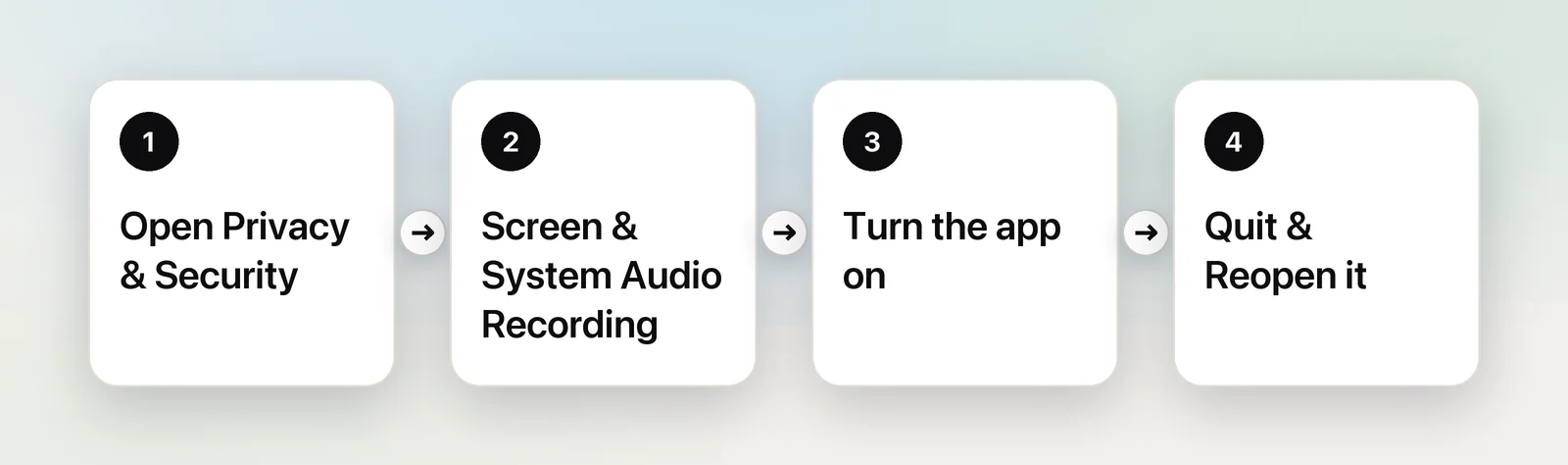
- Choose Apple menu → System Settings.
- Click Privacy & Security in the sidebar.
- Scroll down on the right and click Screen & System Audio Recording.
- Find the app in the list and turn its switch on. Enter your password or use Touch ID if asked.
- When macOS says the app can’t record until it quits, choose Quit & Reopen.
Many apps open this pane for you: their permission prompt usually has an Open System Settings button. You can also type “screen recording” into the search field at the top of System Settings. The pane has the same name and place in macOS Tahoe and macOS 27.
Add an app that isn’t listed
An app normally appears in the list the first time it asks. If it never asked, or you removed it, add it yourself:
- In Screen & System Audio Recording, click the Add button (+) below the list.
- Go to Applications, select the app and click Open.
- Turn on its switch, then quit and reopen the app.
If you can’t find the app in Applications, it may live elsewhere, such as in a folder inside Applications or in your Downloads folder. Move it to Applications first, then add it from there.
Why the app needs to restart
Apps check whether they may capture the screen when they start, and macOS doesn’t hand a running app the new permission. That’s why the switch can be on while the app still captures black or just your wallpaper. Quit it fully and open it again: with Quit & Reopen, or with ⌘Q and a relaunch.
If the app still can’t capture after a restart, see Screen Recording permission not working. If macOS asks about the same app over and over, see why Screen Recording keeps asking.
Revoke it
Go back to Privacy & Security → Screen & System Audio Recording and turn the app’s switch off. The app can no longer capture other windows; restart it if it was in the middle of a recording.
To clear an app from the list completely, select it and click the Remove button (−) below the list. The next time it wants to capture, it has to ask again. Removing and re-adding an app is also the standard fix when the switch says on but the app behaves as if it were off.
It’s worth doing a quick review now and then: every app on this list could see your screen whenever it runs. For a wider review, our Mac privacy settings audit goes through the other sensitive permissions too.
Screen, sound and the microphone
These three are separate. Screen & System Audio Recording covers what’s on screen and what your Mac plays. Your voice goes through the Microphone list in Privacy & Security, which a call app needs as well. When an app records system audio, macOS shows a purple dot in the menu bar, so you can see when it’s happening. Our guide to Mac menu bar privacy indicators explains the other dots and icons.
In Unpixel
This is the only macOS permission Unpixel asks for. It doesn’t use the microphone, and its keyboard shortcut works without Accessibility access. It uses the permission only for the rectangle you drag after pressing ⇧⌘2: once when you let go, and once more each time you press Capture Again (⇧⌘1) to reread that rectangle. Nothing is recorded or saved as video, and the recognized text stays on your Mac.
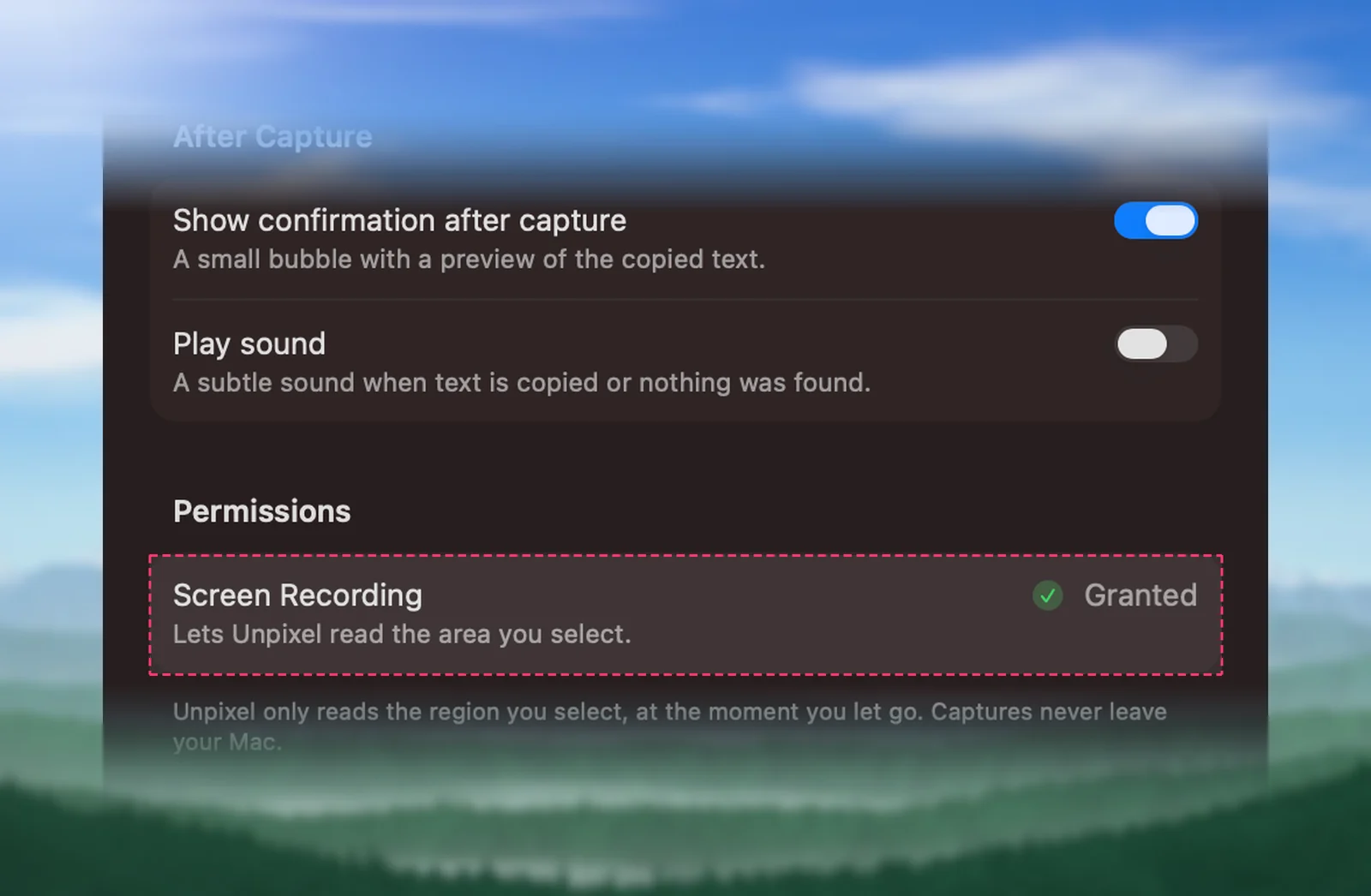
You can check the status at any time in Settings → General, which shows Granted or Not granted; when it’s missing, an Open System Settings button takes you to the right pane. During setup, if macOS needs Unpixel to restart before the permission takes effect, it offers a Relaunch Unpixel button. The help article on Screen Recording covers the details.
Quick checklist
- The setting: System Settings → Privacy & Security → Screen & System Audio Recording.
- App missing? Add it with + from Applications.
- Switch on but still black? Quit and reopen the app.
- Web meeting? Give the permission to the browser.
- Review the list now and then, and remove apps you no longer use.
Frequently asked questions
Is it safe to give an app Screen Recording permission?
It lets the app see anything on your screen while it runs, including other apps’ windows and notifications. Grant it only to apps you trust that clearly need it, and turn it off again for apps you stop using.
Why can’t I turn the switch on?
On a Mac managed by an employer or school, a configuration profile can block or lock this permission. Only the administrator can change it, so ask your IT team rather than looking for a workaround.
Do I have to grant it again after an app update?
Usually not. If macOS sees a different build of the app, such as a copy downloaded again from another source, it can treat it as a new app; turn the switch off and on, or remove the app and add it again.
Does Screen Recording permission include the microphone?
No. The microphone has its own list in Privacy & Security → Microphone. Screen & System Audio Recording covers the picture on your screen and the sound your Mac plays.