You want the whole page: a long article, a receipt, a settings screen that scrolls, a full conversation. On iPhone, Safari offers a “Full Page” option after a screenshot. On a Mac, the built-in Screenshot tool has nothing like it. There are still good ways to get a long capture, and most of them are already in your browser.
The Mac’s Screenshot tool can’t scroll, so a long capture needs another route. For a web page: in Firefox, right-click and choose Take Screenshot → Save full page; in Chrome, open DevTools, press ⇧⌘P and run Capture full size screenshot; in Safari, use File → Export as PDF. For chats and other apps, you need a third-party app with scrolling capture.
macOS has no built-in scrolling capture
The screenshot shortcuts (⇧⌘3, ⇧⌘4) and the ⇧⌘5 toolbar capture what’s on screen at that moment, nothing more. There’s no option to scroll while capturing, and Preview has no tool for stitching several screenshots into one tall image.
So the route depends on what you’re capturing:
| What you need | Best route |
|---|---|
| A web page as an image | Firefox or Chrome’s full-page screenshot |
| A web page as a PDF | Safari’s File → Export as PDF |
| A chat, an app window, a long settings pane | A third-party app with scrolling capture |
| Just the words | No screenshot at all (see the last section) |
Safari: Export as PDF
Safari doesn’t make a long image directly, but it can save a whole page as a PDF:
- Open the page and scroll to the bottom once, so lazy-loaded images appear.
- Choose File → Export as PDF….
- Pick a name and location, then click Save.
The result usually keeps the page’s on-screen layout on one very tall PDF page. That’s great for reading and archiving, but awkward to print. If you want normal page breaks, use File → Print and choose Save as PDF from the PDF menu instead. Need a PNG? Open the PDF in Preview and choose File → Export…, then PNG or JPEG.
Safari also has a developer route that saves a real PNG. Turn on Show features for web developers in Safari → Settings → Advanced, choose Develop → Show Web Inspector (⌥⌘I), then in the Elements tab right-click the top html line and choose Capture Screenshot.
Firefox: Save full page
Firefox has the friendliest built-in full-page screenshot:
- Right-click (or two-finger click) an empty spot on the page.
- Choose Take Screenshot.
- Click Save full page. Save visible captures only what’s on screen.
- Click Download to save a PNG, or Copy to put it on the clipboard.
You can also start it from the toolbar if you’ve added the Screenshot button there.
Chrome: a DevTools command
Chrome hides its full-page capture in the developer tools, but it works on any page:
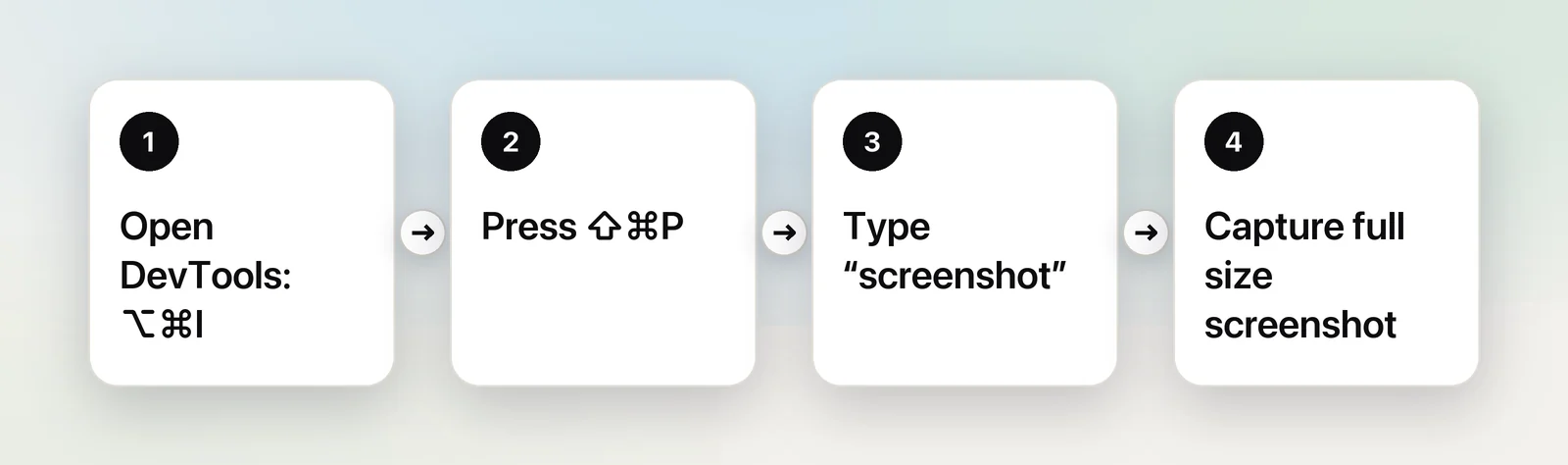
- Press ⌥⌘I to open DevTools.
- Press ⇧⌘P to open the Command Menu.
- Type “screenshot”.
- Choose Capture full size screenshot. Chrome saves a PNG to your Downloads folder, or asks where to save it if you’ve set it to.
The same menu has Capture node screenshot, which saves just the element you’ve selected in the Elements panel. That’s handy for a single table or card.
Where browser captures fall short
All three browser methods have the same blind spots:
- Scrolling areas inside the page. Many web apps, such as mail, chat and dashboards, scroll a panel rather than the page. A full-page capture then shows only the visible part of that panel.
- Endless feeds. A page that keeps loading more posts never has a bottom.
- Fixed headers and pop-ups. Sticky bars, cookie banners and chat bubbles can end up in odd places. Close them first.
- Very long pages can produce huge files, or the capture can fail.
Third-party apps
For native apps, chats and those scrolling panels, a screenshot app with scrolling capture is the practical answer. As of October 2026, CleanShot X lists a scrolling capture that “works in every app”, vertically and horizontally, and Shottr lists scrolling screenshots and can be used for free with occasional reminders to buy. Check each app’s site for current prices and the macOS versions it supports. Our roundup of screenshot apps for Mac compares more options.
If you only need the text
A tall screenshot is often a detour. If you’re going to paste the words somewhere, skip the image:
- Selectable text: press ⌘A and ⌘C, or turn on Safari’s Reader and copy from there.
- A page that blocks copying: an exported PDF often has selectable text. See how to copy text from a website that won’t let you.
- Text inside images, video or a shared screen: that needs text recognition.
In Unpixel
Unpixel doesn’t take scrolling screenshots. It reads the area you can see: press ⇧⌘2, drag over the visible text and let go, and the words are on your clipboard. For a long page, capture it screen by screen. If you’ve saved the page as a PDF with page breaks, Open Image… in Unpixel reads up to 50 pages in one go. It doesn’t save screenshots or create PDFs; the list of what Unpixel can’t do has the details.
Quick checklist
- Firefox: right-click → Take Screenshot → Save full page.
- Chrome: ⌥⌘I, ⇧⌘P, Capture full size screenshot.
- Safari: File → Export as PDF…, or Web Inspector’s Capture Screenshot.
- Scroll to the bottom first so lazy images load.
- Apps and chats: a third-party scrolling capture tool.
- Only need words: copy the text instead of capturing an image.
Frequently asked questions
Can the Mac Screenshot app take a scrolling screenshot?
No. ⇧⌘3, ⇧⌘4 and the ⇧⌘5 toolbar capture only what’s visible on screen at that moment. For anything longer you need a browser’s own tool or a third-party app.
Why are parts of my full-page screenshot blank?
Many pages only load images as you scroll near them. Scroll slowly to the bottom of the page and back up before you capture, so everything has loaded.
How do I capture a long chat or document that isn’t a web page?
Browser tools only work on web pages. For other apps, look for an export or print-to-PDF option in the app itself, or use a screenshot app with scrolling capture.
Sources
- How to capture screenshots instantly with Firefox — Mozilla blog.mozilla.org
- Take a screenshot on Mac — Apple Support support.apple.com
- 4 ways to capture screenshots with DevTools — Chrome for Developers developer.chrome.com
- Simulate mobile devices with device mode (Capture a full size screenshot) — Chrome for Developers developer.chrome.com
- How should you save web pages in Safari? — The Eclectic Light Company eclecticlight.co
- Features (Scrolling capture) — CleanShot X cleanshot.com
- Shottr — screenshot tool for Mac shottr.cc