A photo of a street sign, a screenshot of a chat in another language, a scan someone emailed you: the words are there, but your Mac sees a picture. To translate it, something has to read the text first, and then something has to translate it. macOS can do both on its own, as long as the image is open in the right app.
Open the image in Preview or Photos, drag across the words with Live Text, Control-click the selection and choose Translate. With the language downloaded, that works offline. For something on screen, press ⌃⇧⌘4 to copy a screenshot, then choose File → New from Clipboard in Preview. Google Translate’s Images tab translates a whole picture at once, but the image is uploaded to Google.
Live Text → Translate in Preview and Photos
Live Text recognizes the text in images on your Mac, and the same menu that copies it can translate it.
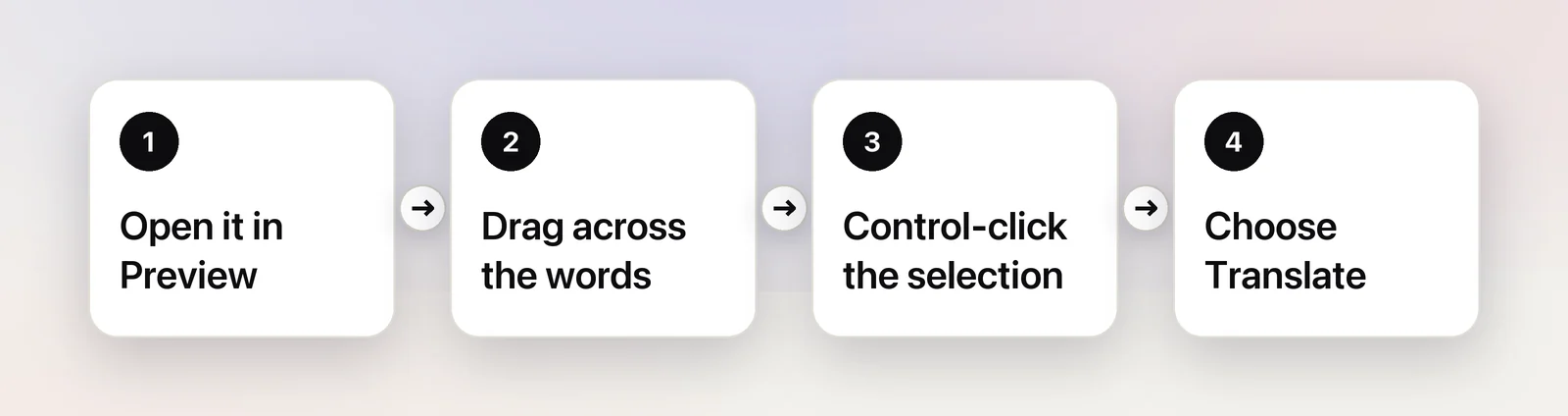
- Open the image in Preview (double-click most image files) or in Photos.
- Move the pointer over the text. When it turns into a text cursor, drag across the words you want.
- Control-click the selection.
- Choose Translate “…”, then pick the language you want it in. Click Copy Translation to take it with you.
A few things make the difference between a clean translation and nonsense:
- Select one block at a time. A poster with a headline, a date and a small-print footer translates better as three selections than as one.
- Mind the direction of the text. Curved, rotated or decorative lettering is often misread, and the translation inherits every misread letter.
- Check the source language in the translation window. On a photo with two languages, macOS may guess the wrong one.
If dragging draws a rectangle in Preview, choose Tools → Text Selection. If no app lets you select text in images, turn on Live Text in System Settings → General → Language & Region.
Translate the whole picture with a web translator
Sometimes you want the translation laid over the image, for example on a menu or a museum label with dozens of short bits of text. Google Translate on the web does that:
- Go to translate.google.com and click the Images tab.
- Choose the languages to translate from and to.
- Click Browse your computer and pick the image.
As of October 2026, Google’s help page notes that small, unclear or stylized text may be translated less accurately. The trade-off is privacy: the image is uploaded to Google to be read. That’s fine for a restaurant menu, and a poor idea for a passport, a medical letter, a bank statement or a screenshot of a private conversation. For those, stay with Live Text, which reads the image on your Mac.
Translate a screenshot without saving it
Translating something you see on screen usually starts with a screenshot. You don’t need a file on your desktop for it:
- Press ⌃⇧⌘4 and drag over the text. Adding Control copies the screenshot instead of saving it.
- Open Preview and choose File → New from Clipboard.
- Select the text, Control-click it and choose Translate.
- Close the window without saving it.
The guide to translating text on screen covers the cases where you can skip the screenshot altogether.
Translate image files you already have
The Live Text route is one file at a time, opened in an app. If you translate images often, for example screenshots from a supplier or photos from a trip, it helps to have a tool that reads the file and hands you the translation directly.
In Unpixel
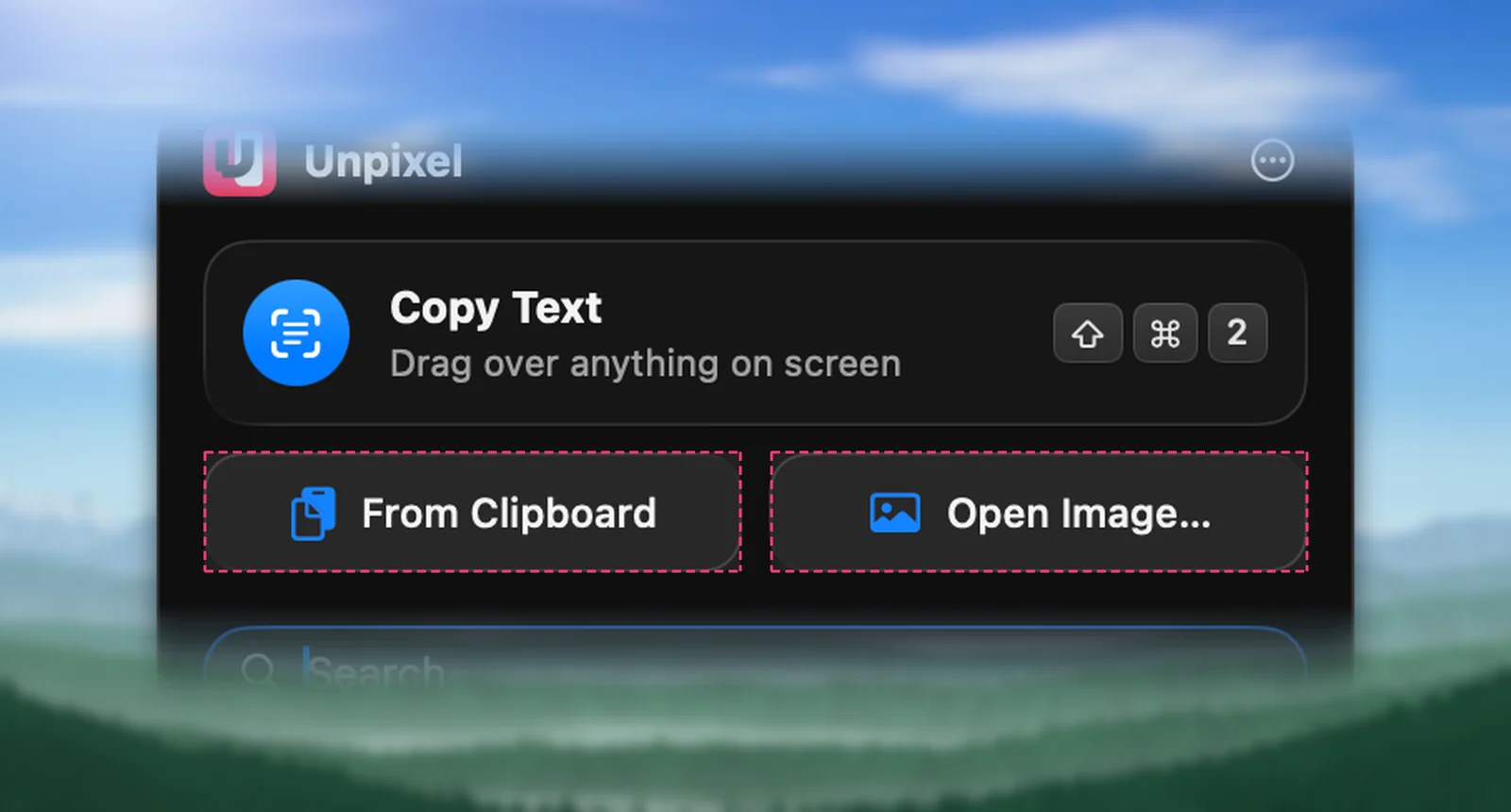
Unpixel reads image files as well as the screen. Click Open Image… in its menu bar panel and choose PNG, JPEG, HEIC, TIFF, GIF, BMP or WebP files. You can also drag files onto the panel or the menu bar icon, or use Open With → Unpixel in Finder. A screenshot you’ve already copied can be read with From Clipboard.
To get a translation rather than the original text from a file:
- Translate automatically. In Settings → Translation, turn on Always translate text that isn’t in your language. Every capture in a downloaded language, files and clipboard images included, is then copied in your language. Very short snippets and code are left as they are.
- Translate one capture afterwards. With history on, open the file as usual, then right-click the capture in the history list and choose Translate & Copy. The history keeps the original, so Copy Original still works later.
Text is recognized by Apple’s Vision framework and translated by Apple’s Translation framework, both on your Mac. Automatic translation only uses languages that are already downloaded: otherwise it copies the original and the confirmation names the missing language. Translate & Copy lets macOS offer the download.
Keep the original next to the translation
A translation on its own is hard to check. Names, addresses, prices and phone numbers in particular should be compared with the source, and if you’re learning the language, the original is the part you want to read.
With the built-in tools, copy the text first (Copy Text in the Control-click menu), paste it into a note, then translate and paste the translation below it. In Unpixel, Copy original and translation in Settings → Translation puts both on the clipboard in one go: the original, a blank line, then the translation.
Checklist
- Clear photo first: straight on, in focus, the text filling a good part of the frame.
- One block of text per selection, in one language.
- Private images stay on your Mac: Live Text and downloaded languages, no upload.
- Menus and labels: dish names and brand names often translate literally; the guide to translating a menu photo has more.
- Allergies, medicine, legal terms: confirm with a person, not just a translator.
Frequently asked questions
Can I translate an image on Mac without uploading it anywhere?
Yes. Live Text reads the text on your Mac, and the Translate option uses languages you can download in System Settings → General → Language & Region → Translation Languages. Apple notes that offline translations may be less accurate than online ones.
Why doesn’t Translate appear when I select text in a photo?
Check that Live Text is on in Language & Region, and that the words are really selected (highlighted), not just boxed. Translation also isn’t available for every language or in every region.
Can I translate a HEIC photo from my iPhone?
Yes. Preview and Photos open HEIC files, so Live Text and Translate work on them as on any JPEG or PNG.
Sources
- Interact with text in a photo in Preview on Mac — Apple Support support.apple.com
- Use Live Text to interact with text in a photo in Photos on Mac — Apple Support support.apple.com
- Translate text on Mac — Apple Support (Mac User Guide) support.apple.com
- Translate images — Google Translate Help support.google.com