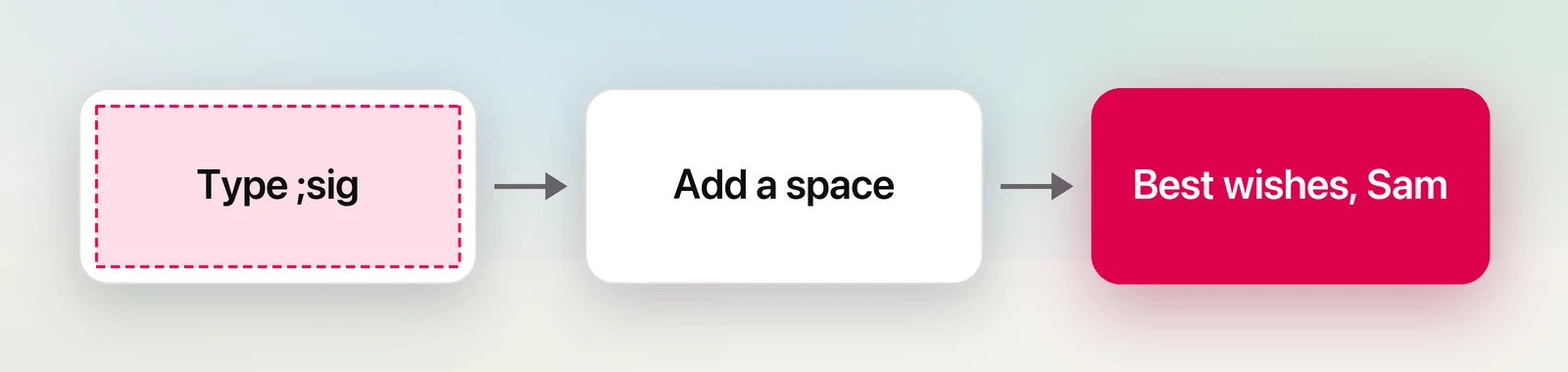
Some things you type over and over: your email address, a delivery address, a meeting link, the same polite closing line. macOS can type them for you. Text replacement swaps a short code for longer text as you type, in most apps, and it’s been built into the Mac for years. It takes a minute to set up and saves keystrokes every day after.
Open System Settings → Keyboard and click Text Replacements… under Text Input. Click +, type a short code under Replace (such as ;addr) and the full text under With, then click Done. Type the code followed by a space or punctuation in most apps and it expands. With iCloud Drive on, replacements sync to your iPhone and iPad.
Add a replacement
- Choose Apple menu → System Settings, then click Keyboard in the sidebar.
- Under Text Input, click Text Replacements….
- Click + at the bottom of the list.
- Under Replace, type the code, such as
;addr. - Under With, type or paste the full text it should become.
- Press Return, then click Done.
Test it in TextEdit or Notes: type the code, then a space. The full text replaces it.
You can reach the same list from inside many apps. Choose Edit → Substitutions → Show Substitutions, then click Text Settings. That’s also where you can apply your replacements to text you’ve already written: select it, tick Text Replacement and click Replace in Selection.
Good things to automate
Replacements work best for short, fixed text you type often and would hate to mistype:
- Contact details: email addresses, a phone number, a postal address.
- Links: your video-call room, a booking page, a portfolio.
- Sign-offs and stock replies: “Thanks, I’ll get back to you by Friday.”
- Symbols that are fiddly to type:
->to →,;checkto ✓,;degto °. - Words you always misspell, or product names with unusual capitals.
Replacements insert fixed text only. They can’t insert today’s date, put the cursor in the middle, or keep bold and links. If you need any of that, a text expander app is the better tool (see below).
In Unpixel
Sometimes the text you want to save as a replacement is stuck in a picture: an address on a scanned letter, a reference number in a PDF that won’t let you select it. With Unpixel, press ⇧⌘2 and drag over it, and the words are on your clipboard, ready to paste into the With field.
Sync to iPhone and iPad
Your replacements follow your Apple Account. To keep them the same everywhere, turn on iCloud Drive on each device and sign in with the same Apple Account. On an iPhone or iPad, they’re in Settings → General → Keyboard → Text Replacement, and anything you add there comes back to the Mac.
Sync isn’t instant, and it isn’t always tidy. TidBITS reported in May 2026 that after a series of large imports, its editor’s iPhone ended up with a different set of replacements from his Macs. If a device seems out of step, give it time, and keep a backup before making big changes.
Back up or import replacements
There’s no Export button. Instead, Apple’s method is drag and drop:
- Open System Settings → Keyboard → Text Replacements….
- Select the replacements to save. Press ⌘A to select them all.
- Drag them out of the window onto the desktop. A file called “property list.plist” appears.
To import, open the same window on the other Mac, or the same Mac later, and drag the file into the list. Then click Done.
The file is plain text, so you can edit it in TextEdit or share it with a colleague. Keep imports small, though: TidBITS found that files with around 1,000 entries imported unpredictably, while about 100 at a time usually worked.
Apps where it doesn’t expand
Text replacement is part of Apple’s text system, so it works in apps that use it: Mail, Messages, Notes, Pages, TextEdit, Safari and many others. Elsewhere, results vary:
- The app has it switched off. Many apps have their own Edit → Substitutions → Text Replacement toggle. If it’s unticked, nothing expands in that app.
- The app draws its own text fields. Some cross-platform apps, games and terminals handle typing themselves and never see your replacements.
- The app has its own list. Microsoft Word, for instance, has its own AutoCorrect entries, which you may need to set up separately.
- Password fields don’t expand them. That’s just as well: a replacement is no place to keep a password.
If a replacement works in TextEdit but not in one particular app, that app is the cause, not your settings. Our text replacement troubleshooting guide covers the less obvious fixes.
When to use a text expander
Text Replacements are free and good enough for most people. A text expander app makes sense when you want:
- dynamic content, such as today’s date or whatever is on the clipboard;
- multi-paragraph templates with formatting and links;
- fill-in fields, so one snippet works for many recipients;
- expansion in apps that ignore the built-in replacements.
As of October 2026, launchers such as Raycast and Alfred both include snippet expansion. Raycast’s Snippets auto-expand a keyword in any app and support dynamic placeholders. Alfred’s snippets are part of its paid Powerpack and can insert the date, time or clipboard contents and position the cursor. Dedicated text expander apps go further still, with shared team libraries.
Quick checklist
- Where: System Settings → Keyboard → Text Replacements….
- Codes: start them with
;or another unusual character. - Trigger: type the code, then a space or punctuation.
- Not expanding? Check Edit → Substitutions → Text Replacement in that app.
- Backup: select all and drag to the desktop.
- Need dates, fields or formatting: a text expander app.
Frequently asked questions
Why isn’t my text replacement expanding?
Type a space or punctuation after the code, and check that the app has Edit → Substitutions → Text Replacement ticked. Some apps, especially ones that don’t use Apple’s text system, ignore replacements entirely.
Do text replacements work on iPhone?
Yes. With iCloud Drive on and the same Apple Account on both devices, replacements you add on your Mac also appear in Settings → General → Keyboard → Text Replacement on your iPhone.
What’s the difference between Text Replacements and a text expander app?
Text Replacements swap a code for fixed text. Text expander apps add extras such as today’s date, the clipboard’s contents, fill-in fields and formatted snippets.
Sources
- Replace text and punctuation in documents on Mac — Apple Support support.apple.com
- Back up and share text replacements on Mac — Apple Support support.apple.com
- macOS Text Replacement Export/Import Works Great Until It Doesn’t — TidBITS tidbits.com
- Snippets — Raycast raycast.com
- Snippets — Alfred Help alfredapp.com